

Team manager
Onboard players with a claim link
Put one link in your team chat and parents fill in their own child. You approve the result instead of typing every roster entry yourself.
What a claim link is
A claim link is a self-service door into your roster. Every link has two forms that both lead to the same place:
A link
Parents and players tap it in your team chat. Nothing to type.
A 6-character join code
For anyone who cannot tap a link. They enter it manually on the join page.
Whoever opens it fills in a name and date of birth, HoopersHub matches them against your roster, and anything that needs a decision lands in your Claim Requests tab for approval.
This guide is about inviting players. If you are here because a league manager sent you an invitation to take over the team itself, read Claim your team first: it hands you the team, and the links below are what you use afterwards.
Manage › Team › your team › Player Onboarding. That page has three tabs: Claim Requests, Invitations and Claim Link. Cannot see it? You are probably in another role: switch to Team Manager.

images/tm-01-player-onboarding-tabs.png
The three tabs across the top of the Player Onboarding page.
1. Create the link
One link can cover your whole team, or you can scope it to a single competition so parents pick from a short list instead of everything your team plays in.
-
Open the Claim Link tab
Go to Manage › Team › your team › Player Onboarding and select Claim Link. If you have never made one, you will see No claim links are active.
-
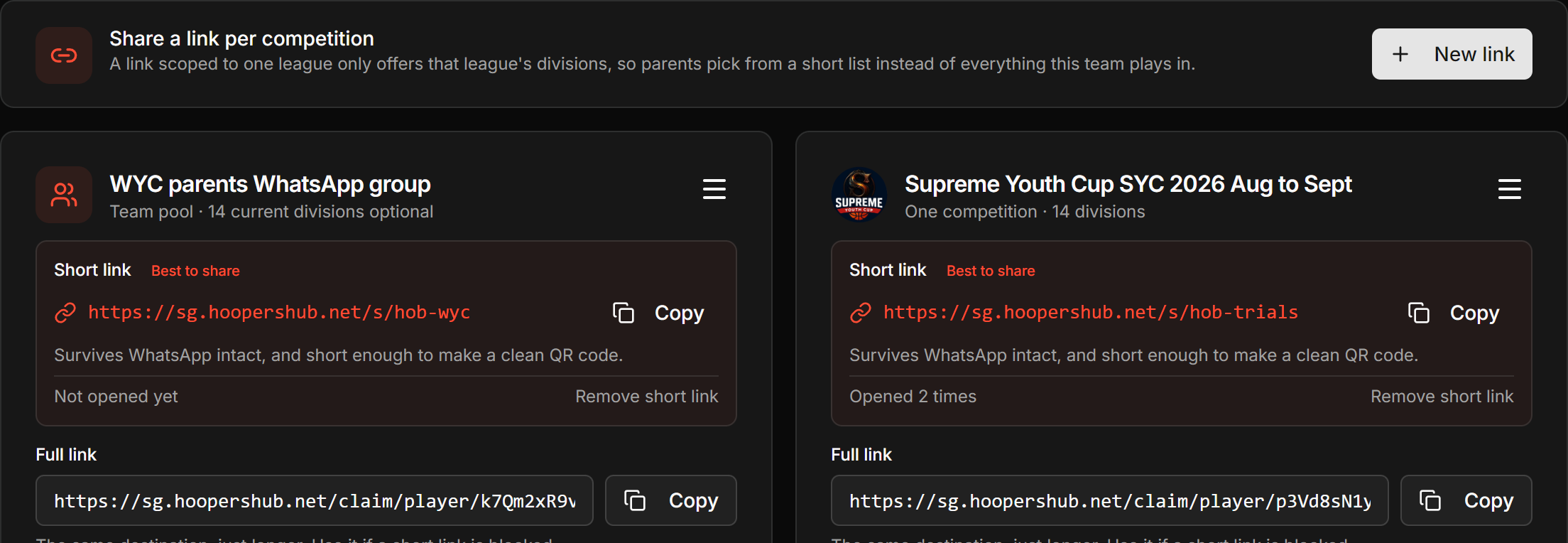
Press New link
The New claim link dialog opens with two fields.
 Screenshot: New link button
images/tm-02-new-link-button.pngThe Claim Link tab, with New link at the top right.New link sits at the top right. Any links you already have are listed underneath. -
Choose what the link is for
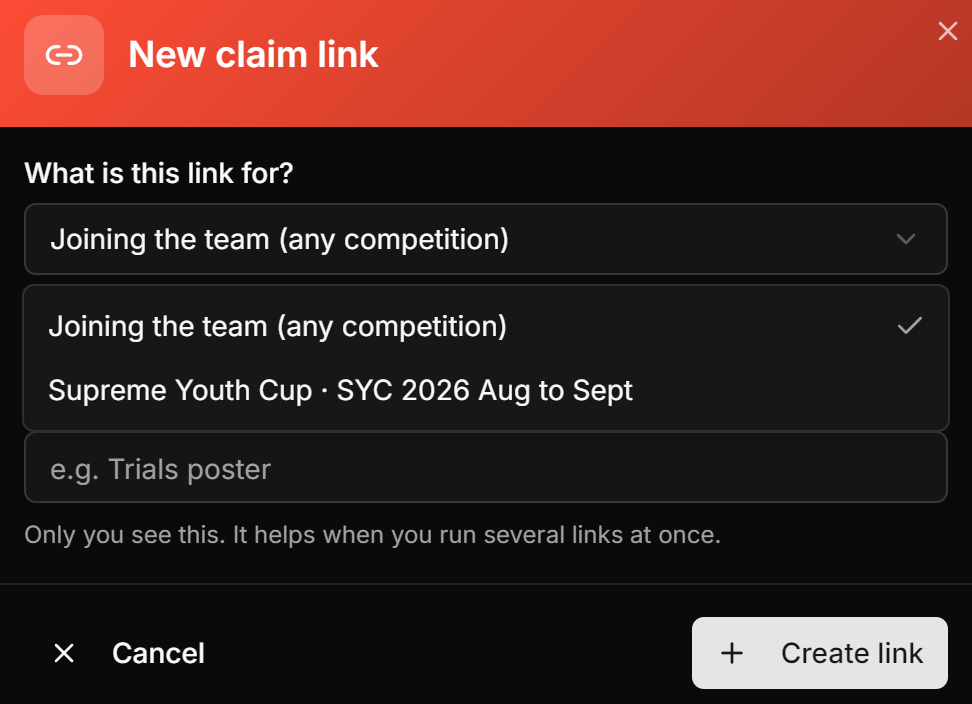
The What is this link for? dropdown decides which divisions a parent gets offered at the end of their sign-up:
Choice What the parent sees Use it when Joining the team (any competition) Every competition your team currently has running, or none at all. You are filling your team pool, running trials, or onboarding before the season is set. A specific league and season Only the divisions your team entered in that competition. You are recruiting for one tournament and do not want parents guessing. If your team has no competitions running, the dropdown says so and the link can only add players to your pool. That is still useful: joining the team is the part that matters, and you add them to competitions later.
-
Name it, then press Create link
The Name it field is optional and only you ever see it. It earns its keep the moment you run more than one link at a time, for example WYC parents WhatsApp group next to Trials poster.
 Screenshot: New claim link dialog
images/tm-03-new-link-dialog.pngThe dialog with the scope dropdown open, showing the competition options.Scoping to a competition tells the parent exactly which divisions to pick from.
One per competition, one for trials, one for a printed poster. They all feed the same Claim Requests tab, and each one can be revoked on its own.
2. Shorten it before you share
This step is not optional in practice. Do it before the link goes anywhere near a chat app.
The full claim URL carries a 64-character security token. WhatsApp, Telegram and most chat apps truncate a link that long, and a truncated claim link simply does not work. The shortened form survives intact and is small enough to turn into a clean QR code if you are printing something.
-
Press Shorten it on the link card
The card shows a warning under the full URL until you do: Long enough that chat apps often truncate it. Shortening is recommended.
-
Pick a generated address, or write your own
A custom address is worth it when people will read the link out loud or type it from a poster. Something like
hob-wycgives yousg.hoopershub.net/s/hob-wyc. HoopersHub checks availability as you type.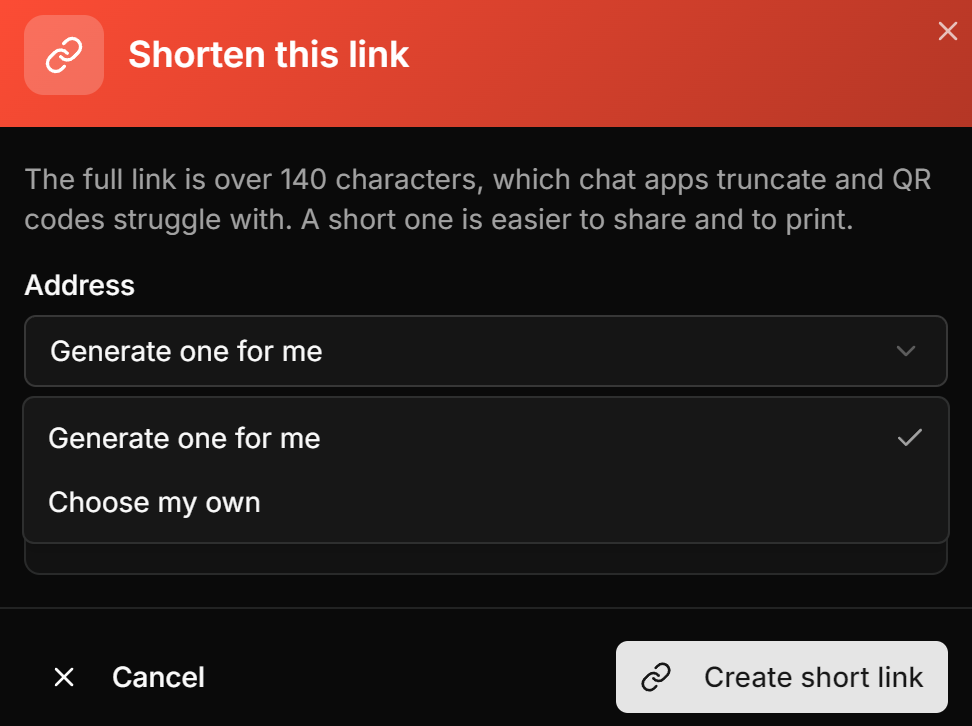 Screenshot: Shorten this link dialog
images/tm-04-shorten-dialog.pngThe dialog with the Address selector open on its two options.Let it generate one, or pick your own address if the link will be read aloud or printed.
Once a short link exists, the Share via WhatsApp button uses it automatically. If you are copying and pasting by hand, copy the short one.
3. Share it in your team chat
-
Use Share via WhatsApp
It opens WhatsApp with the message already written (Join [your team] on HoopersHub: [link]) and you pick the chat to send it to. Nothing is sent until you choose.
-
Include the join code for anyone who cannot tap a link
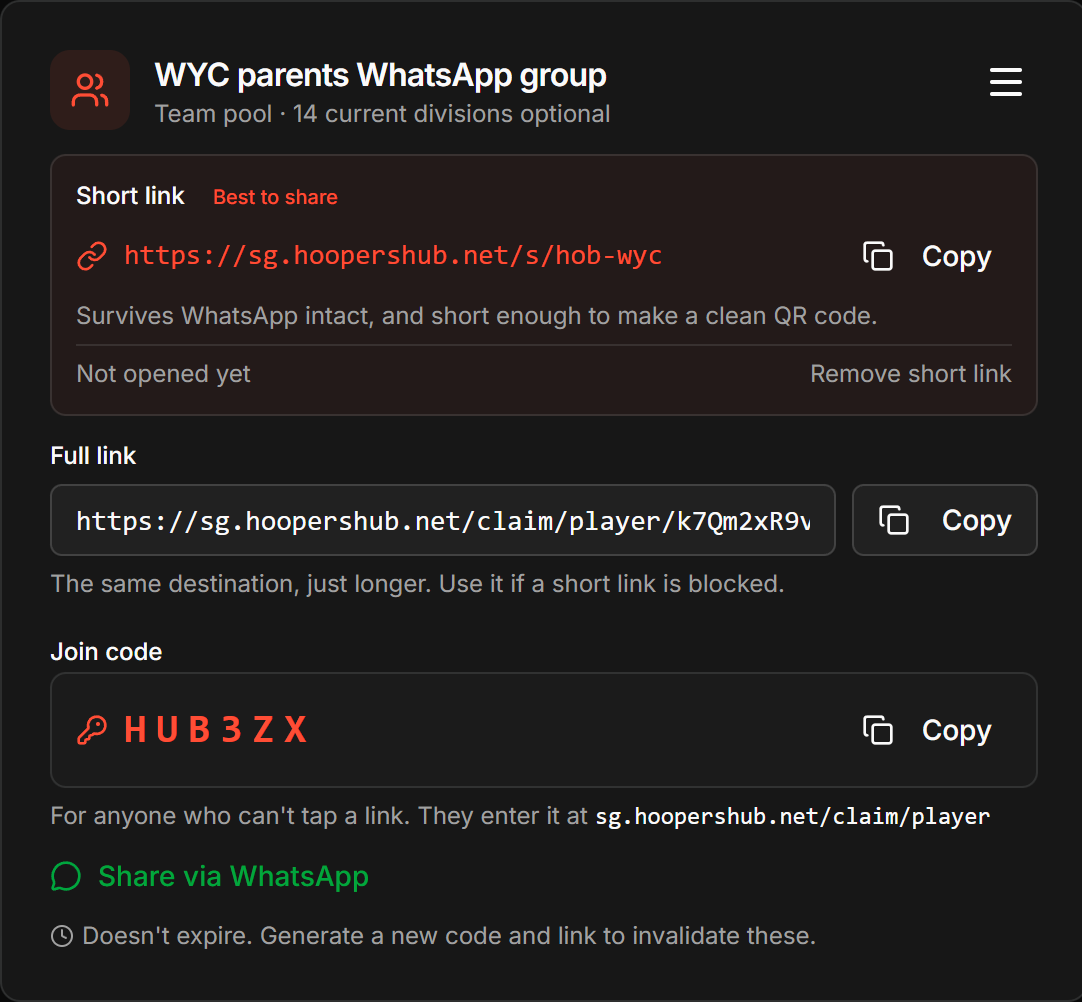
The card shows a 6-character code such as
HUB3ZX. Anyone can enter it atsg.hoopershub.net/claim/playerand land in exactly the same flow. Worth pasting under the link in your message. -
Check whether it landed
The short link counts how many times it has been opened. If the number is still zero a day later, the message got buried and it is worth posting again rather than waiting.
 Screenshot: A live claim link card
images/tm-05-link-card.pngShort link, join code, open count, and the Share via WhatsApp button.A shortened link, ready to share. The open count tells you whether to chase the chat again.
Joining your team on HoopersHub is written for parents and players. It is a plain page with no login, so you can drop it in the same chat message as the link.
4. Approve what comes back
Not everything needs you. A parent whose child is already in your pool under a matching name and date of birth is linked straight away, with no request created. Everything else waits in Claim Requests.
| What happened | Do you approve it? |
|---|---|
| Confident match against a player already in your pool | No. Linked immediately, the parent goes straight to their dashboard. |
| Claim existing profile, a weaker or cross-team match | Yes. Appears in Claim Requests. |
| New player registration, nobody matched | Yes. Check for a duplicate before approving. |
| Add existing player to team, they play for another team | Yes. Approving moves them onto your roster. |
Approving is where you choose the competitions
Each request card lists the divisions the player is eligible for, with the ones the parent asked for already ticked. What you leave ticked when you press Approve is what they actually join. Approving with nothing ticked still works: the player is added to your team pool and you can place them in competitions later.
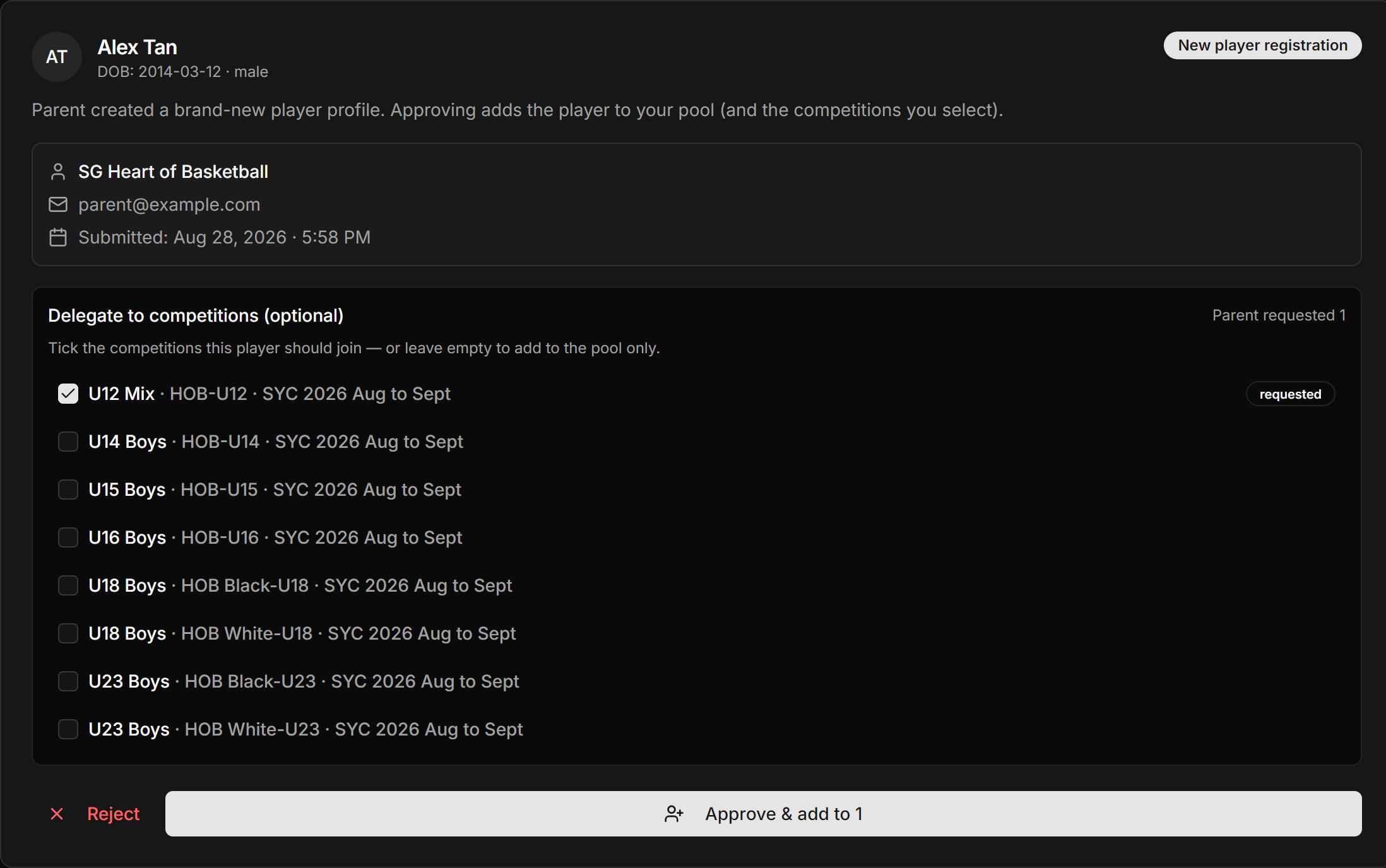
images/tm-06-claim-request-card.png
A request card with its source badge and the eligible-division checkboxes.
You will see a message like Approved, but 1 competition was skipped. The usual cause is a locked lineup for that division. The player is on your team either way, so fix the lock and add them to that division from the competition roster.
Rejecting
Rejecting asks you for a reason, and that reason is shown to the parent. Write something they can act on. Not a member of this team is far more useful than a blank rejection, which just sends them back to the same link.
Managing live links
| Action | What it does |
|---|---|
| New code & link | Generates a fresh code and URL for that link and kills the old pair instantly. Use it when a link leaked outside the group. |
| Revoke | Switches off that one link. Other links keep working. |
| Revoke all | Switches off every claim link for the team at once. |
Anyone who has not signed up yet will hit This link is no longer valid. After rotating or revoking, post the new link. Players who already joined are unaffected.
Requests expire, links do not
This catches managers out, so it is worth committing to memory:
- Claim links never expire on their own. A link you made last season still works today unless you revoked it or generated a new code.
- Pending requests do expire. A claim-link request drops off the tab after 7 days, and a new-player registration after 14 days.
- There is no reminder when one expires. It simply disappears, and the parent is left waiting on an approval that will never come.
A weekly glance at Claim Requests is enough to make sure nothing ages out silently, especially in the first fortnight after you share a link.
Common questions
A parent says the link does not work
Almost always a truncated link. Chat apps cut off the long URL. Shorten the link
and re-share it, or give them the 6-character join code to enter at
sg.hoopershub.net/claim/player instead. If the link was rotated or
revoked, the old one is dead and they need the new one.
A parent signed up but nothing appeared in Claim Requests
That is the success case, not a failure. When the name and date of birth match a player already in your pool confidently, they are linked immediately and no request is created. Check your roster: the player will be there with the parent attached.
Can two parents manage the same child?
Yes. The first parent to claim the child owns the profile. A second parent who tries the same link is offered a co-parent request, which the first parent approves. Sending the second parent through the claim link again is the right move.
Can a player claim their own profile without a parent?
Yes. The first question in the flow is Who is this for?, and choosing Myself (I'm the player) switches the whole flow to first-person wording and sets up a player account rather than a family one.
Someone joined the wrong division
The division choice is only a request. What you tick when you approve is what actually happens, so correct it there. If it is already approved, fix it from the competition roster.
A parent gets “already linked to another account”
A profile with that name and date of birth is already attached to a different account. If it is their own older account, they will need your help to recover it. If it is genuinely a different person who shares a name and birthday, they can register a new profile from that same screen.
Is this the same as an invitation?
No. An invitation goes to one named person by email. A claim link is open to anyone who has it, which is what makes it work in a group chat. Both feed the same roster, and invitations have their own tab on the same page.