

Parents & players
Joining your team on HoopersHub
Your team manager shared a link so you can connect to the team. It takes about a minute, and you only do it once per player.
Before you start
Have these ready and the whole thing is quick.
The link or the code
Whatever your team manager sent in the team chat. Either one works.
Name and date of birth
The player's full name as the team knows it, plus their birthday.
For privacy, HoopersHub never shows you the team's roster. The name and date of birth are how it finds the right player without putting other families' details on your screen.
1. Open the link
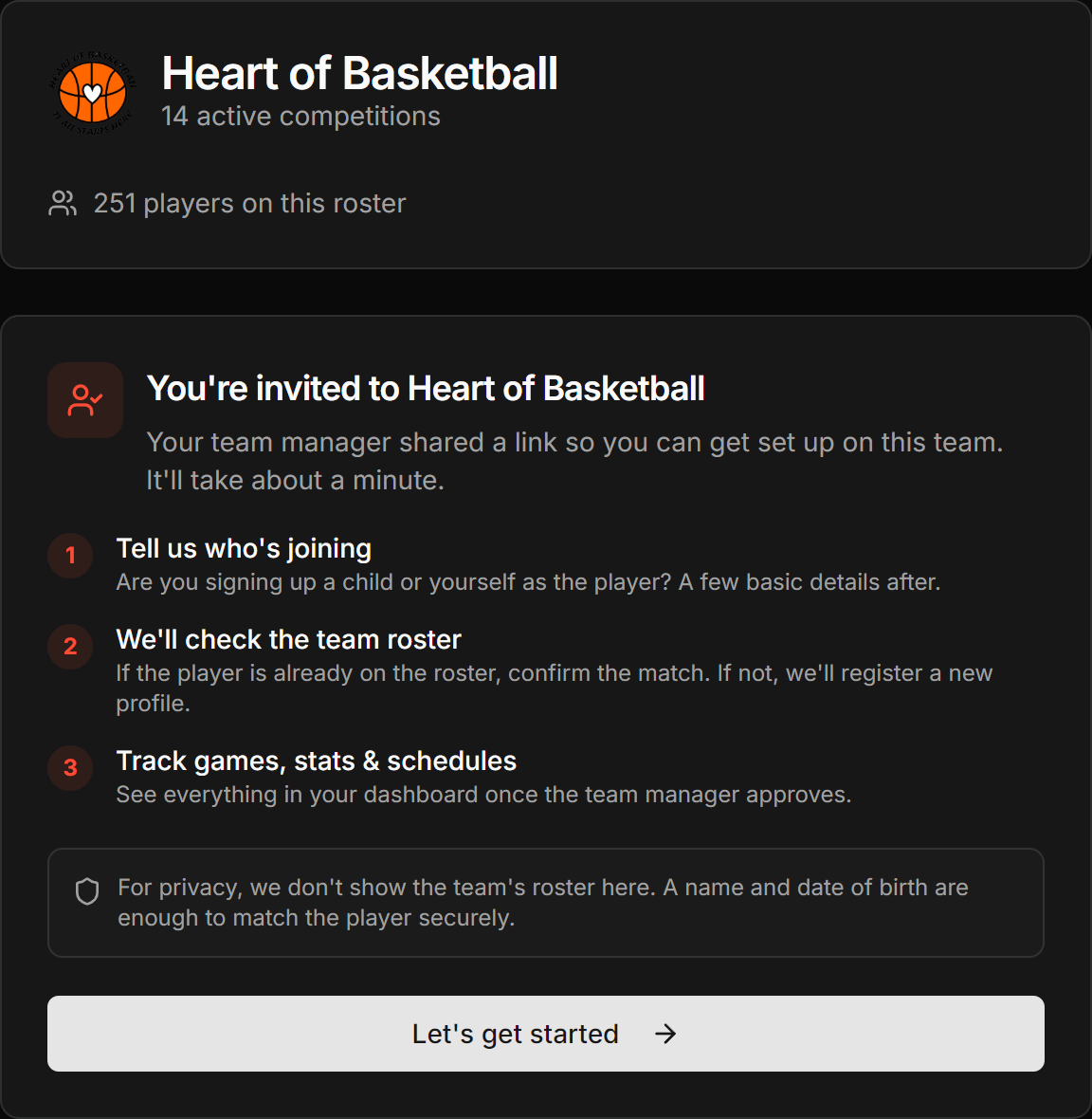
Tap the link in your team chat. You will see the team's name and badge so you can check you are in the right place, then press Continue.
images/pp-01-team-preview.png
The first screen after tapping the link, showing the team name and badge.
Some chat apps chop long links. Ask your team manager for the short link or the 6-character code, then use the code method below.
2. Sign in or create an account
If you are not already signed in, HoopersHub takes you to the sign-up page first and brings you straight back to the same team afterwards. You do not need to find the link again.
Use an email address you actually check. That is where team news and approval notifications go.
Sign in with it. Do not make a second one, or your children end up split across two accounts.
3. Say who it is for
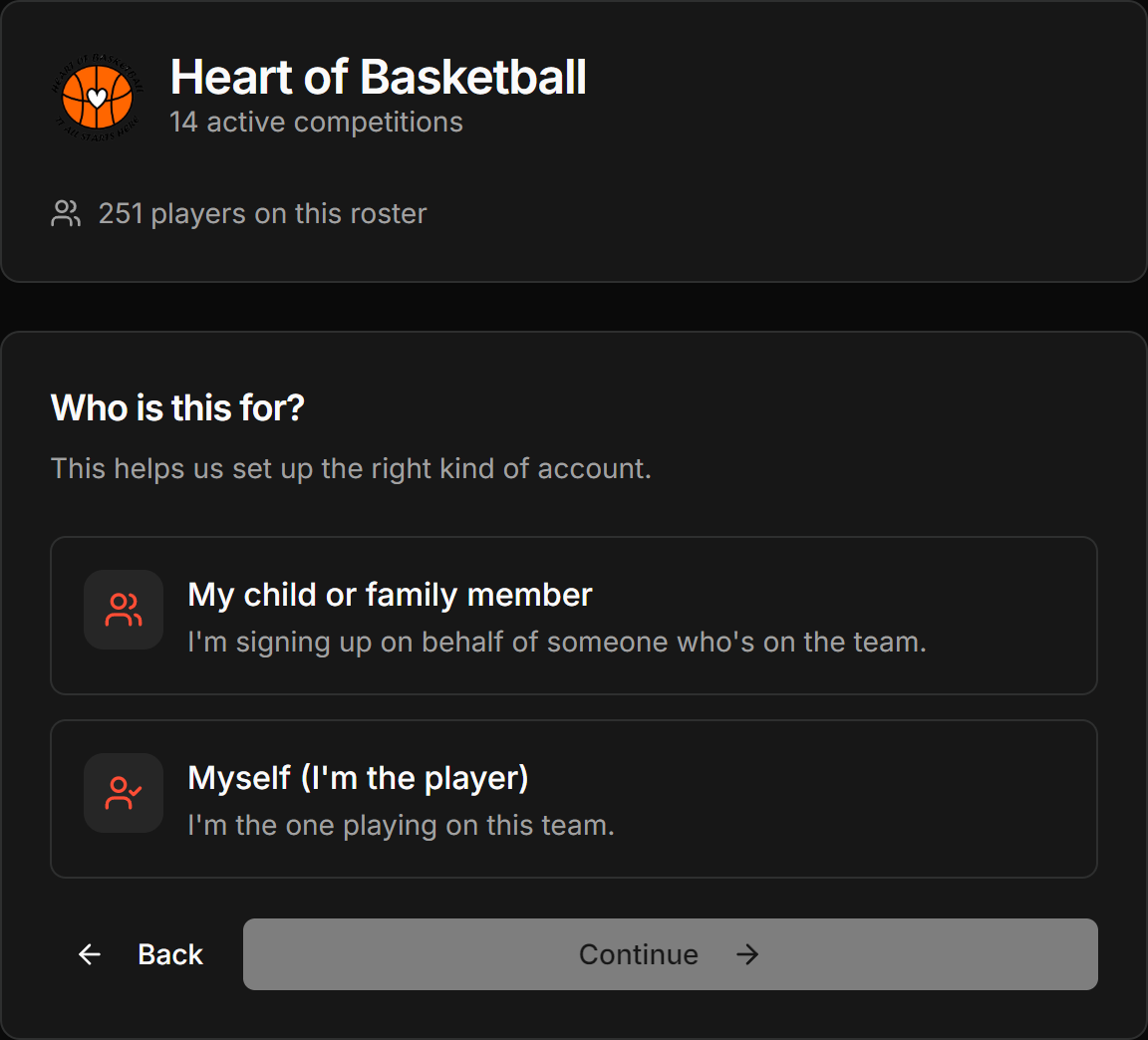
This is the one question that changes everything afterwards, so read both options.
My child or family member
You are a parent or guardian signing up on behalf of someone on the team. You get a family dashboard.
Myself (I'm the player)
You are the one playing. You get a player dashboard, and the rest of the questions are about you.
images/pp-02-who-is-this-for.png
The two-option chooser: my child or family member, versus myself.
4. Enter the name and birthday
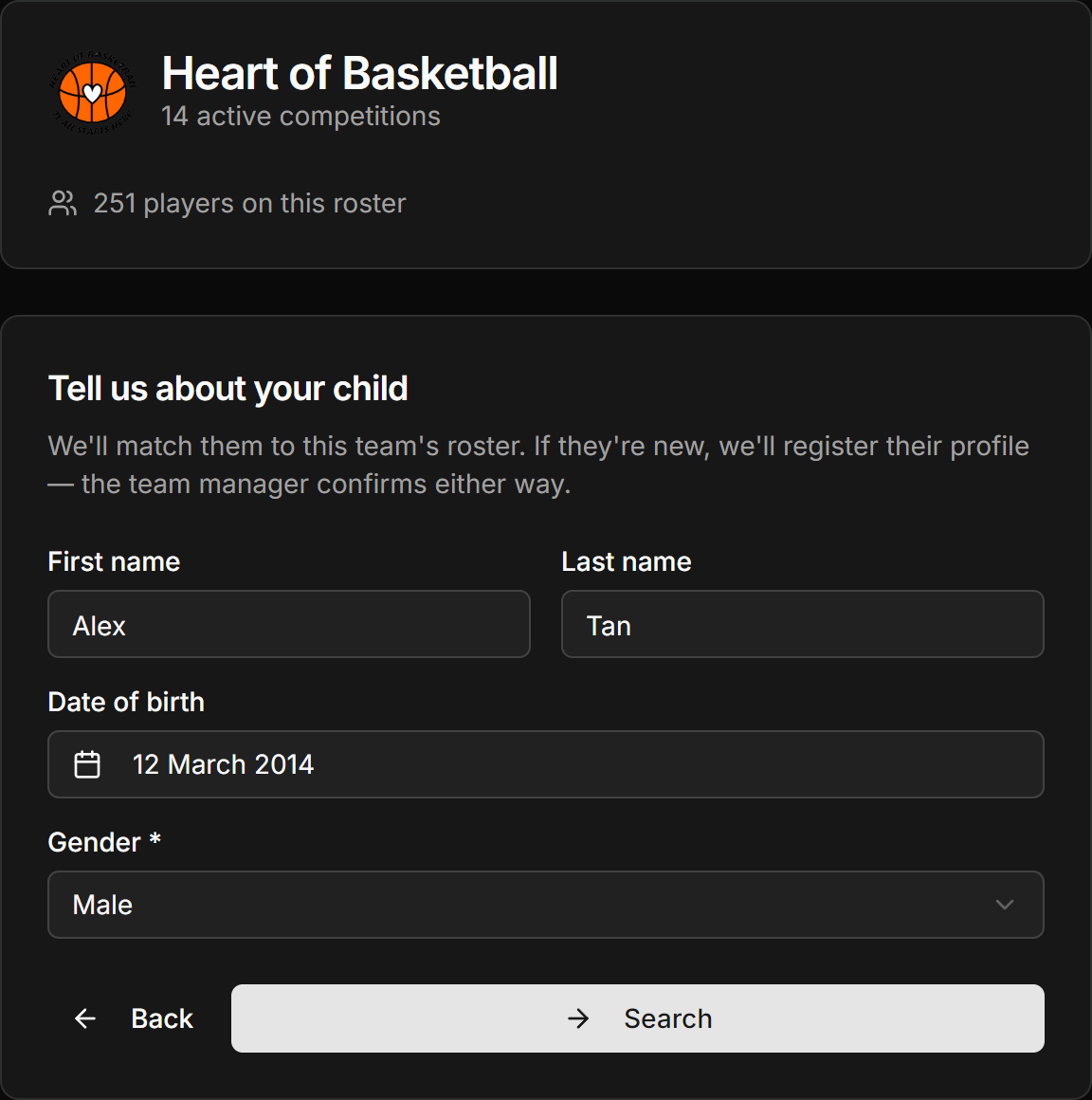
First name, last name, date of birth and gender. Use the name the team knows the player by, not a nickname. A nickname goes in its own field later if you need one.
It is how the player is matched to the roster, and it decides which age divisions they can play in. A typo here is the most common reason a match is not found.
images/pp-03-details.png
The identity form: first name, last name, date of birth, gender.
5. Confirm the match
What happens next depends on whether the player is already on the team.
If they are already on the roster
You will see Is this your child? with the details found. Check them, then press Yes, this is my child. If it is not the right person, choose No, search again and check the spelling and birthday.
If nobody matches
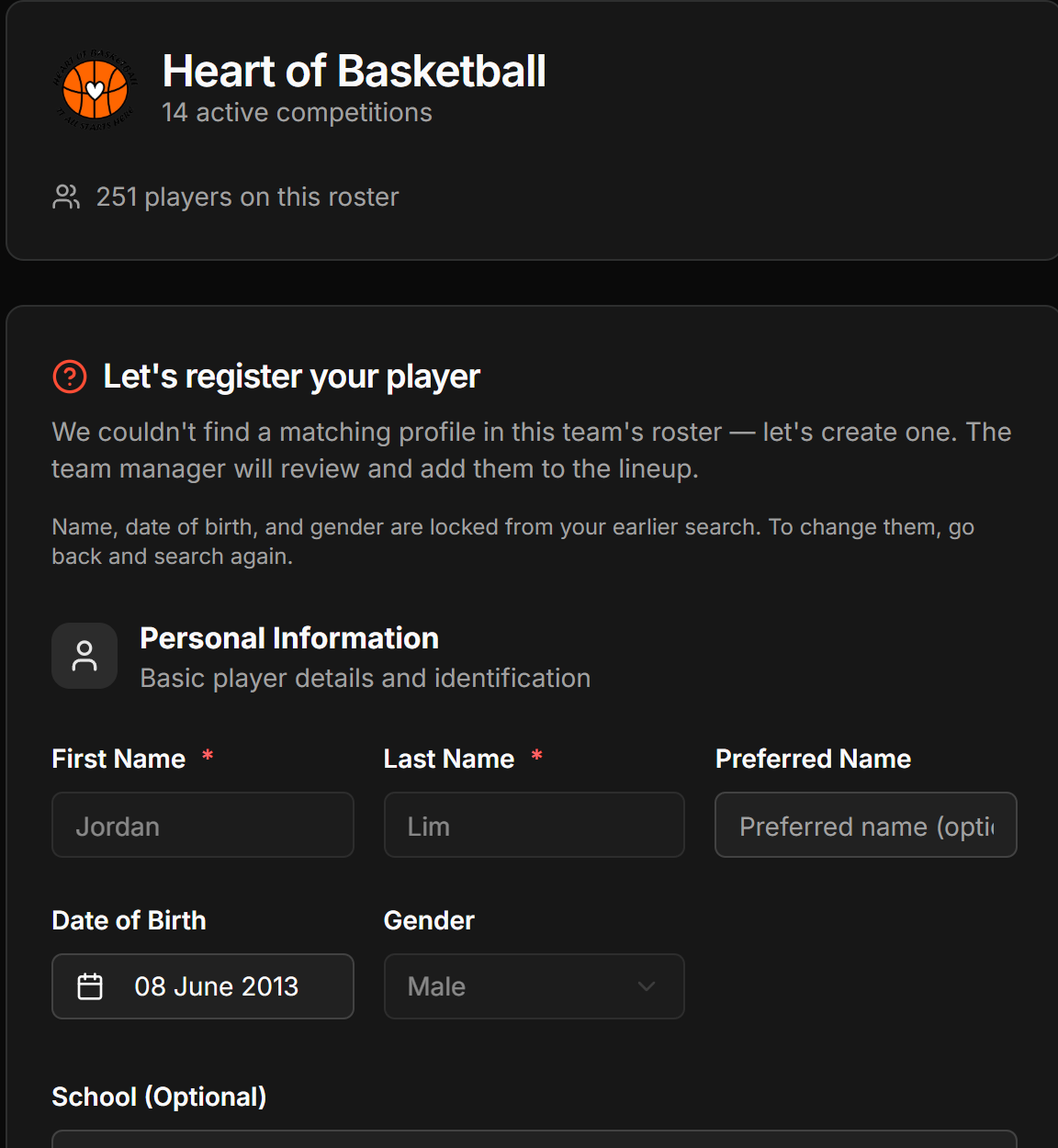
That is normal for a player who is new to the team. HoopersHub says so plainly and offers to register a new profile. The name and birthday you just entered are carried over and locked, so you cannot fill in a different person by accident.
You fill in the basics now. Everything else (contact details, height, photo) can wait until you are in your dashboard.
images/pp-04-register-new.png
The register step shown when the search finds no match.
This means a profile with that exact name and birthday is attached to someone else's account. If it is an older account of yours, ask your team manager to help recover it. If it is genuinely a different person who shares a name and birthday, register a new profile from that screen.
6. Pick the divisions
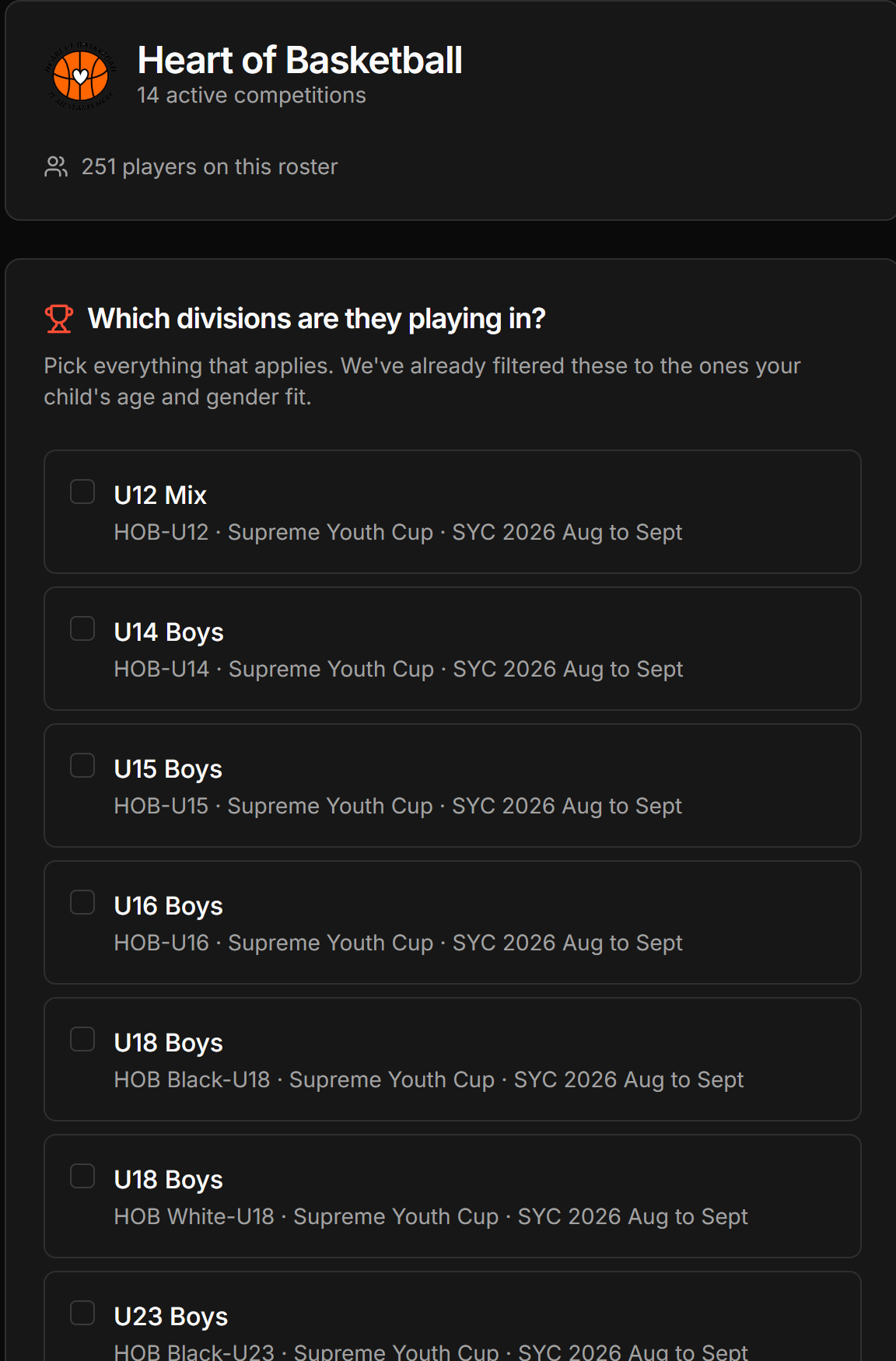
You will be shown the competitions the player is eligible for. The list is already filtered to their age and gender, so anything you see is a valid choice. Tick everything that applies.
If the coach has already entered them somewhere, those are ticked for you. If the list is empty, nothing is wrong: there is simply no competition running that fits right now, and joining the team is the part that matters. Your manager adds them to competitions as they come up.
images/pp-05-divisions.png
Eligible competitions with tick boxes, some pre-ticked.
7. Check and submit
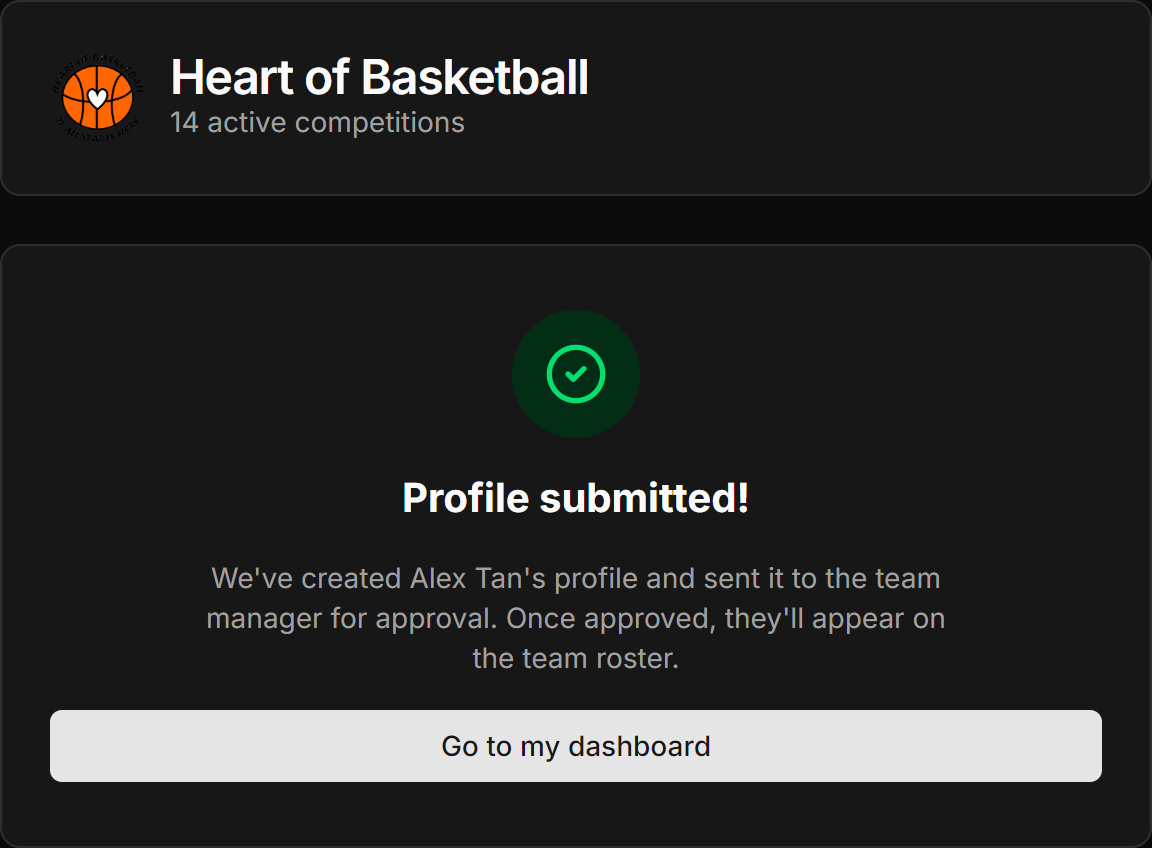
The last screen is a summary. Read the name and birthday once more, accept the terms, and submit. Then one of two things happens:
| What you see | What it means |
|---|---|
| You are taken to your dashboard right away | The player was matched with confidence and is already linked. Nothing to wait for. |
| A message saying it is waiting for the team manager | Your request is in their queue. They approve it and you get a notification. |
images/pp-06-success.png
The final confirmation screen.
Open the same link again and repeat this for each child. They all sit under one account.
Finishing this gives you a family portal: one place for every child you look after, their teams, the schedule and your notifications. Your family portal is the tour, including how to add the other parent so you are not the only one who can see any of it.
From there you can step into your child's own portal to fill in their details, set what shows publicly, and decide who is allowed to invite them: Manage a player profile.
If you have a code, not a link
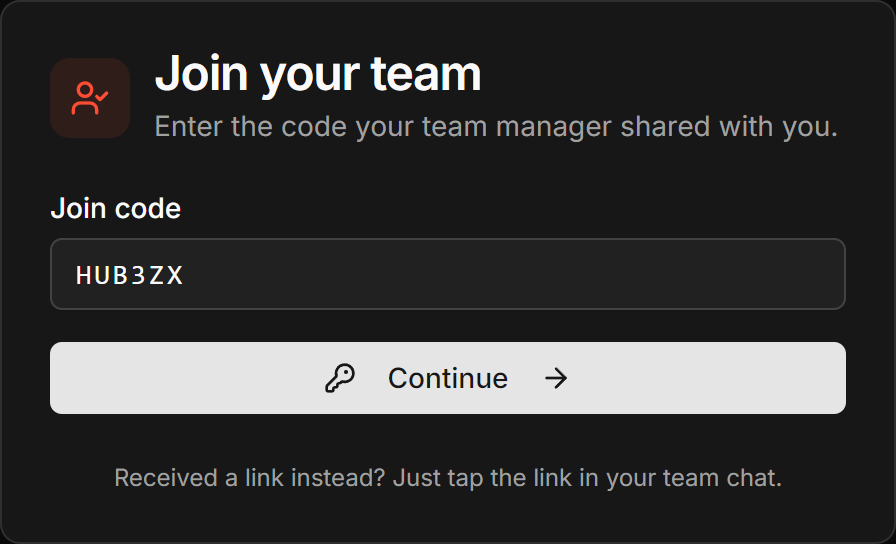
A join code is 6 characters, something like HUB3ZX. It does exactly the
same thing as the link.
-
Go to the join page
Open
sg.hoopershub.net/claim/playerin your phone's browser. -
Type the code
Capital letters and numbers only. It is not case sensitive, so do not worry about the shift key.
-
Press Continue
You land on the same team screen as everyone who tapped the link, and carry on from step 3.
 Screenshot: Join code entry
images/pp-07-join-code.pngThe Join your team card with the code field and Continue button.
If something goes wrong
“This link is no longer valid”
Your team manager either replaced the link or switched it off. Ask them for the current one. Nothing you have already done is lost.
“Invalid or expired claim code”
Check for a typo first, especially 0 versus O and
1 versus I. If it still fails, the code has been replaced
and you need the new one from your team manager.
My child is on the team but no match was found
The name or the birthday does not line up with what the team has on file. Try the player's full legal first name rather than a nickname, and double-check the year of birth. If it still does not match, register a new profile. Your team manager checks for duplicates before approving, so nothing breaks.
I am the second parent and the profile is already claimed
Go through the same link. When HoopersHub sees the child already has a parent attached, it offers to send that parent a request to add you as a co-parent. Once they approve, you both have access.
I submitted, but nothing has happened
Requests wait for your team manager to approve them, and they are not always at their phone. If it has been a few days, send them a message. Requests do not sit there forever: a claim request drops off after 7 days, so a nudge is worth it.
I picked the wrong division
Not a problem. Your choice is a request, not a decision. Your team manager sets the final divisions when they approve you.