

Everyone
Your account
The everyday things: getting in, switching between what you manage, and changing your details. Look up what you need rather than reading it through.
Signing in
One account covers everything you do on HoopersHub, however many teams, children or leagues are attached to it.
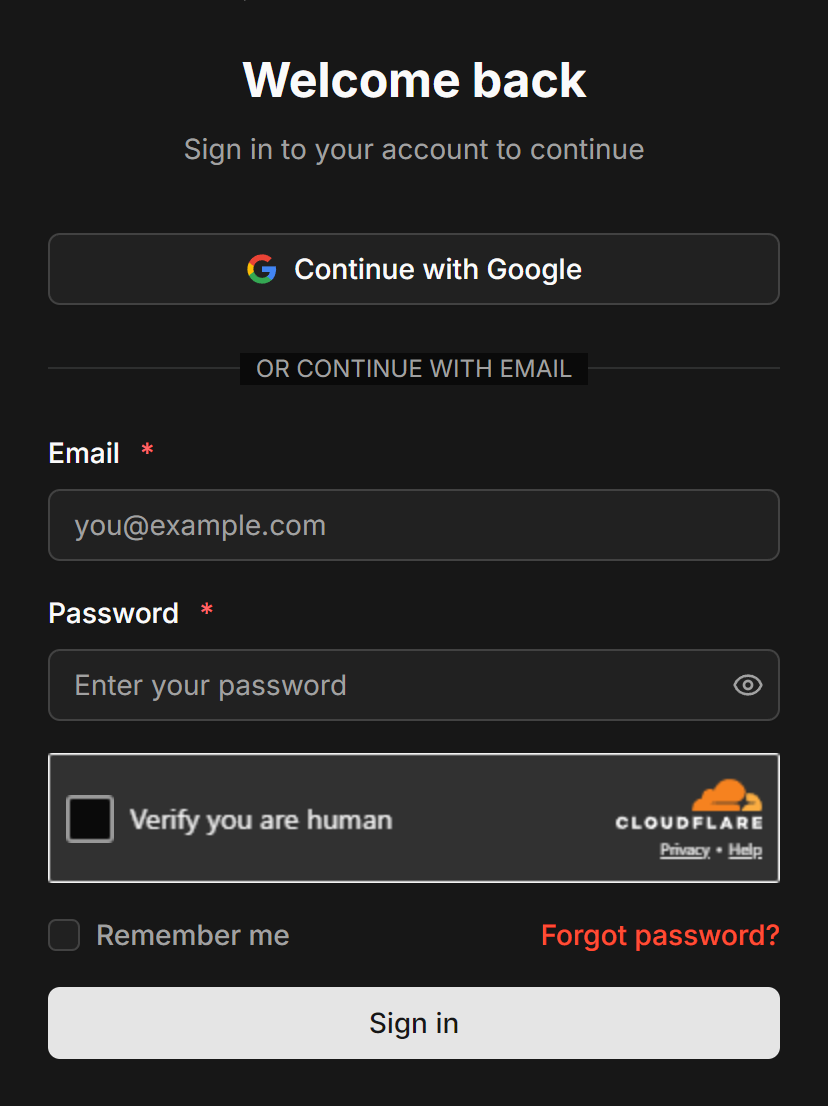
Go to sg.hoopershub.net/login. There are two ways in, and they reach the
same account:
Continue with Google
One press, no password to remember. Use the Google account that carries the email HoopersHub knows you by.
Email and password
Under or continue with email. Tick Remember me on a device you trust.
images/ac-01-sign-in.png
The sign-in page with Google, and the email and password fields.
If an account already exists with the same email address, signing in with Google attaches to it rather than making a duplicate. So you can register with a password and later use Google, or the other way round, and still land in the same place with the same teams and children.
It also confirms your email address for you, since signing in with Google proves the mailbox is yours.
A bot check sits between the password field and the button. Usually it ticks itself and you can ignore it. If it does not, tick it before pressing Sign in, and if it fails to appear at all, reload the page.
If you followed a link into HoopersHub and were asked to sign in, you are returned to wherever you were heading afterwards. Invitations, claim links and team pages all work this way, so there is no need to hunt for the page again.
Creating an account
Register once. Everything you are later invited to attaches to the same login.
-
Register
Press Sign up on the sign-in page, or open
sg.hoopershub.net/register. Pressing Continue with Google also creates the account if you do not have one, and skips both the password and the verification email. -
Use an address you actually check
Approvals, invitations and team news all arrive by email, and some actions will not work until the address is confirmed.
-
Verify your email
HoopersHub sends a confirmation message. Opening the link in it is what proves the mailbox is yours.
Invitations are tied to the address they were sent to. Registering under a different one means the invitation will not accept you, and you will have to ask for it to be sent again.
If you already have a login, sign in with it rather than making a second. Roles are added to an existing account, so a second login only splits your teams and children across two places.
If you cannot get in
Three things account for almost every failed sign-in.
| What you see | What it means | What to do |
|---|---|---|
| Your password is rejected | Wrong password, or the account uses a different email. | Use Forgot password?, or Continue with Google if that is the same address. |
| You are asked to verify your email | The account exists but the address has not been confirmed. | Open the verification email, or ask for a new one. |
| You are signed in, but nothing is yours | You are on a different account from the one that was invited. | Sign out and back in with the invited address. |
Resetting your password
Press Forgot password?, enter your email, and open the link that arrives. If nothing comes, check spam, then check you are using the address the account was created with.
Roles, and why they matter
A role is the hat you are wearing. It decides which portal you land in and what you can do, and one account can hold several.
| Role | What it is for |
|---|---|
| Team Manager | Running a team: roster, competitions, lineups. |
| League Manager | Running a league: seasons, divisions, schedules, standings. |
| Academy Manager | Running an academy or training facility. |
| Parent | Following and managing your children's profiles. |
| Player | Your own profile, games and statistics. |
| Fan | Following teams and players, no management. |
This is the single most common source of confusion. If a team or league you manage seems to have vanished, you are almost always in the wrong role rather than missing access. Switch role and it reappears.
Switching role
Your active role follows you between devices, so it stays as you left it.
-
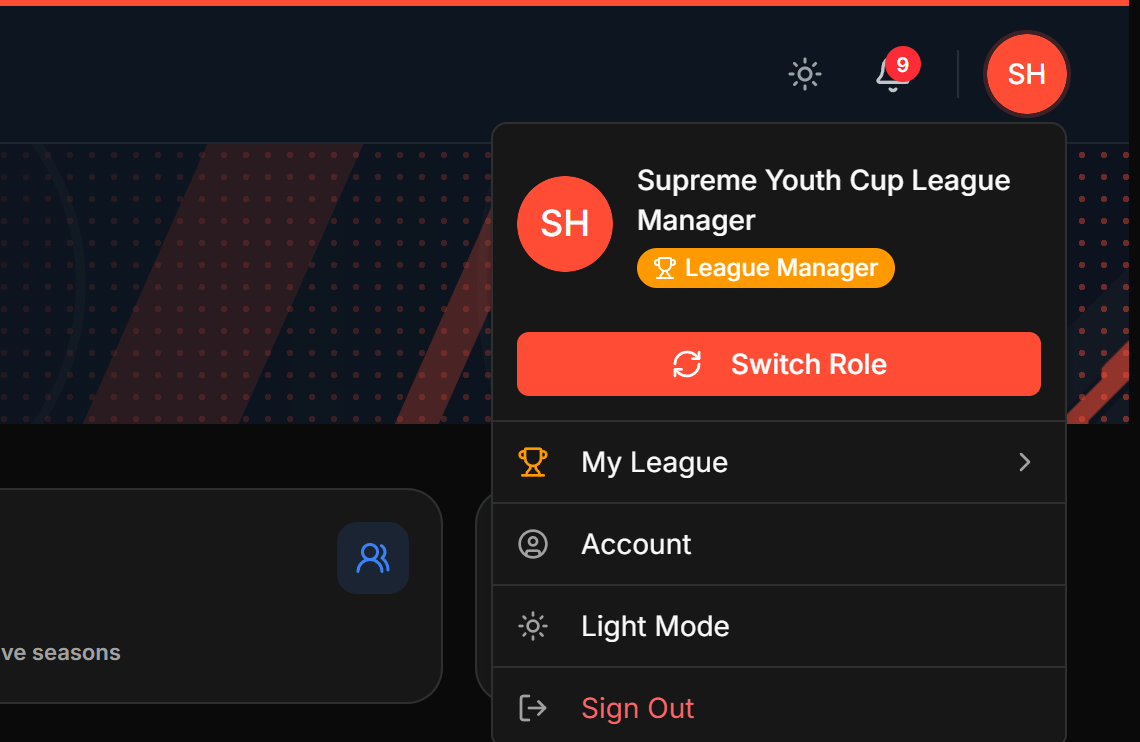
Open the menu behind your initials, top right
Your initials sit in a coloured circle in the top right corner of every page. Pressing it opens your account menu. This is the quickest way, and it works wherever you are.
 Screenshot: The top-right account menu
images/ac-07-user-menu-topright.pngThe initials button in the top right, with its menu open.Your initials in the top right. The menu shows your name, your current role, and Switch Role. -
Press Switch Role
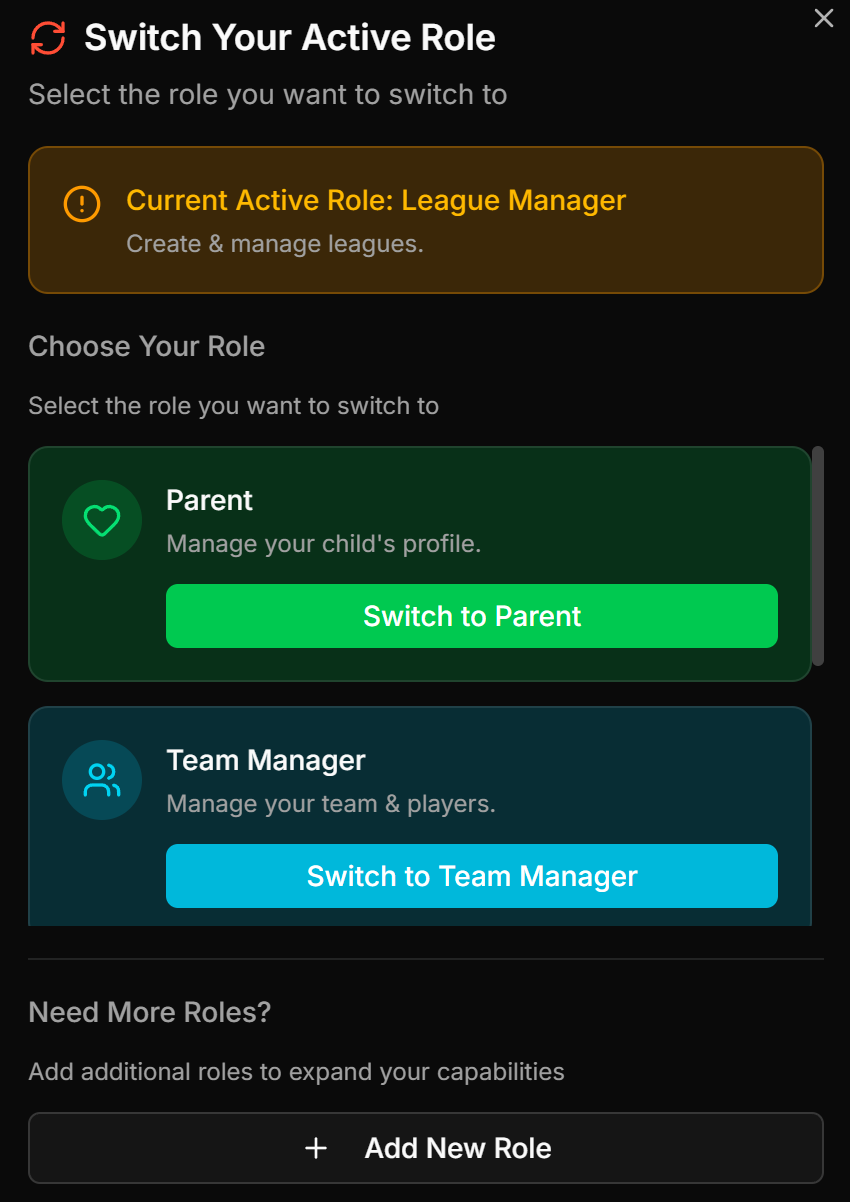
It is the coloured button near the top of the menu, directly under your name. The Switch Your Active Role panel opens, showing your current role and every other role on your account.
-
Pick the role you want
Press Switch to [role]. You land in that role's portal straight away.
 Screenshot: Switch Your Active Role
images/ac-02-role-switcher.pngThe role switcher, showing the current role and the alternatives.The panel also offers Add New Role if the one you need is not there.
The other place it appears
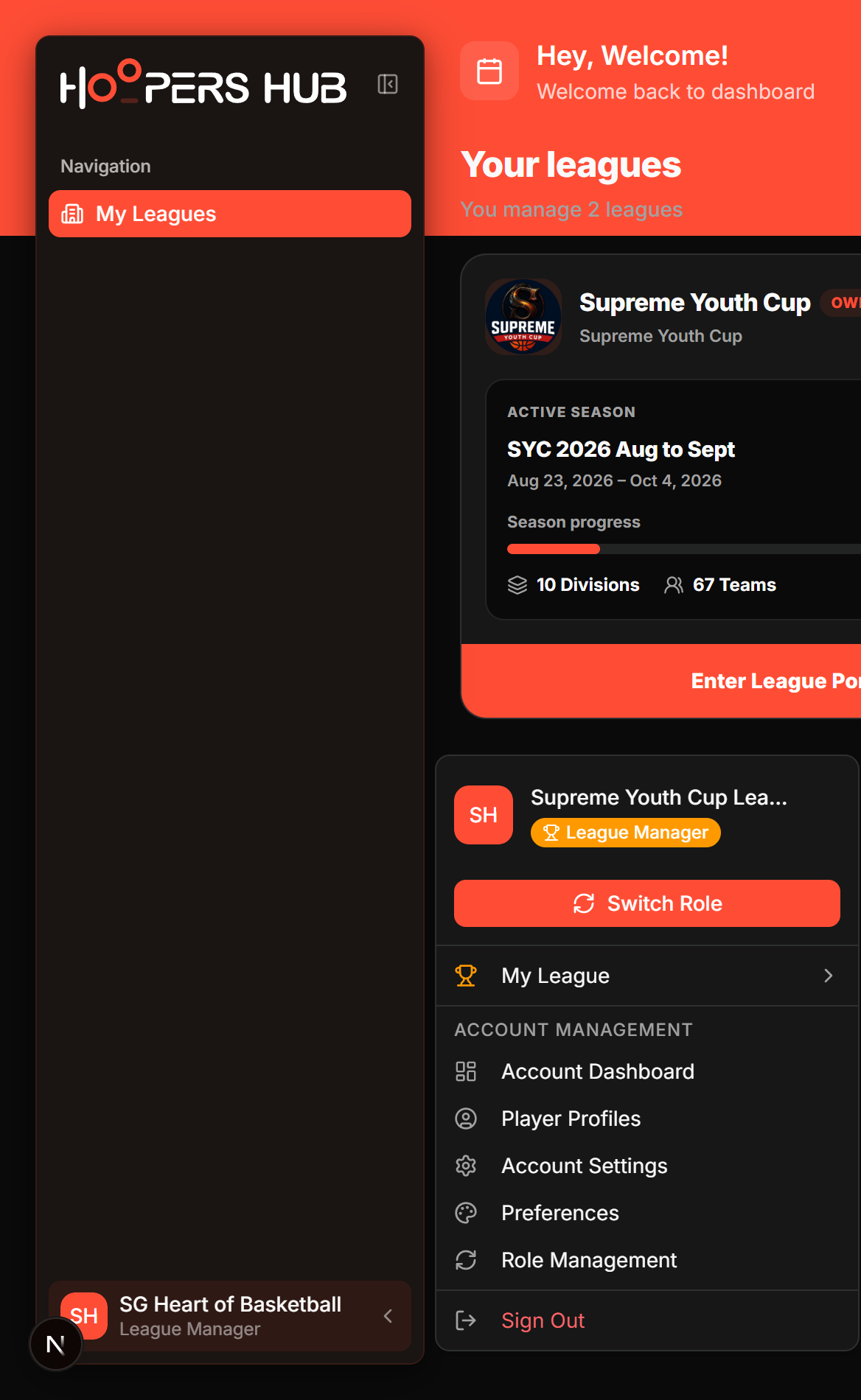
Inside a management portal there is a second copy of the same menu at the foot of the left sidebar, showing your name with your current role underneath. It opens the same thing, so use whichever you notice first.
images/ac-06-user-menu.png
The same menu, opened from the foot of the sidebar.
Opening a management page while in the wrong role sends you to that role's home instead. Switch role first, then open the page again.
Name, phone and password
All under Account › Account Settings, split across two tabs. You get there from your account menu: press Account in the top-right menu, or Account Settings under Account Management in the sidebar one.
Profile
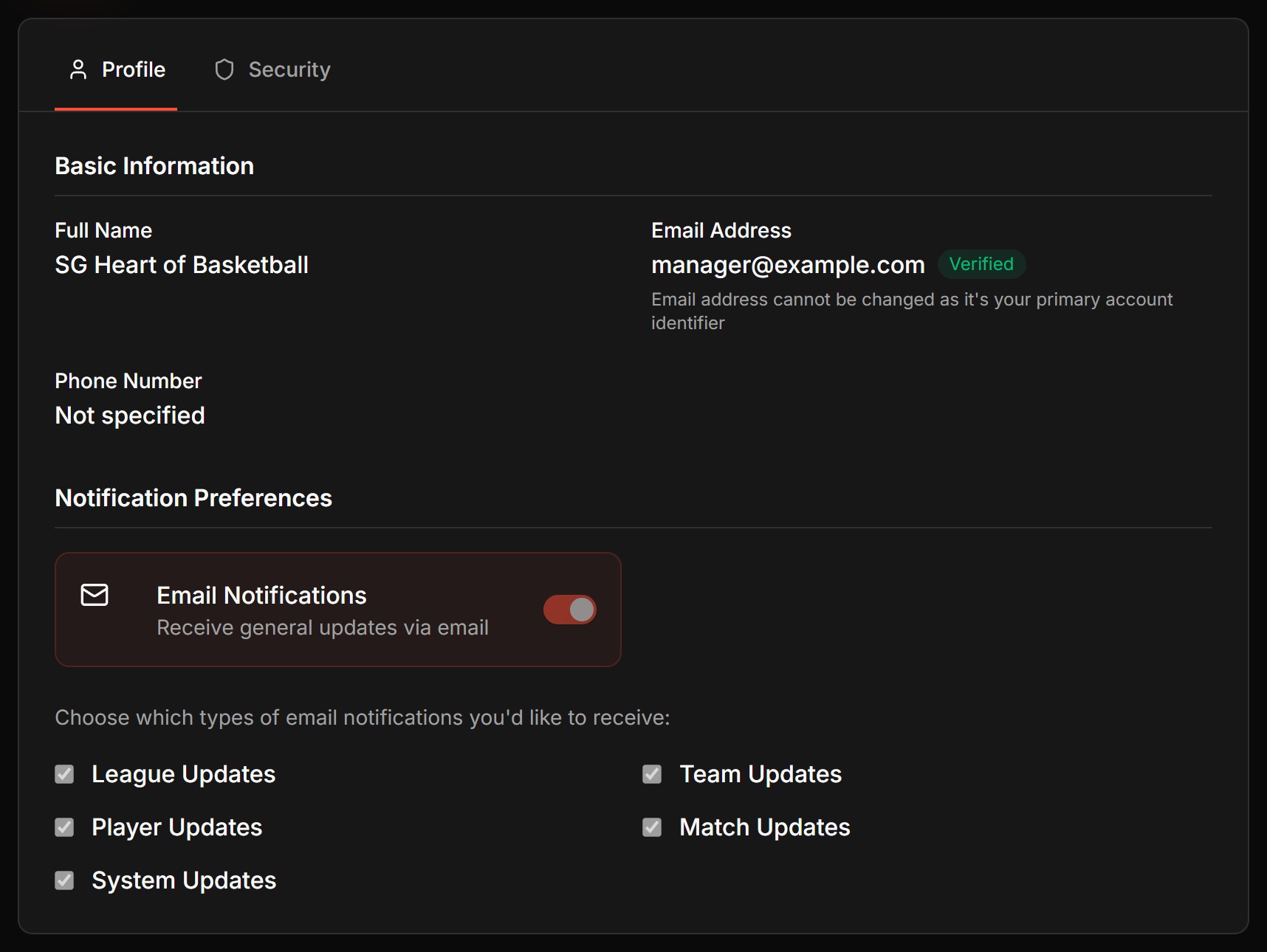
Your full name and phone number, your notification preferences, and your email address shown as read-only.
Security
Changing your password. You confirm the current one before setting a new one.
images/ac-03-account-settings.png
The Profile tab with basic information and notification preferences.
It is your primary account identifier, so Settings shows it as read-only with a Verified or Unverified badge beside it. It is also what invitations are matched against, which is why an invitation sent to a different address will not accept you. If you genuinely need to move to another address, ask an administrator rather than making a second account.
Notification emails
Under Account › Account Settings › Profile, in Notification Preferences.
Email Notifications is the master switch, with five categories underneath it: League Updates, Team Updates, Player Updates, Match Updates and System Updates. Turning the master switch off stops all of them, so to keep some and drop others, leave it on and untick the categories you do not want.
Claim approvals, invitations and roster requests all arrive by email. With notifications off, a request can sit waiting without you knowing, and some of them expire on their own.
Light, dark and colour
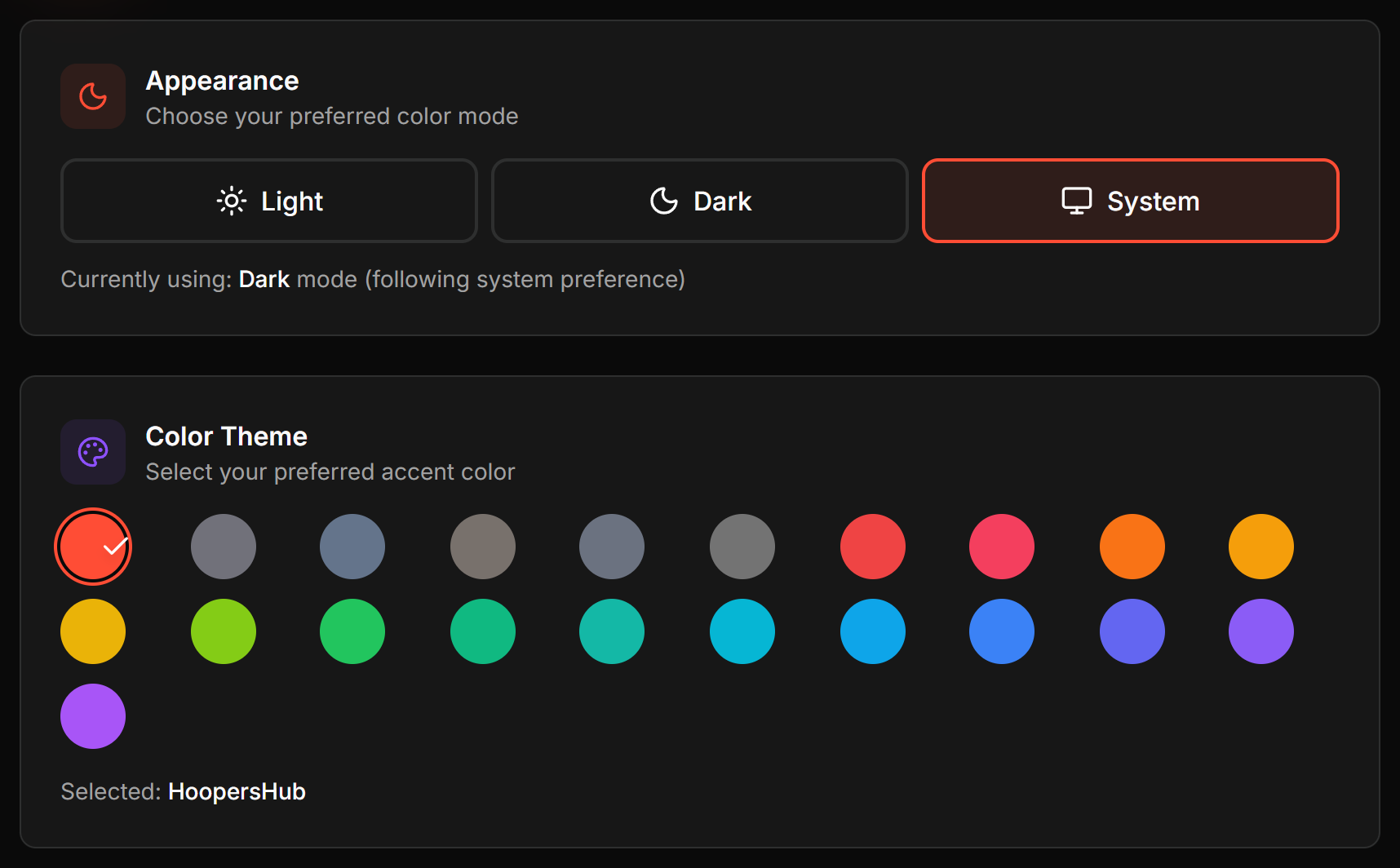
Under Account › Preferences. These are per-account, so they follow you between devices.
| Setting | What it does |
|---|---|
| Appearance | Light, Dark, or System to follow your device. |
| Color Theme | The accent colour used across buttons, links and highlights. |
| Header Accent | The shape of the page header, with a preview beside it. |
images/ac-04-preferences.png
Appearance and Color Theme, with a live preview.
Signing out
Open your account menu, the same one used for switching role, and press Sign Out at the bottom. There is also a sign-out on the Account Settings page.
Worth doing on a shared or borrowed device. On your own phone, staying signed in is what makes team links and invitations open straight away.
Common questions
My team or league has disappeared
Check which role you are in first. Only one role is active at a time, and a management portal only shows what belongs to the active role. Switching back usually brings everything straight back. If it does not, you may be signed in on a different account from the one that was given access.
Should I use Google or an email and password?
Whichever you prefer. They reach the same account as long as the email address matches, so it is not a decision you are locked into. Google is quicker, needs no password, and confirms your email address for you. A password is the option if the address you use on HoopersHub is not a Google one.
I signed up with a password. Can I start using Google?
Yes, provided the Google account carries the same email address. It attaches to your existing account rather than creating a new one, and everything stays where it is. If the addresses differ, you would end up with two separate accounts, so check before you switch.
Do I need a separate login for each team or child?
No, and you should avoid it. One account holds every role, team and child. A second login splits them across two places and makes invitations harder to match.
Can I change the email address on my account?
Not from Settings. The address is your primary account identifier, so it is shown there as read-only. If you need to move to a different address, ask an administrator. Do not create a second account for it: that splits your teams and children across two logins, and invitations will still be matched against whichever address they were sent to.
Why am I being asked to verify my email again?
Some actions need proof that the mailbox is yours, claiming a team among them. If the address has never been confirmed, or you changed it, verification is asked for before those actions will run.
I have a role but cannot see anything to manage
That is expected. A role is a capability, not access to a particular team or league. The thing itself arrives when you claim it, or when somebody adds you to it.
Does my appearance setting follow me to another device?
Yes. Appearance and colour theme are stored on your account rather than in the browser, so signing in elsewhere brings them with you.