

Team managers
Claim your team
Your league has invited you to take over your team. Accepting moves it to your account, with its roster and league registrations already in place.
1. Open the email
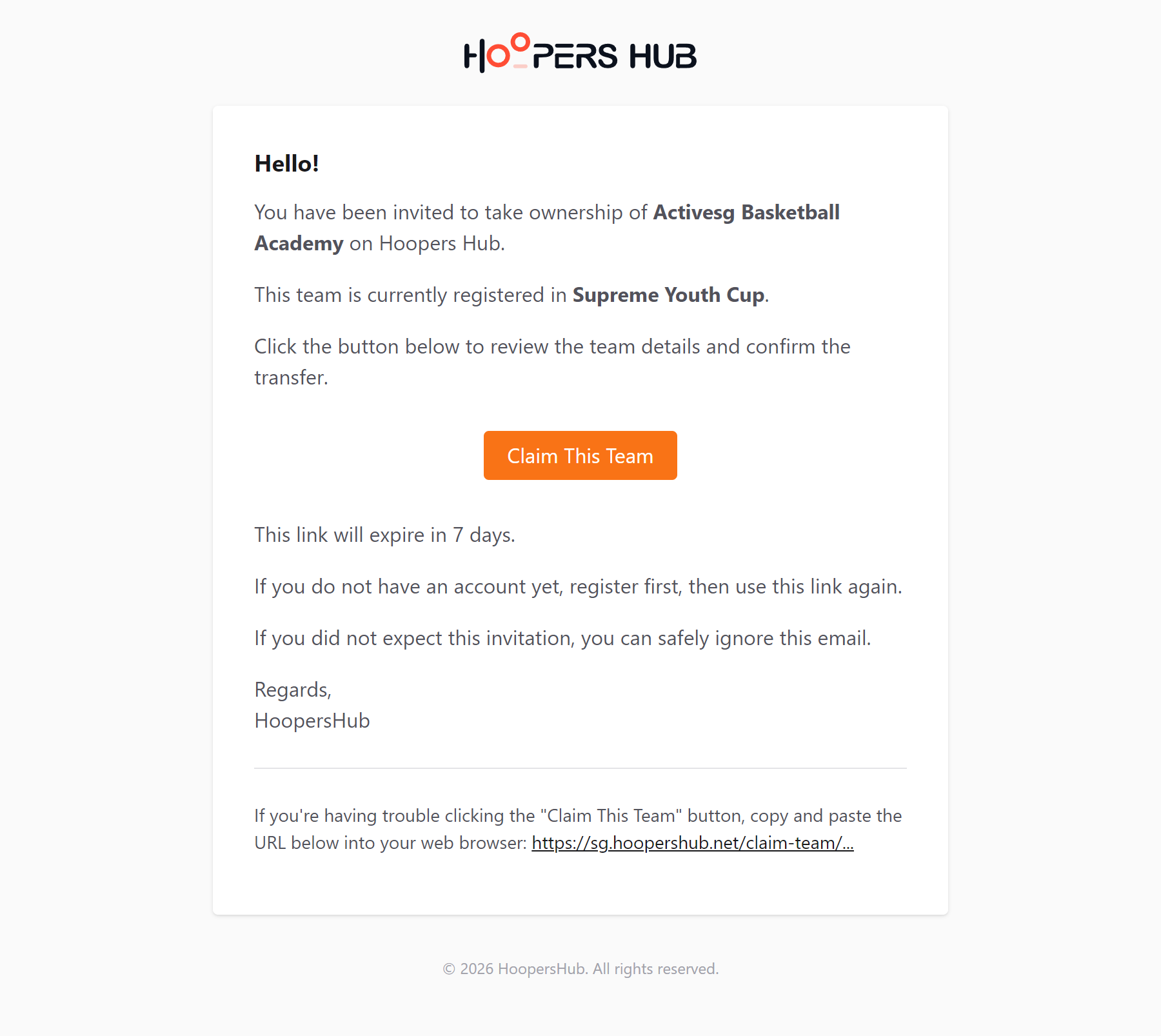
Everything starts with the invitation your league manager sent. Look for the subject Team Transfer: You've been invited to manage [your team].
Press Claim This Team in the email. Nothing has happened to your team yet: the link only opens the review screen, and you get to see what you are taking on before anything moves.
images/tc-01-invite-email.png
The email with its Claim This Team button.
It only works for the address it was sent to. Keep that address in mind for the next step: it is the account you need to be signed in as, and it becomes your team's contact address once you claim.
Check your spam folder first. If it is not there, ask your league manager which address they used, or to send you a claim code instead: a code arrives by message and does not depend on email at all. See If you were given a code.
2. Sign in or register
The link takes you to the sign-in page rather than straight into the team. HoopersHub needs to know who is claiming.
| Your situation | What to do |
|---|---|
| You already have a HoopersHub account | Sign in. You are returned to the claim screen automatically. |
| You are new to HoopersHub | Register, verify your email, then open the link in the invitation again. |
Sign in, or register, with the same address the invitation was sent to. Signing in as somebody else gives you a Wrong Account screen, and registering under a different address means the link will not accept you. If you would rather use another address, ask your league manager to re-send the invitation to it.
Sign in with your existing account. Claiming adds the Team Manager role to it rather than creating a separate login, so all your teams stay in one place. See Roles, and why they matter.
3. Check the team and confirm
This is the screen that matters. Read it before you agree to anything.
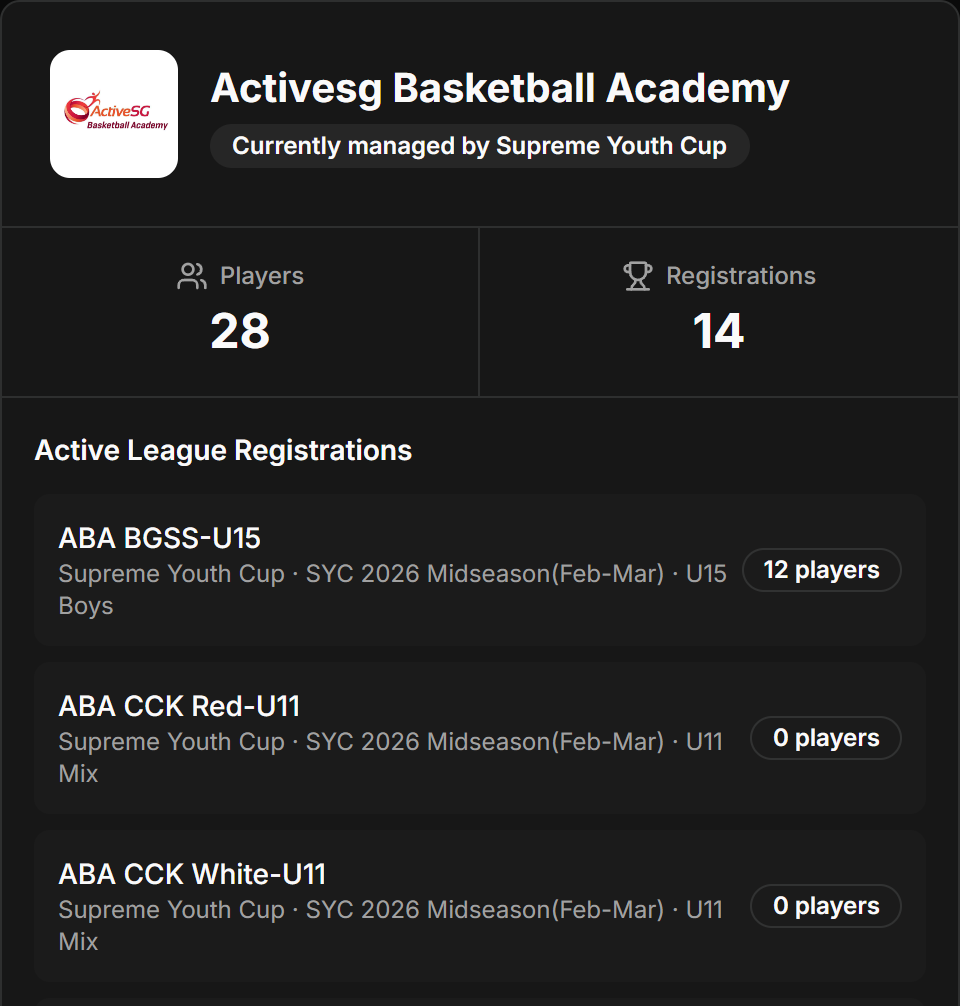
HoopersHub shows the team's name and badge, who currently manages it, how many players are in the pool, and every active league registration with its division and player count. Everything listed moves to your account when you confirm.
images/tc-02-claim-preview.png
Team details, player and registration counts, and the registration list.
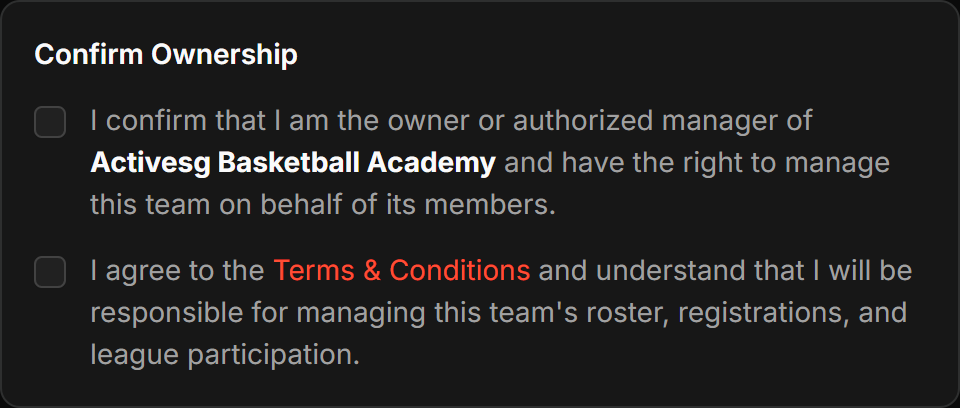
Two boxes have to be ticked before the button turns on, and they are not the same thing:
- You are the owner or an authorised manager of this team, and may act on behalf of its members.
- You accept the terms, and understand you become responsible for the roster, the registrations and the team's participation.
images/tc-05-confirm-ownership.png
The two tick boxes that gate the claim button.
Press Claim This Team and confirm once more. Your account gains the Team Manager role at that moment.
Ownership does not automatically revert once a team is claimed, which is why you are asked twice. If the team on screen is not yours, stop and check with your league manager rather than confirming.
4. Complete team onboarding
If your team is registered in a tournament, the success screen says Team Claimed, One Step Left and points you at onboarding.
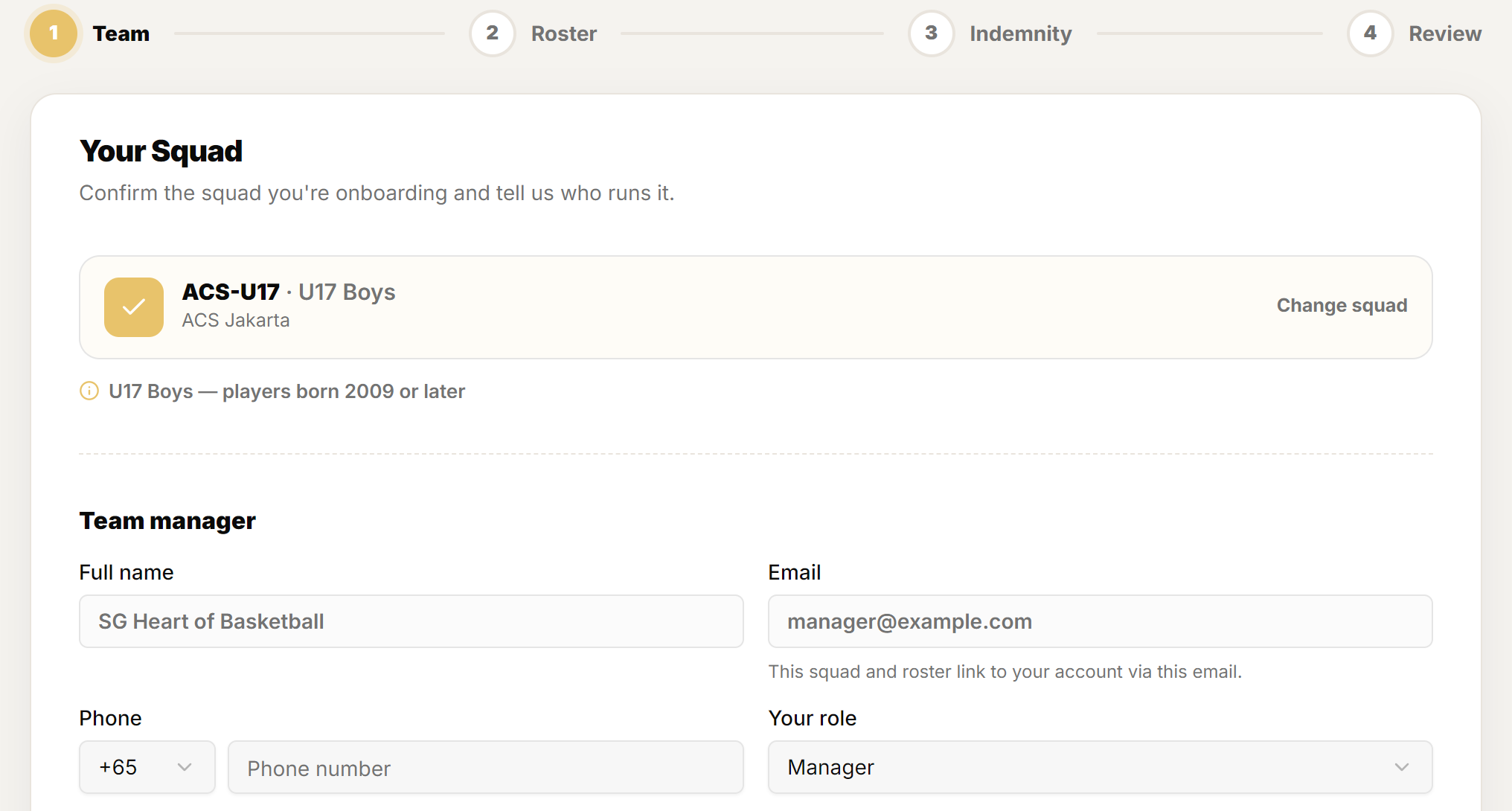
The team is already yours at this point. Onboarding is the separate job of making each squad eligible to play, and it runs as a four-step wizard, once per squad:
| Step | What it asks for |
|---|---|
| Team | Confirm the squad's details before you fill it. |
| Roster | Every player's name, jersey number, gender and date of birth. |
| Indemnity | Confirm authorisation and sign, once per squad. |
| Review | Check the squad and submit it for the organiser to review. |
images/tc-03-onboarding-wizard.png
The four-step stepper: Team, Roster, Indemnity, Review.
Your team hub tracks which squads still need submitting, so you can stop and come back. If the team portal looks empty when you return, check you are in the Team Manager role: see Switching role. The success screen also offers Go to my team portal instead if you would rather set the team up first and onboard later.
If your team is not in a tournament that requires onboarding, claiming simply finishes and you go straight to your team portal.
Once the team is yours, a player claim link lets parents add their own children to your roster instead of you entering every player by hand. Manage your roster then covers what to do with those players: entering them into a competition, setting jersey numbers, and confirming the lineup for a game.
If you were given a code
Some league managers send a 6-character claim code by message instead of emailing a link. It does exactly the same thing.
-
Go to the claim page
Open
sg.hoopershub.net/claim-teamand sign in. -
Type the code
Six characters, letters and numbers. It is not case sensitive, so do not worry about the shift key.
-
Press Validate Code
You land on the same review screen as everyone who used a link, and carry on from step 3.
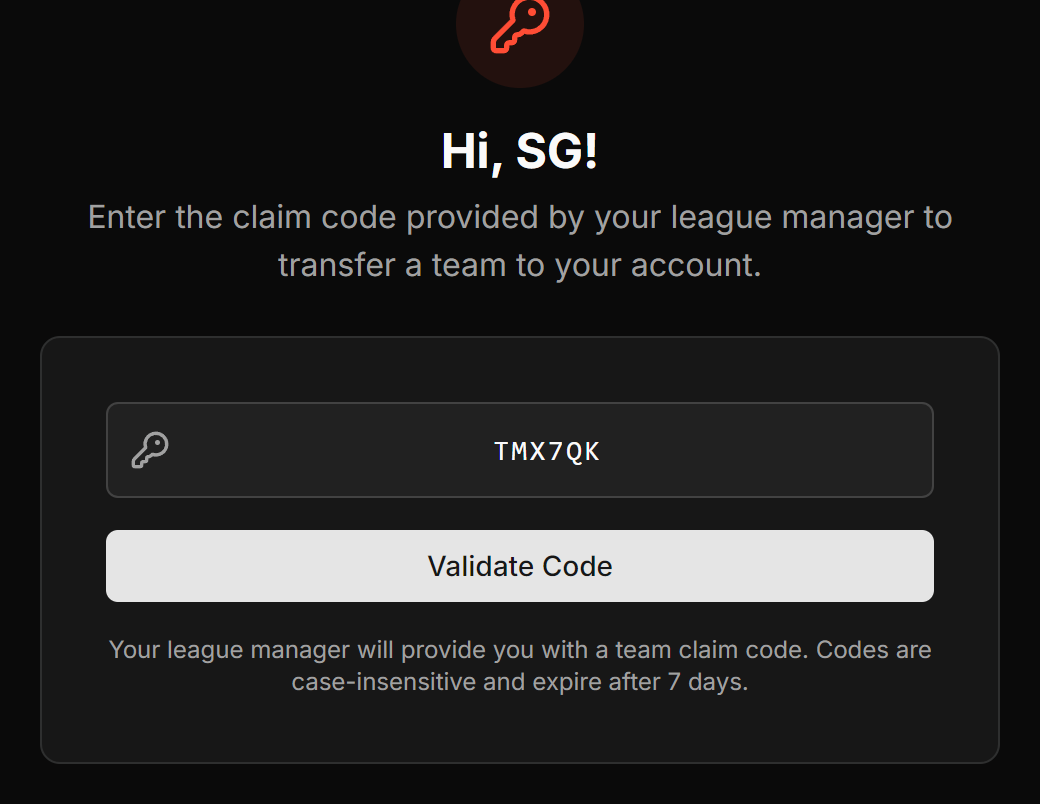 Screenshot: Claim code entry
images/tc-04-code-entry.pngThe code field with the Validate Code button.
A claim code lasts 7 days, the same as an emailed link.
If something goes wrong
The claim screen names the problem rather than failing silently. These are the three you are likely to meet.
Wrong Account
You are signed in as someone other than the invited address. The screen shows the invited address, partly hidden, next to the one you are using, so you can see the mismatch. Press Sign Out & Use Correct Account: it signs you out and brings you back to this same invitation once you sign in again.
Verify Your Email
Your account exists but the address has not been confirmed yet. Claiming a team proves you control that mailbox, so verification comes first. Press Verify Email, complete it, then return to the link.
Invalid Transfer Link
The link has expired, been withdrawn, or was already used. Ask your league manager to send a new one. If they also gave you a code, Enter a Claim Code on that same screen is the quicker route.
Common questions
Do my players come with the team?
Yes. The player pool, every active league registration and the team's history transfer with it. Nothing needs re-entering, and no fixture or result is lost.
Can I claim with a different email than the invitation?
No. The link and the code are tied to the invited address, and signing in as anyone else gives you Wrong Account. Ask for the invitation to be re-sent to the address you want to use, bearing in mind that address becomes the team's contact.
What if the invitation expires before I get to it?
Nothing is lost. The team stays unclaimed and your league manager can see that it lapsed, so ask them for a fresh link or code and carry on.
Can a claim be reversed?
Not from inside the app. Ownership does not automatically revert once a team is claimed, which is why the confirmation asks twice. If a team ends up with the wrong owner, your league manager has to sort it out directly.
Do I have to finish onboarding straight after claiming?
No. The team is yours the moment you claim it. Onboarding is what makes each squad eligible to play, and your team hub tracks which squads still need submitting, so you can return whenever suits.
Is this the same as a claim link for players?
No, and they are easy to confuse. Claiming a team is this one-off handover of the whole team to you. A player claim link is what you share with parents afterwards so they can fill in their own children.