

Team manager
Manage your roster
Your club pool, each competition roster and each game lineup are three different lists. Once you know which one you are looking at, everything else on this page is quick.
Three lists, not one
Nearly every roster question turns out to be a question about which of these three lists you are on. They nest: each one is chosen from the one above it.
1. Your player pool
Everyone who plays for your club, across every competition and every season. One list, and it is the only place a player is created.
2. A competition roster
The players you entered for one season and division. You get one of these per competition your team is in, and they are independent of each other.
3. A game lineup
Who is playing in one specific game, and which five start. Confirmed per game, and it changes nothing about the roster.
A player has to be in your pool before you can put them on a competition roster, and on that roster before they can appear in a game lineup. Build them in that order and nothing blocks you.
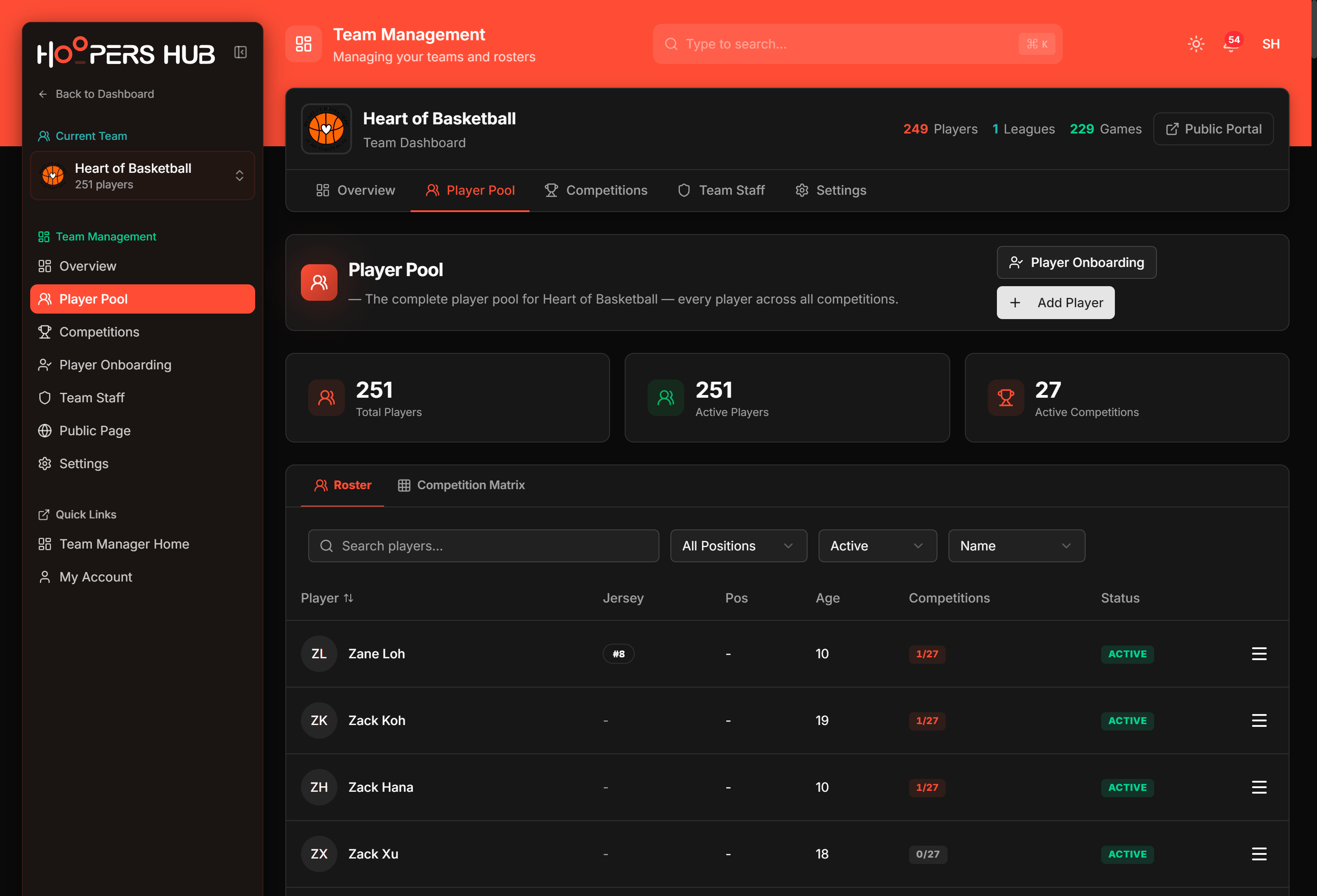
Manage › Team › your team has the tabs Overview, Player Pool, Competitions, Team Staff and Settings. The pool is on the second tab; every competition roster is reached through the third. Cannot see any of it? You are probably in another role: switch to Team Manager.
images/tr-01-player-pool.png
The team tab strip, the player table, and Add Player at the top right.
1. Fill your player pool
There are two ways a player gets into the pool, and the difference is simply who does the typing.
| Route | Who fills in the details | Use it when |
|---|---|---|
| A claim link | The parent or the player | Almost always. It is faster for you, and contact details come from the people who actually know them. |
| Create New Player | You | You already have the details in a list, or the family is not going to fill in a form. |
One link in your team chat and parents fill in their own child, including the emergency contact you would otherwise have to chase. Onboard players with a claim link walks through creating, sharing and approving. The rest of this section is the manual route, for the players that never come back through it.
Creating a player by hand
-
Open the Player Pool tab
Manage › Team › your team › Player Pool. The Roster tab lists everybody, with a participation count such as 2/5 showing how many of your competitions each player is registered in.
-
Press Add Player
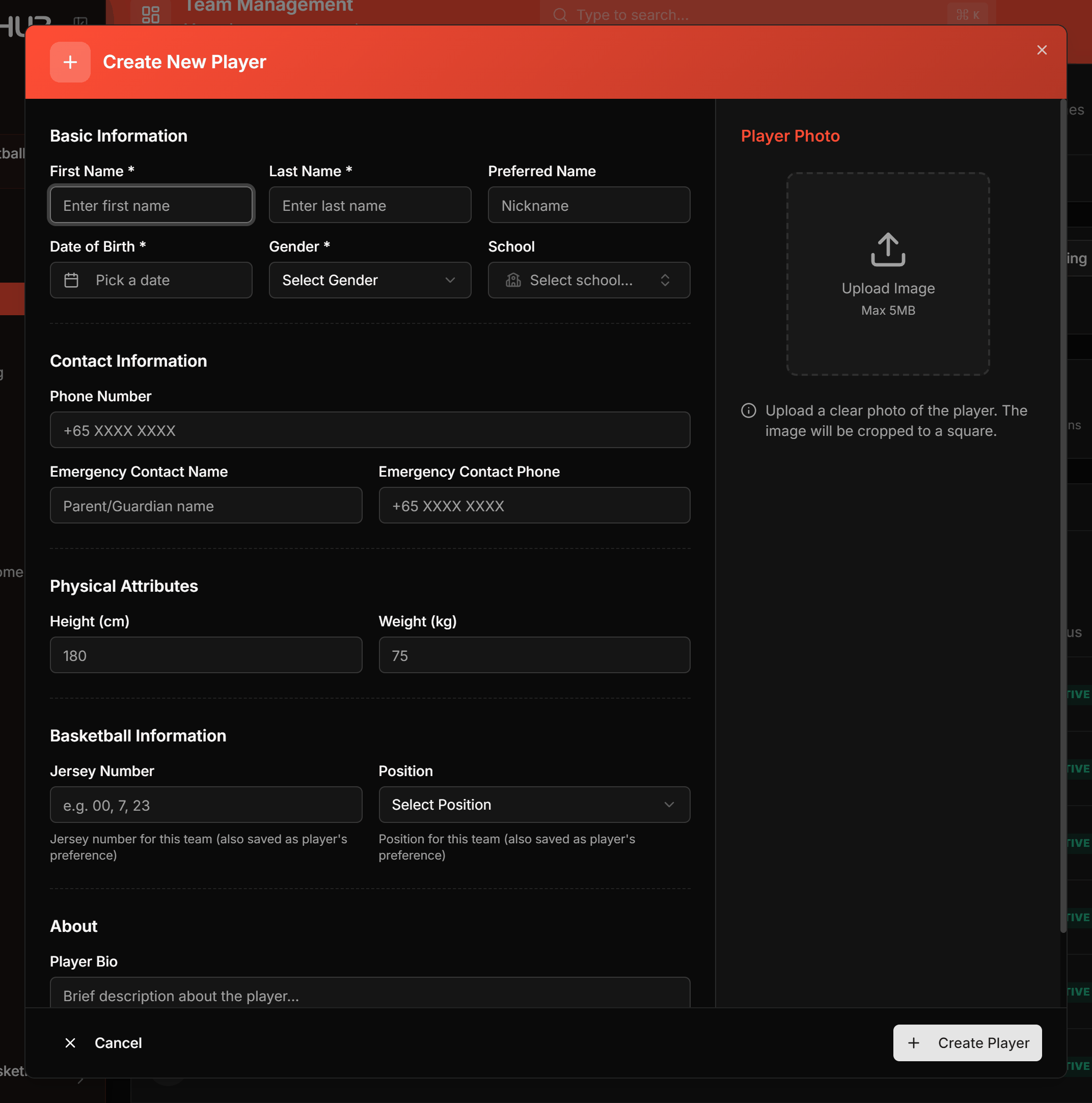
Add Player is at the top right, next to Player Onboarding. It opens the Create New Player form straight away.
-
Fill in the five required fields
Everything else on the form is optional and can wait. First Name, Last Name, Date of Birth and Gender are marked with an asterisk, and School Name becomes required only if you pick Other in the school list.
 Screenshot: Create New Player
images/tr-02-create-player.pngThe two-column dialog: form on the left, Player Photo on the right.Only the starred fields are required. Everything else can be filled in later. -
Add a jersey number if you already know it
Under Basketball Information, the number you set here is the club number. It is not the competition number, but it does pre-fill the field when you add the player to a competition, so setting it once saves typing later. Enter 0 to 99. If the number is already taken you get a note rather than a block, because duplicates in the pool are allowed on purpose.
-
Press Create Player
The player appears in the pool immediately. They are not yet in any competition; that is the next section.
Age eligibility is worked out from the birth year against the competition, not against today, so a wrong year does not look wrong now. It shows up weeks later as a player HoopersHub refuses to add to a division. If the player later claims their own profile, their date of birth becomes read-only to you.
2. Open the competition
Every competition roster hangs off a competition your team has entered. Usually the league has already entered you and there is nothing to do here but find it.
-
Go to the Competitions tab
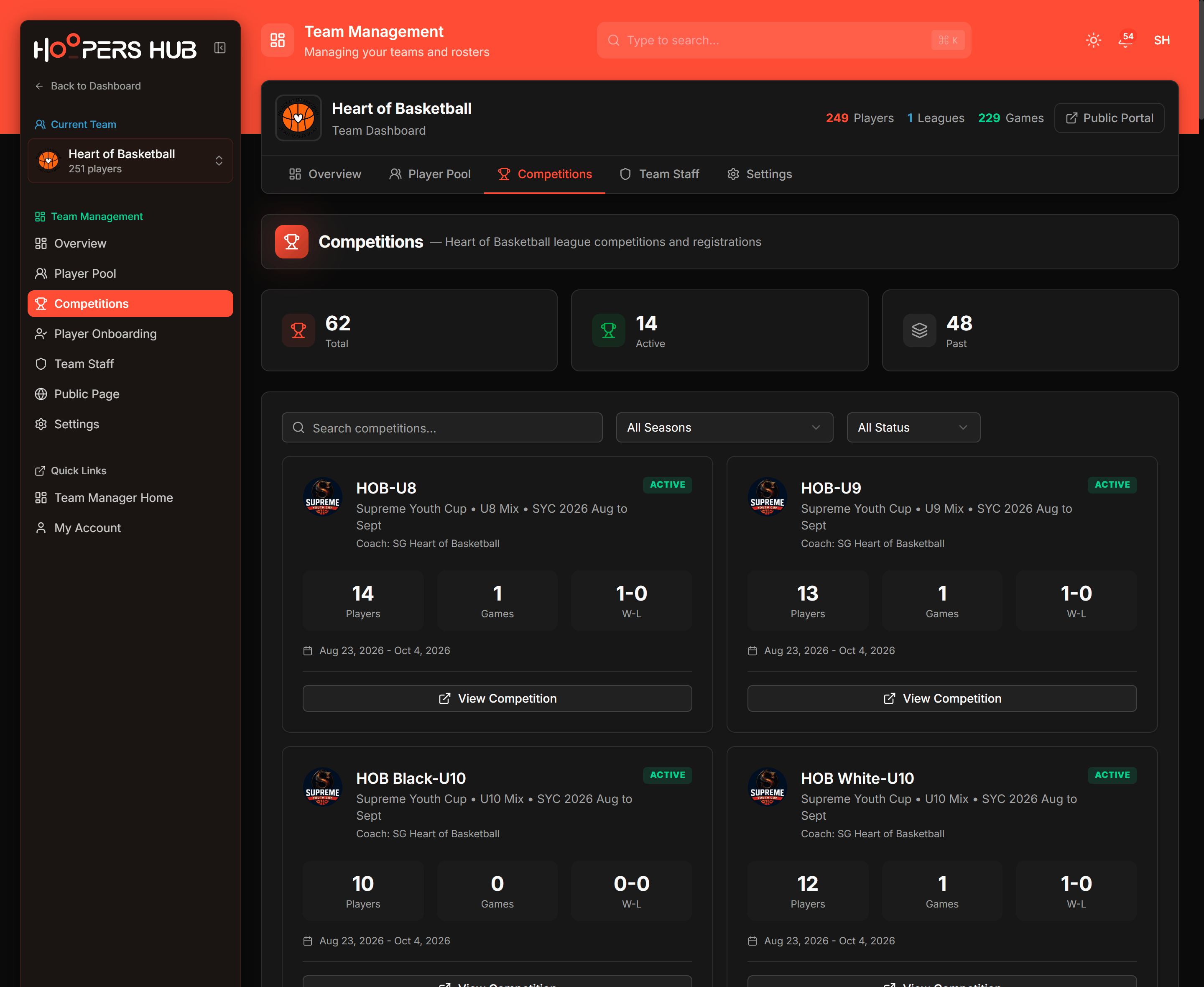
Manage › Team › your team › Competitions lists a card per competition, each with its league, division and season, the squad name, its record and the season dates.
 Screenshot: The Competitions tab
images/tr-07-competitions.pngOne card per competition, each with View Competition.One card per competition. A club with several squads gets a card for each. -
If the competition is not there, contact your league manager
Teams are almost always entered by the league rather than signing themselves up, so a missing competition is usually something only the league manager can put right. Ask them whether your team was entered in that division. They can add it, or send your team an invitation.
If they have already invited you, the invitation is waiting on your team Overview under Invitations. Accepting it is what creates the card here.
-
Press View Competition
The tabs change to the ones for that competition: Dashboard, Games, Roster, Stats and Settings. The roster you are about to build is on the Roster tab.
 Screenshot: The competition header
images/tr-08-competition-header.pngThe squad, its division, and the five competition tabs.Check the squad name here before you touch anything. Switch Division moves between your squads without going back.
Browse Leagues shows on your team Overview only while you have no competitions at all, and the registrations tab on this page is hidden while that flow is being finished. So there is no self-service button to hunt for: your league manager is the way in, and if they send you a registration link, follow the link they give you.
If your club enters more than one squad in the same season, each squad is its own competition card with its own roster. They share the player pool and nothing else, so check the squad name at the top before you start adding.
3. Build the competition roster
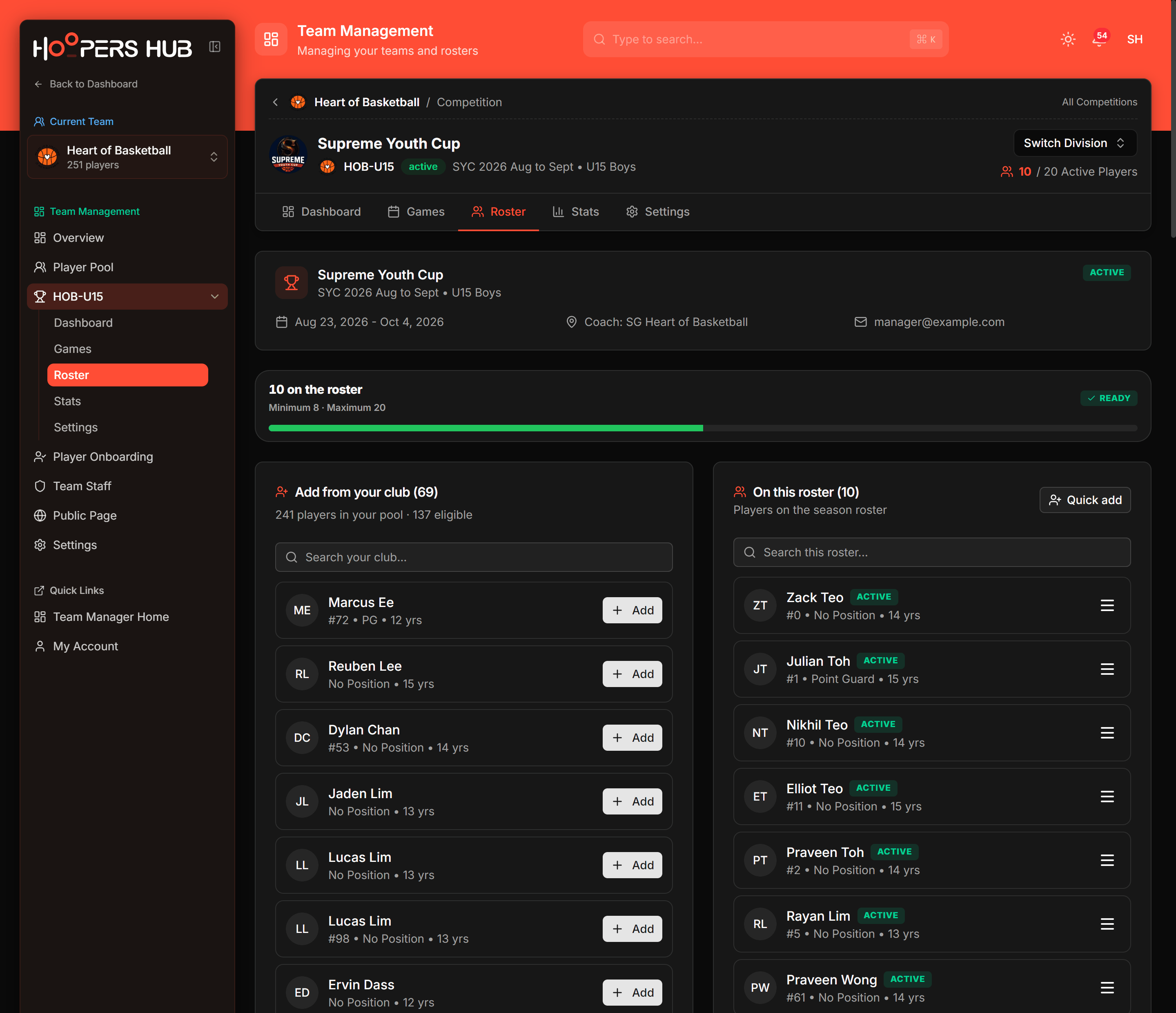
The Roster tab is two panels: your club on one side, this competition on the other. You move players from left to right. On a phone the club panel sits above the roster instead.
Add from your club
Everyone in your pool who is not already on this roster. Search it, then press Add on a row.
On this roster
The players entered for this competition. Jersey numbers and positions here are per competition.
images/tr-03-competition-roster.png
The count strip, then the two panels side by side.
The count strip tells you when you are done
Above both panels sits a single line such as 5 of 8 added, with Minimum 8 · Maximum 15 underneath and the opening date while it is still ahead. The tag on the right is the whole status in one word:
| Tag | What it means |
|---|---|
| Need 3 more | Below the minimum the competition requires. Keep adding. |
| Ready | At or above the minimum. You can stop. |
| At capacity | At the maximum. The Add buttons are disabled until you remove somebody. |
| Locked | Nobody can be added or removed. See the rules below. |
Adding a player
-
Find them in Add from your club
The list is filtered to the age range that makes sense for this division, so an under-16 competition does not show you the eight-year-olds. If somebody is missing, use Show more (younger or ineligible) at the bottom of the panel. That is also where a player who is playing up an age group will be hiding.
-
Press Add on their row
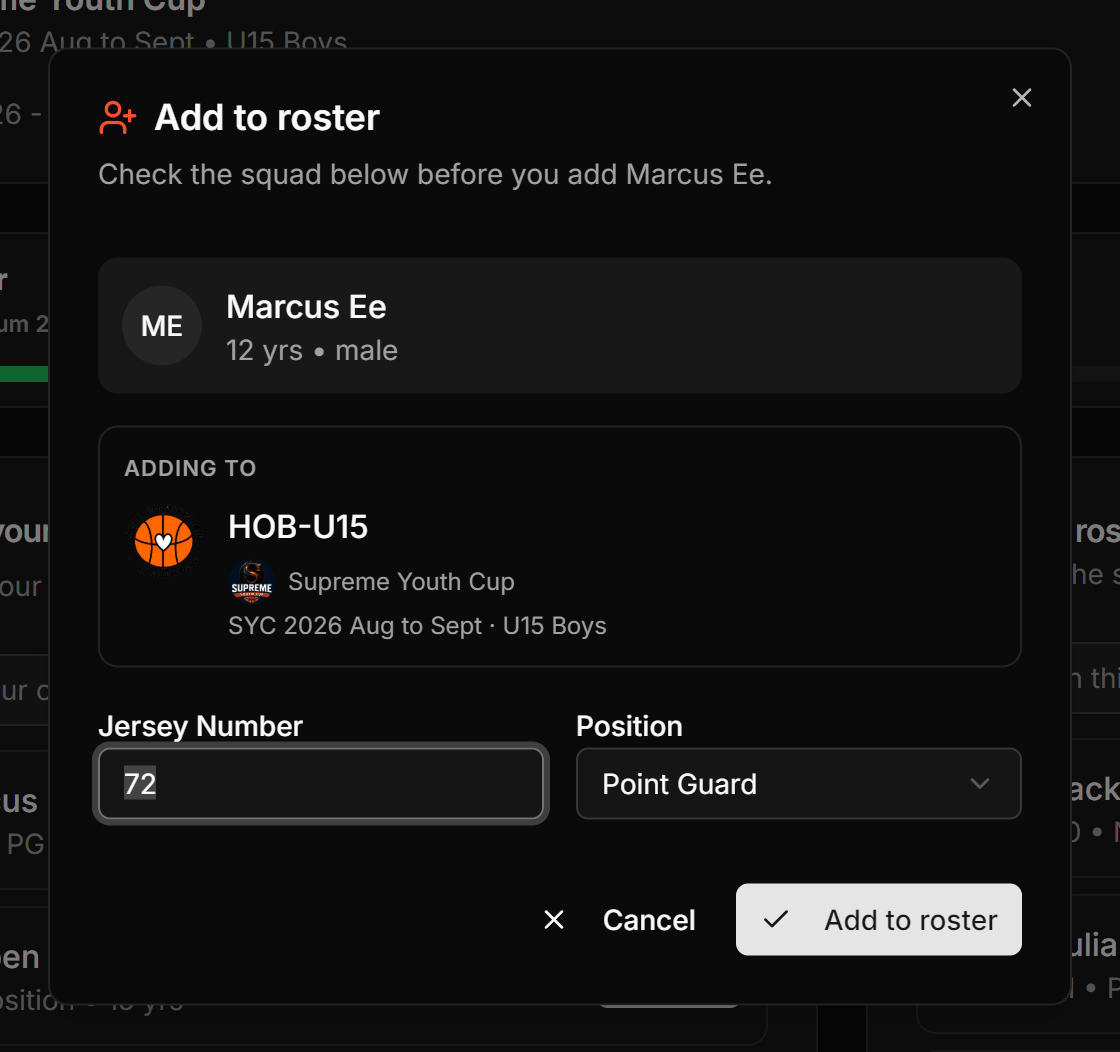
The Add to roster dialog opens. Check the Adding to panel: it names the squad, league, season and division. This matters when your club has two squads of a similar name open in two tabs.
 Screenshot: Add to roster
images/tr-04-add-to-roster.pngThe Adding to panel, plus Jersey Number and Position.The Adding to panel is the check that stops a player landing on the wrong squad. -
Set the jersey number and position
Both are for this competition only. The jersey pre-fills from the club number if the player has one, and the position pre-fills from their preferred position. Numbers are 0 to 99.
-
Press Add to roster
They move across to On this roster and the count strip goes up by one. Repeat until the tag reads Ready.
Changing somebody already on the roster
Every row on On this roster has a menu with the actions you will need during a season:
| Action | What it does |
|---|---|
| View Player | Opens the full profile, with their competition history and career totals. |
| Edit Roster Info | Changes the jersey number and position for this competition. Nothing else moves. |
| Upload ID document | Attaches proof of identity or age, where the league asks for one. Becomes Replace ID document once there is one. |
| Remove from roster | Takes them out of this competition only. They stay in your player pool and on every other roster. |
You can change a jersey number but you cannot clear it back to empty. The scorer's table finds players by number during a live game, so a roster spot without one cannot be encoded. Enter a different number instead.
4. Start from a previous squad
When a roster is empty and your club has played before, an offer appears above the panels: Start from a previous squad. It is the fastest way to open a new season, and it is opt-in every time. Nothing is copied automatically, ever. The whole season-start journey, from the reminder email to a ready squad, is in Start a new season.
-
Press Choose a squad
Start empty next to it dismisses the offer and leaves you with the normal two panels. Neither choice is permanent.
-
Pick a squad
Your previous squads are grouped by season, with the player count on each. One is suggested, but you can take any of them.
-
Pick players
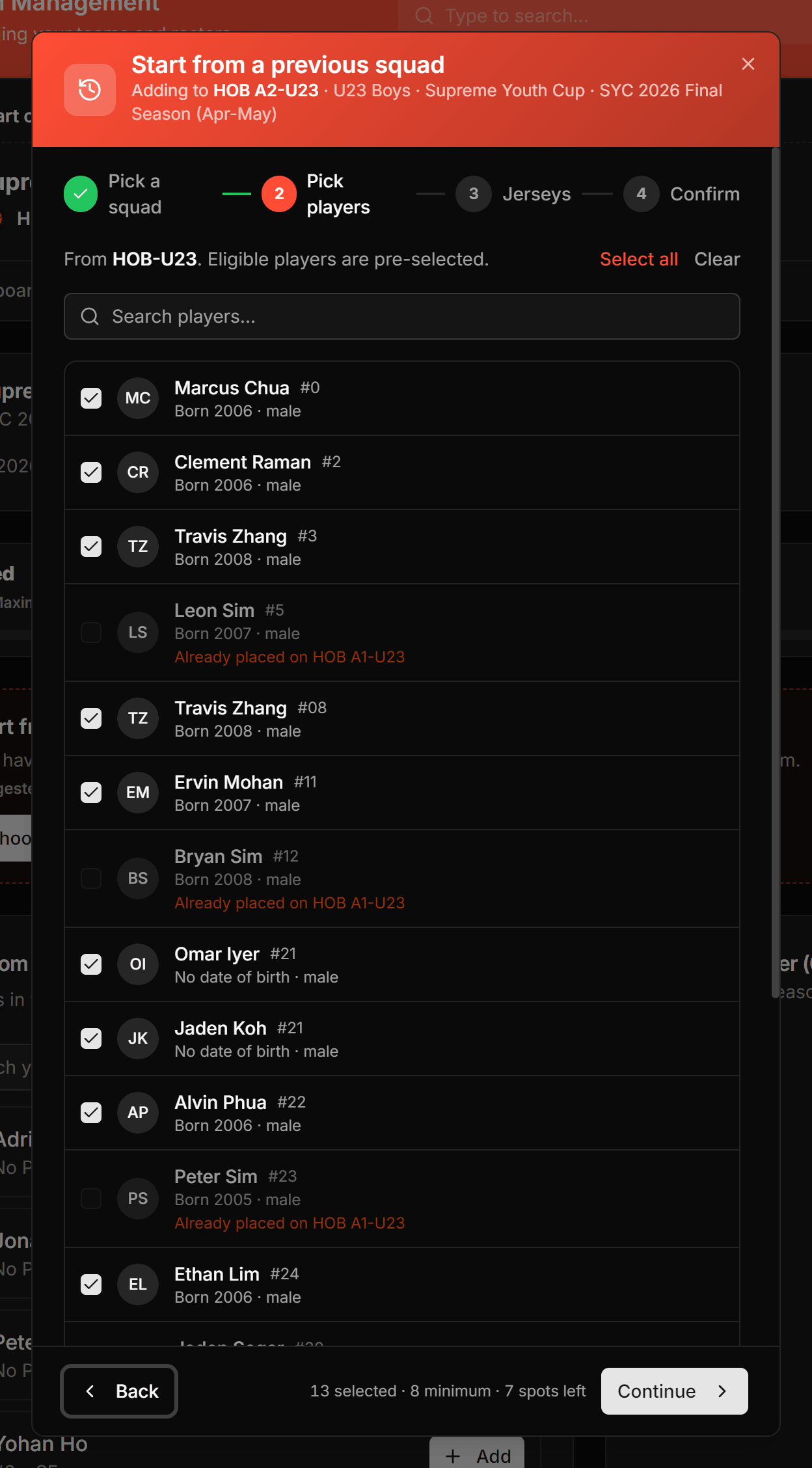
Everyone eligible for the new division is ticked already. Untick whoever has left, and use Select all or Clear if it is easier from the other end. The footer counts your selection against the minimum and the spots left.
 Screenshot: Previous squad wizard
images/tr-05-previous-squad-wizard.pngThe four steps: Pick a squad, Pick players, Jerseys, Confirm.Four steps, and nothing is written until the last one. -
Sort the jerseys
Numbers carry over from the old squad, but every player needs one before you can continue. The footer counts down what is still to sort.
-
Confirm
The last step lists exactly who is going across and where. Press Add players and you get a summary of who was added and who was not, with the reason for anyone skipped.
It is an empty-roster shortcut, not a permanent button. If you add one player by hand first, the panel goes and you continue normally. Nothing is lost: everyone in the old squad is still in your player pool.
5. Add someone new mid-season
A player who has never been in your club is not in the pool, so the left panel cannot offer them. Quick add creates the profile and puts them on this roster in one go.
On a computer it is a button at the top of the On this roster panel. On a phone it is the strip below both panels that reads Cannot find them in your club?. It is deliberately not the first thing you see: adding somebody who is already in your pool is the common case, and typing a name that already exists is the mistake worth avoiding.
-
Type the name, date of birth and gender
As you type, HoopersHub searches for an existing profile. You will get one of two answers.
-
If it finds nobody, keep going
A green line confirms No existing player found. A new profile will be created.
-
If it finds somebody, decide whether it is them
You get a card per candidate, showing their date of birth and the teams they already play for. Press Yes, use this player to attach the existing profile, or No, this is a different player to create a new one. Reusing the profile is almost always right: it keeps their history in one place.
-
Give them a jersey number and press Add player
The number is required here. An ID document is optional. The dialog stays open and keeps a list of who you have added, so a group of new players is one sitting rather than five.
If the full name, date of birth and gender all match an existing player, HoopersHub treats that as the same person and will not create a second profile. If the details really are different, correct them in the form rather than working around it. A duplicated player splits their stats in half.
6. Confirm the lineup for a game
The last list. It tells the table officials who turned up, and it is per game. Confirming it changes nothing about your roster.
-
Open the game
Competition › Games, then the fixture. A panel at the top reads Confirm Lineup, or Lineup Confirmed once you have done it.
-
Tick who is playing
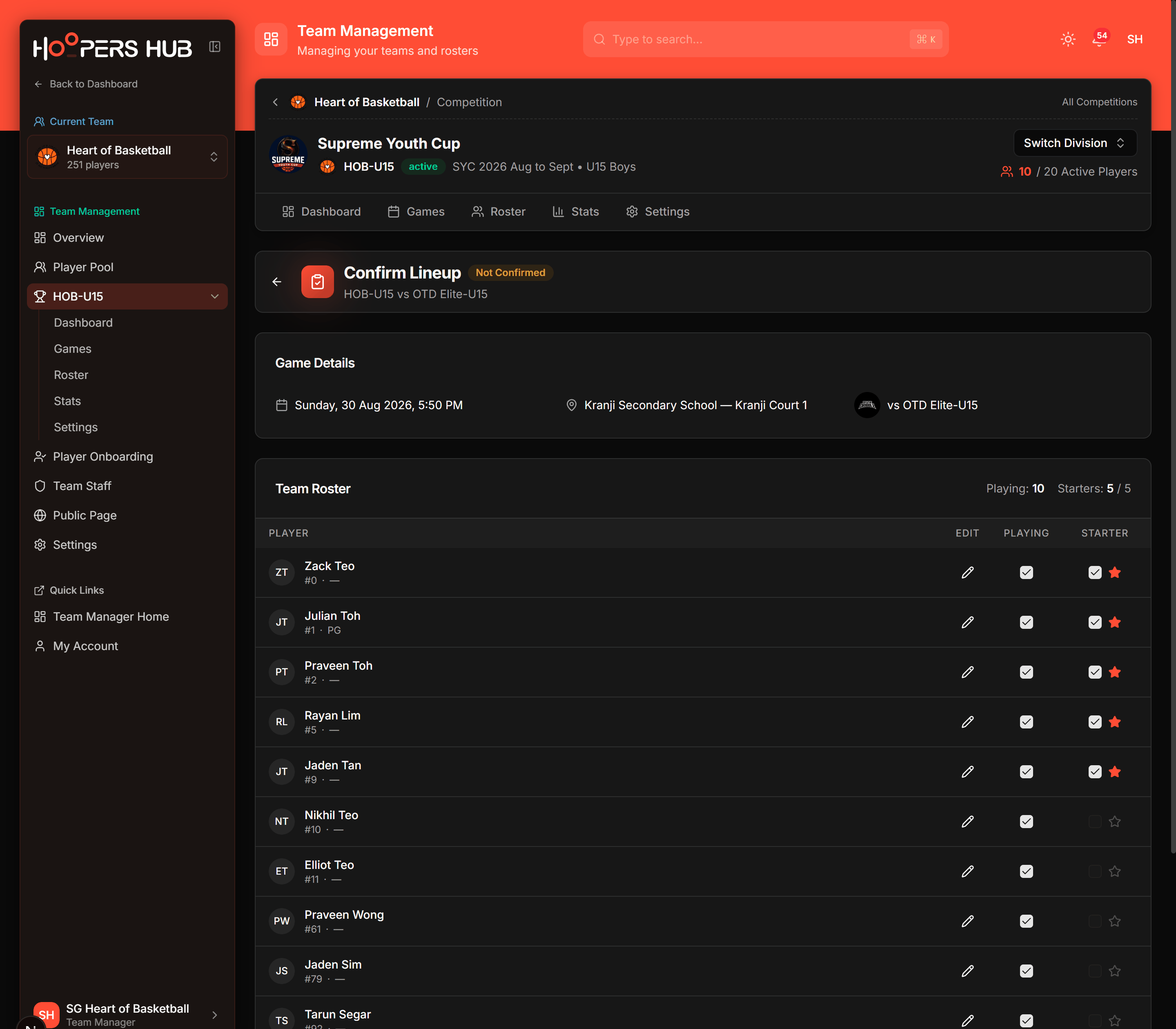
Your competition roster is listed with a Playing toggle per player. Anyone not ticked is simply not in this game.
-
Tick the starters
Starter is only available for a player already marked as playing, and the counter at the top of the card keeps you inside the limit.
 Screenshot: Confirm Lineup
images/tr-06-confirm-lineup.pngThe roster with Playing and Starter columns, and the counter above.Starters can only be chosen from the players marked as playing. -
Add a note if anything is unusual
Notes is optional and goes to the table officials. Late arrivals and missing players are worth a line.
-
Press Confirm Lineup
It becomes Update Lineup afterwards, and you can change it any time before tipoff. Table officials can still finalise on the day through the check-in at the venue.
Every player marked as playing needs a jersey number, and at least one player has to be marked as playing. If you have fewer than five you will get a warning but the lineup still saves, because a short bench is a real situation and the officials need to know about it in advance.
Who can edit a player
Not every player in your pool is yours to edit, and the difference is not a permission you were given. It is who the profile belongs to.
| Situation | What you can change |
|---|---|
| You created them and nobody has claimed the profile | Everything: name, date of birth, contact details, jersey, position, photo. |
| The player or their parent has claimed the profile | Jersey number and position only. Personal details belong to them now. |
| Another team or league manages them | Jersey number and position only, for your team. |
Where the personal details are read-only, the button on the player page says Edit Jersey & Position rather than Edit Player, and the edit dialog says so at the top. That is working as intended, not a permission problem. If a claimed profile has a mistake in it, ask the player or parent to correct it from their own account.
Rules that catch managers out
Six behaviours that look like faults the first time you meet them, and are not.
A player can only be in one team per division and season
This is the one that surprises people. If a player is already rostered by another team in the same division of the same season, adding them yours is refused with This player is already rostered in this division and season. Remove them from the other team first before adding them here. Their other team has to remove them before you can add them. Different divisions, or different seasons, are fine.
Ineligible players are refused, not just warned
A player outside the division's age or gender rules is tagged Ineligible in the club panel with the reason underneath. You can still open the dialog, which shows an eligibility warning, but the save is refused and the reason comes back as an error. If the reason is wrong, the fix is almost always the player's date of birth, not the roster.
Two players can share a number
Duplicate jersey numbers are allowed, in the pool and on a roster. This is deliberate. It happens in real clubs, officials handle it at the table, and refusing it would only make HoopersHub disagree with what is happening on court. You get a note, not a block.
You cannot remove a player from the pool while they are competing
Removing from the pool is blocked with Cannot remove player while in active competitions. Remove them from active lineups first. Take them off each competition roster first, then remove them from the pool.
Removing from the pool does not delete anybody
It marks them inactive. Their history and statistics stay intact, and the Status filter on the Player Pool tab will still show them if you switch it from Active to Inactive or All Status.
A locked roster is the league's decision, not a bug
When a roster locks, an orange banner replaces your buttons and names the reason, when it happened and who did it. There are four reasons:
- Registration was approved by league manager. Some leagues lock a squad the moment they accept it.
- Season has started. The most common one.
- Lock deadline reached. A set number of days before the season opens.
- Manually locked by league manager. A deliberate act by your league.
Request Unlock on the banner notifies the league manager. Nothing changes until they act on it, so send the request early rather than on the morning of a game.
The most common way to end up stuck is to leave the roster until the first fixture. If the season has already started, every addition needs your league manager to unlock it first.
Common questions
A player is in my pool but not in Add from your club
Three possibilities, in order of likelihood. They are already on this roster, so check the other panel. They are outside the age range the panel shows by default, so use Show more (younger or ineligible) at the bottom. Or the search box still has text in it from earlier.
The Add buttons are all greyed out
The roster is at its maximum. The count strip will read At capacity. Remove somebody to make a space, or ask your league manager whether the limit for the division is right.
I cannot change anything on the roster at all
It is locked, and the orange banner at the top says why. Press Request Unlock and your league manager is notified. See the four lock reasons above.
Do I have to add players to each competition separately?
Yes. Rosters are per competition on purpose: a player can have a different number in each, and can be in one competition without being in another. The shortcut for a whole squad at once is Start from a previous squad.
Why is a player's date of birth read-only?
They have claimed their profile, or another team manages it. You keep control of the jersey number and position for your team; the personal details belong to whoever owns the profile. Ask them to correct it from their own account.
What is the Competition Matrix tab for?
It is a read-only overview: every player in your pool down the side, every competition across the top, and a tick or a jersey number where they meet. It is the fastest way to spot somebody who was never added to a competition. You cannot add anybody from it, only see the gaps.
A parent submitted a request and the player is not on my roster
Approving a claim request adds the player to your team pool, and to the divisions you left ticked when you approved. If a division was skipped, usually because its lineup was locked, the player is still in your pool and you add them to that competition from the roster page. See approving claim requests.
Can I move a player from one of my squads to another?
Remove them from the first squad's roster, then add them to the second. They never leave your player pool in between. If both squads are in the same division and season, the removal is not optional: one player cannot be on two rosters in the same division.
Does confirming a lineup change my roster?
No. A lineup is per game and only tells the officials who is playing that day. Your competition roster is untouched, and you can change the lineup any time before tipoff.