

Parents
Your family portal
One login covers you and every child you look after. The trick is knowing which of the two portals you are standing in, because that decides whether you are acting as yourself or as your child.
Two portals, one login
This is the single most useful thing to understand, and almost every question parents ask turns out to be a question about it.
The family portal, as you
Your children, their teams, your inbox, your notification settings. This is the parent's own space, and there is one of it.
A player portal, as your child
Their profile, their public page, their privacy, their teams. There is one of these per child, and you step into it.
When you open a child's portal you are not looking at a parent's summary of them. You are in the same screens that child would see if they logged in themselves, doing the same things they could do. HoopersHub simply lets you in because they are yours.
There is no reduced parent version of a player's profile. Editing their details, changing their public page, and setting their privacy are the same actions with the same effect, whoever is signed in. That is why the guide to those screens is written once, for both: Manage a player profile.
Inside a child's portal a dark bar sits above the page reading Managing and their name. It is the marker that you are acting as them, and its Family button is the way back out. If you cannot see that bar, you are in your own family portal.
Follow that first: Joining your team. It brings your child in and hands you this portal at the end. Then come back here.
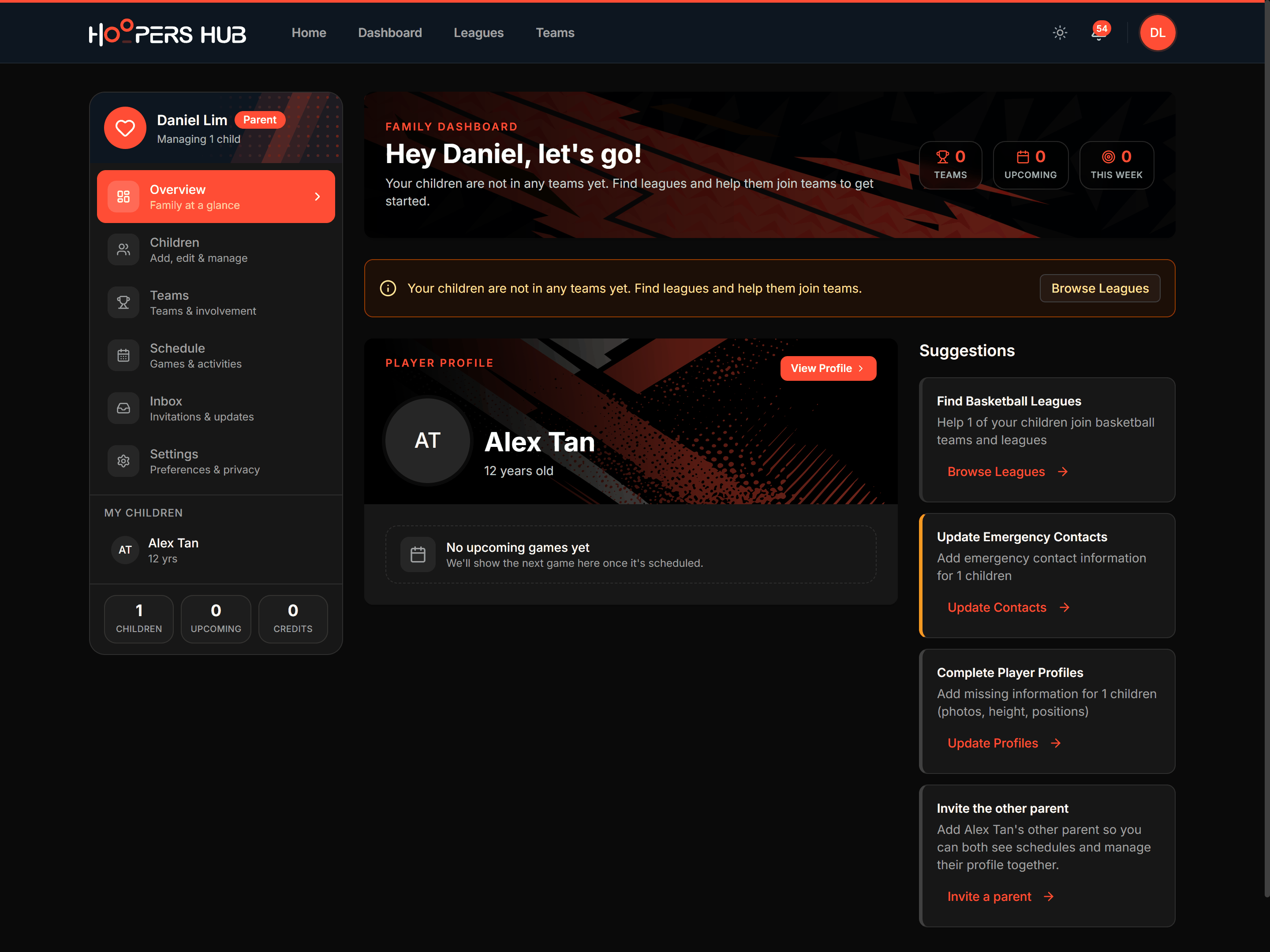
images/fp-01-family-overview.png
The family sidebar and the My Children list.
1. Add your children
Most parents never add a child by hand. The team sends a claim link, you follow it, and the child is already here by the time you first open this page. That is the route to expect, so it is worth understanding before the manual one.
A coach or team manager posts one link in the team chat. You open it, enter your child's name and date of birth, and HoopersHub matches them to that team's roster. When it finishes you have an account, a child attached to it, and this family portal, without ever visiting the Children page. Joining your team is that walkthrough, and it is the one to send to another parent who is starting from scratch.
Whichever route you take, the important distinction is the same one:
Claiming
The profile already exists, created by their team. You take ownership of it, and every game and statistic they already have stays attached.
Creating
No profile exists yet, so you make one. Correct for a genuinely new player, and a duplicate for anyone else.
A claim link does this matching for you. Adding a child by hand asks you to make the same call yourself, which is what the rest of this section covers.
A child who has played anywhere already has a profile. Creating a second one splits their history in half, and untangling it afterwards needs their team manager or league to merge the two.
Adding a child by hand
My Family › Children is where every child you look after lives, and where you add one yourself if no link brought them in.
-
Press Add Child
The dialog is titled Add Child, with Create a new player profile for your child underneath.
-
Type their name and date of birth
Do this before anything else. HoopersHub searches for an existing profile as you type, which is what stops you creating a second copy of a child who is already on a team.
-
If a match appears, claim it rather than creating a new one
You will see Possible existing player found with the matches listed, each marked as an exact or a close match, and often Added by whoever created it. Choose the right one, pick your relationship to them, tick the confirmation, and submit the claim.
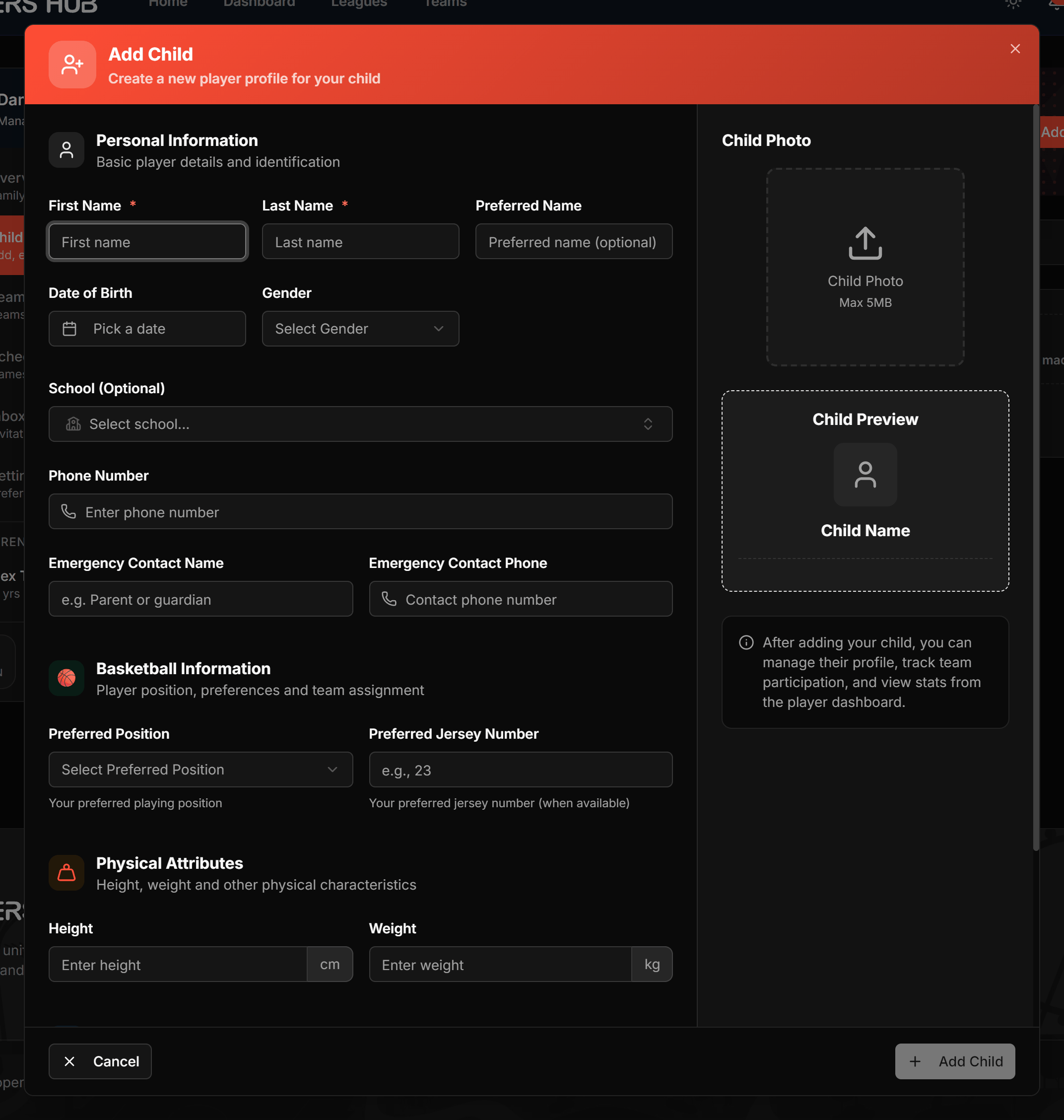 Screenshot: Add Child
images/fp-02-add-child.pngThe form, and the existing-player match banner above it.The match banner appears as you type. Picking the right one is the whole point of this step. -
Otherwise fill in the rest and create the profile
Name, date of birth and gender are what matter. Everything else can wait, and you can add a photo now or later.
A claimed child can show as Pending rather than Verified while it is checked. Until it clears, opening their portal shows Claim Pending Verification instead of the dashboard. That is normal, and usually takes a day or two.
2. Open a child's portal
This is the crossing point between the two layers, and there are three doors into it. They all land in the same place.
| Where | What it opens |
|---|---|
| My Children in the sidebar | That child's dashboard. |
| View Dashboard on their card | The same dashboard. |
| Edit on their card | Straight to their details form. |
Once you are in, the menu changes. The family menu is replaced by the player menu: Overview, Profile, Teams, Schedule, Inbox, Social, Edit profile and Settings. Everything you do there is done as that child.
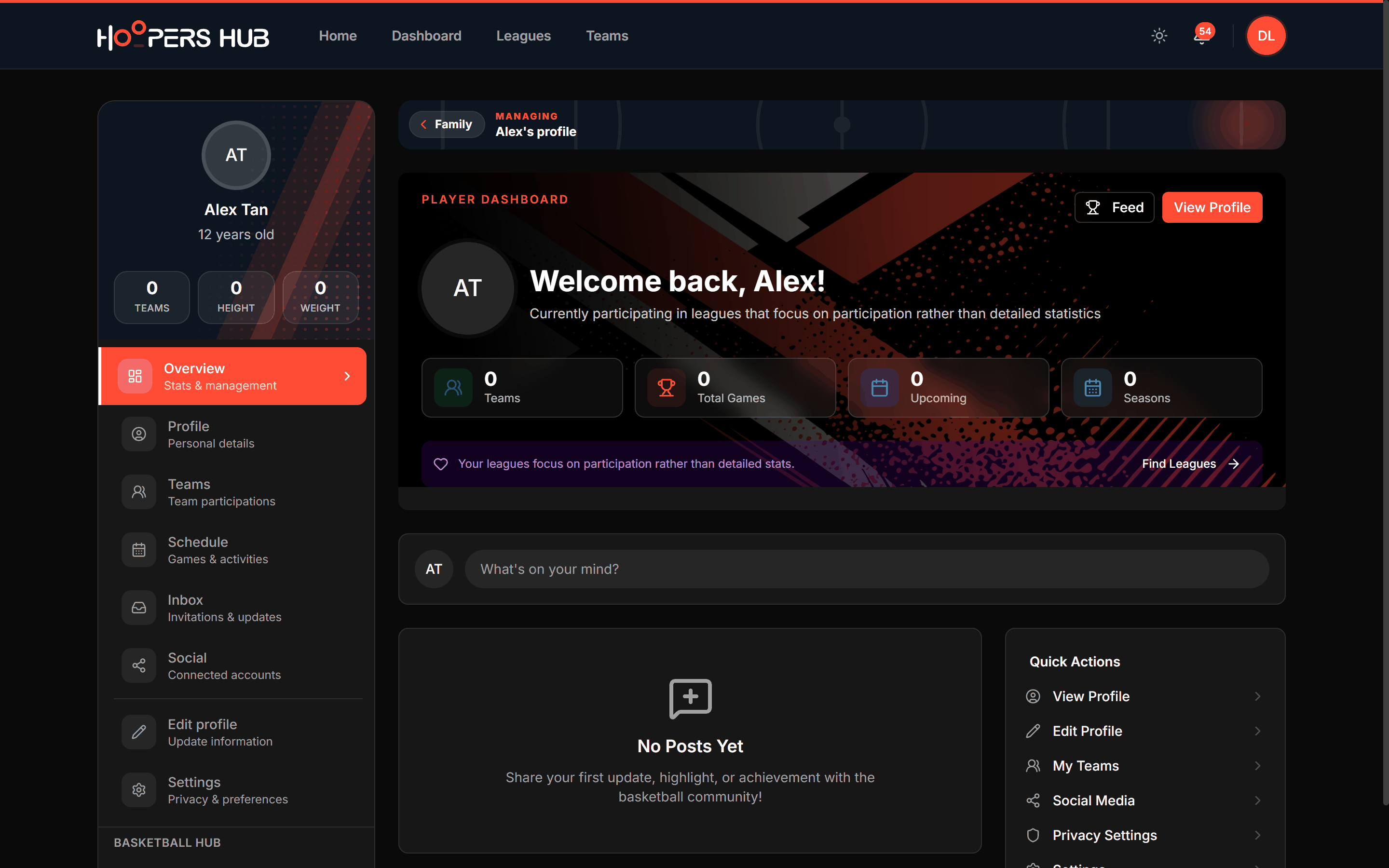
images/fp-03-managing-banner.png
The Managing bar with Family and Switch.
Switch on that bar moves you straight to a sibling and keeps the page you were on. If you are comparing the same screen across two children, that is much faster than going back to the family portal each time.
Editing details, customizing the public page and setting privacy are all covered in Manage a player profile, which is written for whoever is holding the account: you, or an older player managing their own.
3. Add the other parent
A child can have more than one adult looking after them, and each one uses their own login. Nobody needs to share a password.
-
Open Manage Parents on the child's card
The dialog is Parents & Guardians, with the child's name underneath. It lists everyone who currently has access.
-
Invite them by email
Enter their email address and pick their relationship to the child. They get an invitation to accept with their own account.
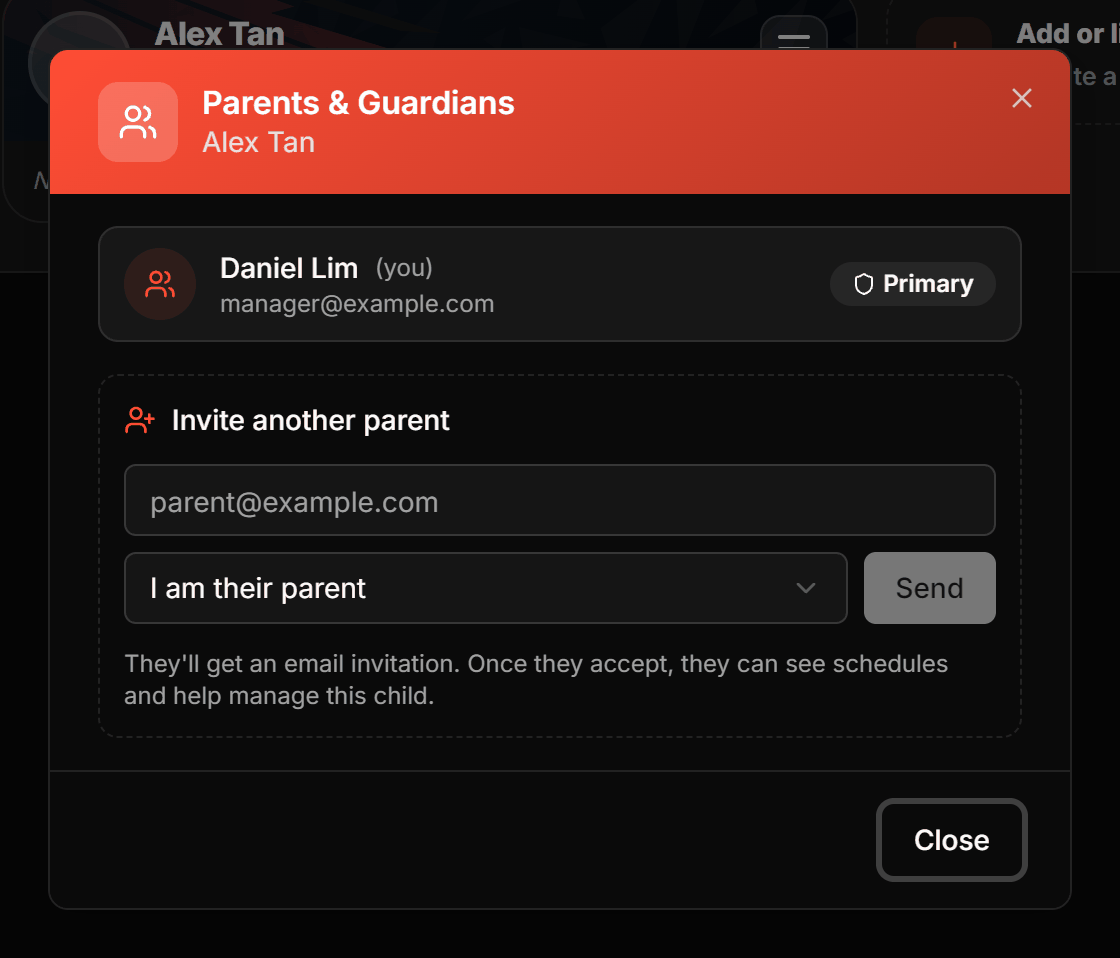 Screenshot: Parents & Guardians
images/fp-04-guardians.pngWho has access now, and the invite form underneath.Each adult keeps their own login. Access is granted per child. -
Approve anyone who asks to join
A request that arrives the other way round, from someone who found the child themselves, waits here for you to approve or reject.
Whoever claimed the child first holds that role, and the dialog says so if it is not you. A second guardian can still manage the child and can remove themselves, but cannot add or remove anybody else.
4. Teams, schedule and inbox
Three rooms answer the questions parents actually ask week to week.
| Room | What it answers |
|---|---|
| Teams | Which teams and competitions each child is in, across every club they play for. |
| Schedule | Games and activities for the whole family in one list, not one child at a time. |
| Inbox | Invitations and updates. The number beside it is how many are waiting on you. |
These two are shared. Opening Schedule from inside a child's portal shows you the same family schedule, so do not go hunting for a separate one per child.
Notification settings
My Family › Settings controls how HoopersHub reaches you, and it is worth five minutes at the start of a season rather than after the first missed game. It covers what you get notified about, how you are notified, your preferred email and phone, a summary digest with its frequency and delivery time, and quiet hours with a start and end.
Settings here belong to the parent account. A child's own preferences, including who may invite them to a team, live in their portal under Privacy and invitations.
Common questions
Do my children need their own accounts?
No. A young child usually has no login at all, and you manage everything from your account. An older player can have their own login, and then both of you can reach the same profile: they sign in as themselves, you reach them through your family portal.
I signed in and there is no family portal
The family portal needs the Parent role on your account, so a player-only account is sent to its own player portal instead. If you should have it and do not, check which role you are in: switching role.
My child is on a team but I cannot see them
Their profile exists but is not linked to you yet. Add them from Children and claim the match rather than creating a new profile. If the team sent you a join link, going through that link does the same thing: Joining your team.
Can both parents be in at the same time?
Yes. Each guardian uses their own login and sees the same child. Changes one makes are visible to the other.
I claimed my child and it still says Pending
Claims are checked before full access is granted, which usually takes a day or two. Until then the child appears in your list but their portal shows Claim Pending Verification. You do not need to claim again.
I added the same child twice by mistake
Do not try to fix it by deleting one at random, because statistics may be attached to either. Ask their team manager or league to merge the two profiles so nothing is lost.
Something I change as my child, does it show as me?
No. Anything done inside a child's portal is recorded against that player, not against you. That is the point of the Managing bar: it tells you that you are acting as them.