

Players and parents
Manage a player profile
What each room in the player portal does, and where to change one particular thing. Look it up when you need it rather than reading it start to finish.
Whose profile is this
These screens are the same whether a player opens them for themselves or a parent opens them for their child. Same pages, same buttons, same effect. Only one thing on screen differs, and it is there to tell you which of the two is happening.
Your own profile
You signed in and went to your player portal. No extra bar appears; everything here is yours.
Your child's profile
You came in from your family portal. A dark bar reads Managing and their name, and you are acting as them.
That bar carries two controls. Family takes you back out to your own portal, and Switch jumps to another child while keeping the page you are on. If you have one child, there is no Switch.

images/mp-01-managing-context.png
The bar a parent sees. A player editing their own profile does not get it.
There is no action here a player can take that a parent managing them cannot. If you are a parent and something looks unavailable, it is unavailable to the player too, usually because a team or league owns that particular field.
Through My Family › Children, or the My Children list in the family sidebar. Opening a child's portal covers it.
What is in the menu
Eight entries. Two of them are shared with the family portal and are the same screen in both places.
| Menu entry | What it is for |
|---|---|
| Overview | The dashboard: teams, what is coming up, and quick actions. |
| Profile | The public page, with its own three tabs. See Customizing and Privacy. |
| Teams | Every team and competition this player belongs to. |
| Schedule | Games and activities. Shared with the family portal. |
| Inbox | Invitations and updates. Shared with the family portal. |
| Social | Posts, and the linked social accounts. |
| Edit profile | The details themselves. See Editing the details. |
| Settings | Invitation rules and account preferences. |
Profile is how the public page looks and who can see what. Edit profile is the underlying information. Changing a height happens in Edit profile; deciding whether that height is shown to the public happens in Profile.
Editing the details
Edit profile holds everything factual about the player. Save once and it updates everywhere that information appears.
| Group | Fields |
|---|---|
| Who they are | First and last name, preferred name, date of birth, gender, school. |
| Contact | Phone number, emergency contact name and phone. |
| Basketball | Preferred position, preferred jersey number, height, weight. |
| About | Bio, a shorter social bio for the public page, Instagram and X handles. |
| Photo | Uploaded and cropped to a square. |
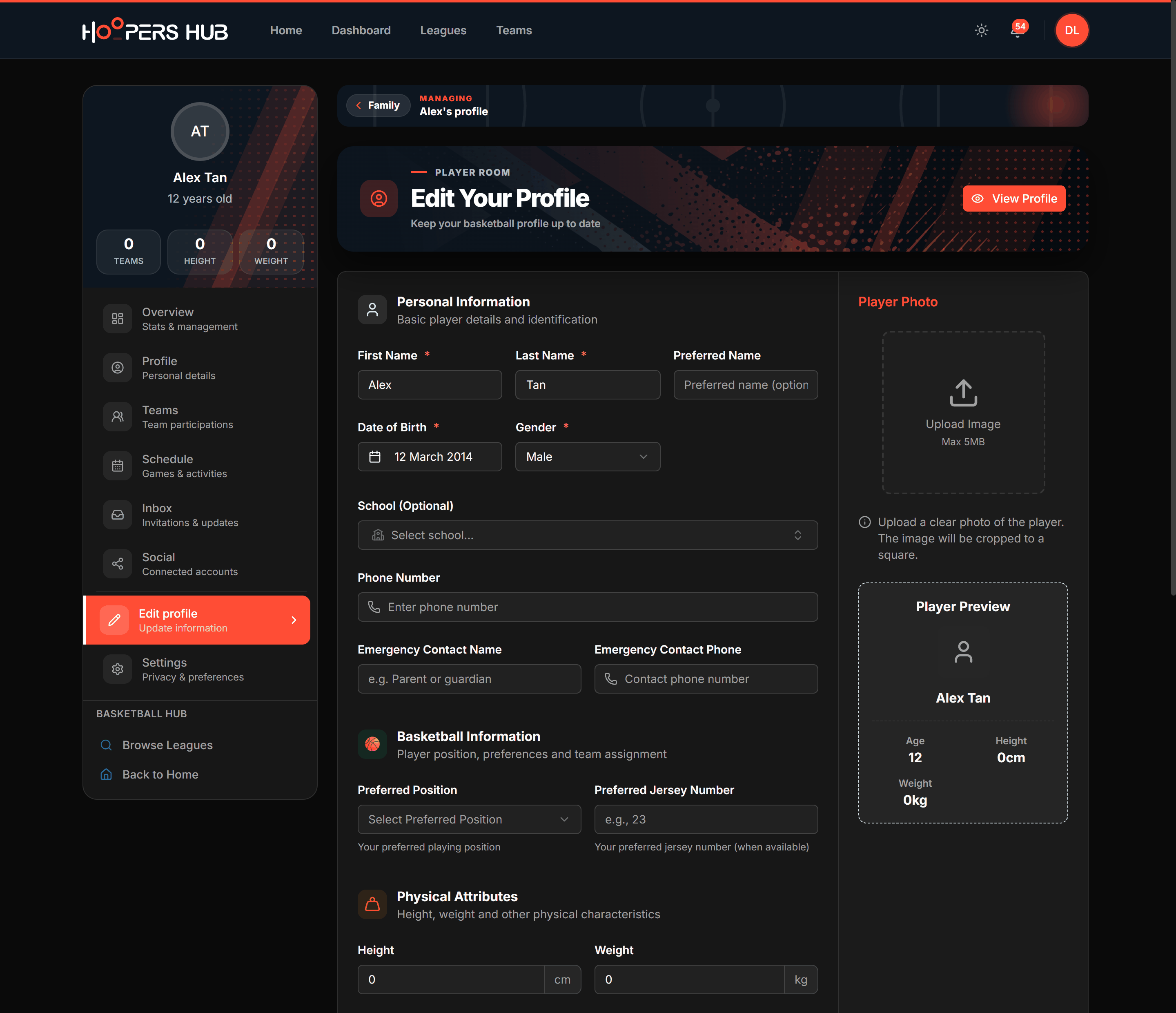
images/mp-02-edit-profile.png
The details form, grouped into sections.
Preferred position and Preferred jersey number are what this player would like. What they actually wear in a competition is set by the team manager on that team's roster, and can be different in every competition.
A field that will not accept a change is being held by whoever owns that piece of information, most often after a profile has been verified. Date of birth is the usual one, because competitions are age based. Ask the team manager or league to correct it rather than working around it.
Customizing the public page
Every player has a public page anyone can open with a link. Profile › Customize controls how it looks, not what it contains.
| Control | What it changes |
|---|---|
| Theme Mode | Whether the page reads light or dark. |
| Accent Color | The highlight colour used through the page. |
| Banner Image | The picture across the top. |
| Banner Style | How that banner is laid out. |
| Preview | Shows the result before you commit to it. |
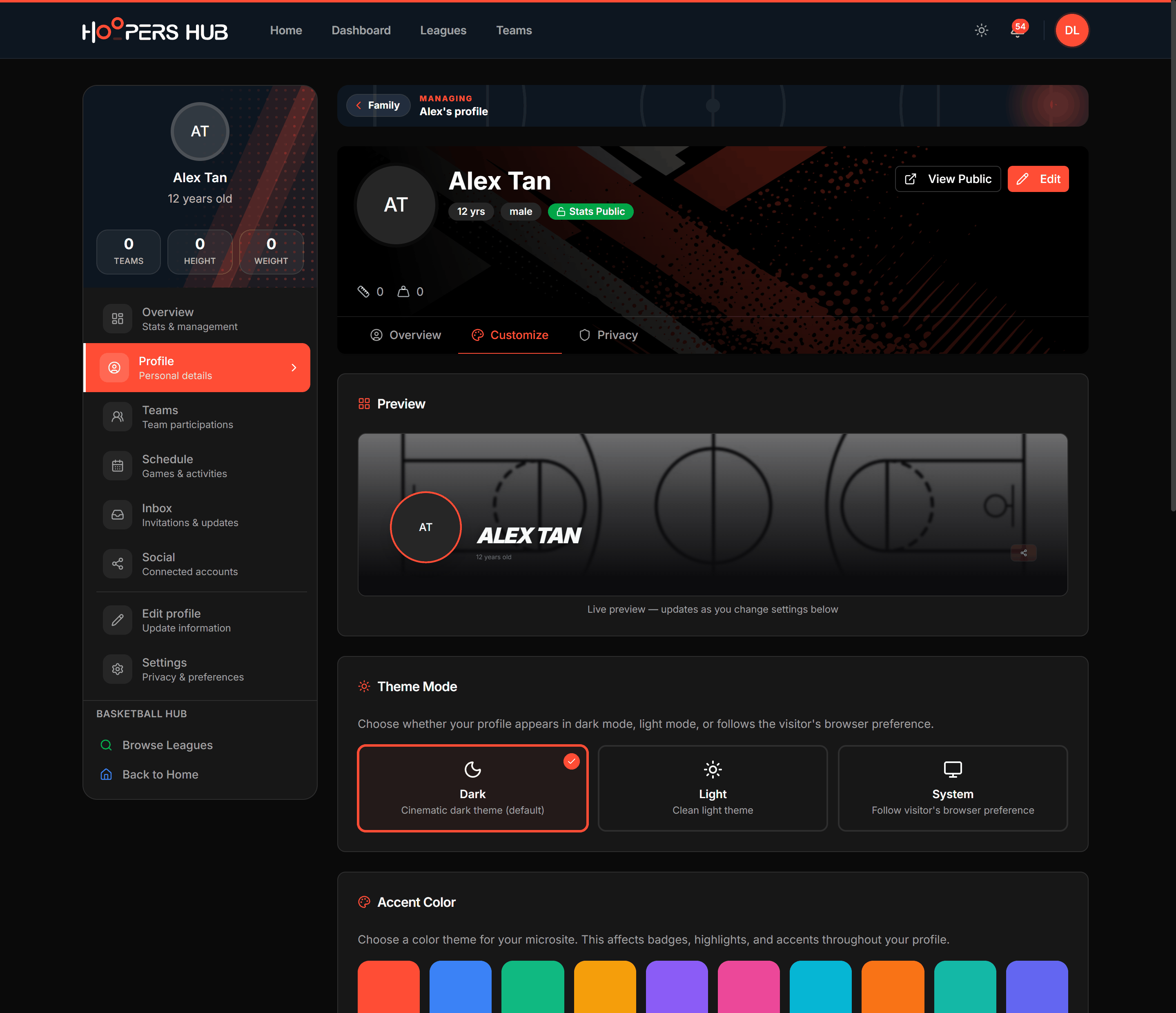
images/mp-03-customize.png
Preview at the top, then the four controls.
Privacy and invitations
Profile › Privacy decides who sees this player and who is allowed to approach them. It is the section worth setting deliberately for a child.
Who can see the profile
The profile has an overall visibility: Public so anyone can view it, Friends Only, or Private so only the account holder can. Posts have their own separate setting of Public, Followers Only or Private.
Who can find and invite them
| Setting | Effect |
|---|---|
| Show in Search Results | Whether team managers can find this player when searching. |
| Allow Team Invitations | Whether teams may send an invitation at all. |
| Verified Organizations | Accept invitations from verified organisations automatically. |
| Known Contacts | Accept invitations from people already connected automatically. |
| Team, League and Academy Invitations | Require approval before joining each of those. |
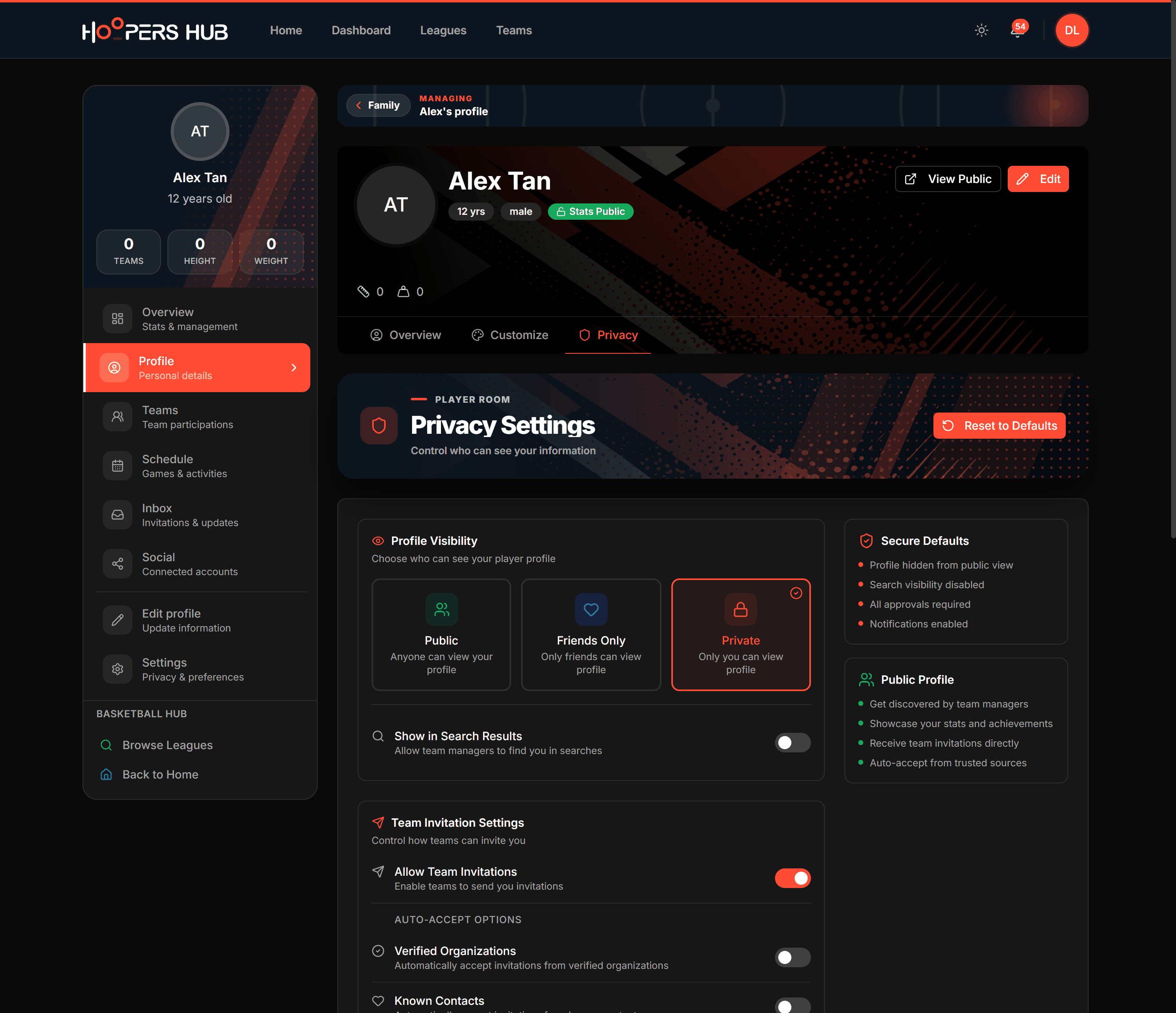
images/mp-04-privacy.png
Visibility at the top, then the invitation rules.
A player who cannot be found in search cannot be invited by a coach who does not already know them. That is the right setting for some families and the wrong one for a player hoping to be picked up by a new team. It is a choice, not a safety default.
Settings repeats the invitation rules alongside the account preferences. They are the same settings in both places, so changing one changes the other.
Teams and schedule
Teams lists every team and competition this player belongs to, across every club. It is the quickest way to check that a player was actually entered into a competition rather than just added to a club.
Schedule and Inbox are the shared rooms. For a parent they show the whole family rather than only the child whose portal you happen to be standing in, so do not go looking for a separate schedule per child.
A player joins a team through a link or code from that team's manager, or by accepting an invitation in the inbox. See Joining your team.
Common questions
How does this player join a team in the first place?
Not from these screens. A team manager sends a link or a 6-character code, and following it connects the player to that team: Joining your team. An invitation sent directly to the account arrives in Inbox instead.
I changed the jersey number and the team still shows the old one
Both are correct. The number here is the preferred one; the number on a team roster is set by that team manager per competition, and it wins for that competition. Ask them to change it there.
A field will not let me edit it
It is locked, usually because the profile has been verified and that piece of information is now held by the team or league. Date of birth is the common one. Ask the team manager or league to correct it.
Where is the public page, and can I share it?
Profile has a link that opens the public page in a new tab. That address is safe to share, and what it reveals is exactly what the Privacy tab allows.
I am a parent. Does my child see what I changed?
If they have their own login, yes. You are both looking at one profile, not at two copies of it.
Can I stop coaches contacting my child?
Yes. Turn off Allow Team Invitations to stop invitations entirely, or leave them on and turn off the automatic acceptances so every one waits for your approval. Privacy and invitations lists them all.
The portal says my claim is pending
Profiles are verified before full access is granted, which usually takes a day or two. You do not need to claim again. Until it clears you can still open the public profile.
I have no player profile at all
If a team has sent you a link, use it: it creates the profile and puts the player on the team in one go. See Joining your team.
Otherwise, a player creates one from their own account, and a parent adds the child from their family portal: Add your children.