

Team manager
Start a new season
Every squad starts a new season empty. For most of them the quickest way to fill the roster is to bring last season's players back, and you choose exactly who returns.
How a squad gets into a season
You do not sign up for a new season. Your league manager enters your squads, and each one arrives with an empty roster. Filling it is your job, and it has to be done before the squad's first game.
What the league does
Enters each of your squads in the right division of the new season. Sometimes it also sends you a reminder email listing the squads that still need players.
What you do
Open each squad and choose who returns from an earlier squad, then add anyone new. Nothing is copied for you: the squad stays empty until you confirm.
Only the league manager can enter it, so contact them and say which squad and division you expected. Once it is entered it appears on your dashboard straight away. See open the competition for where competitions are listed.
1. Find the squads that need players
There are three ways in, and all three open the same wizard. Use whichever one reaches you first.
| Way in | Where you find it | What to press |
|---|---|---|
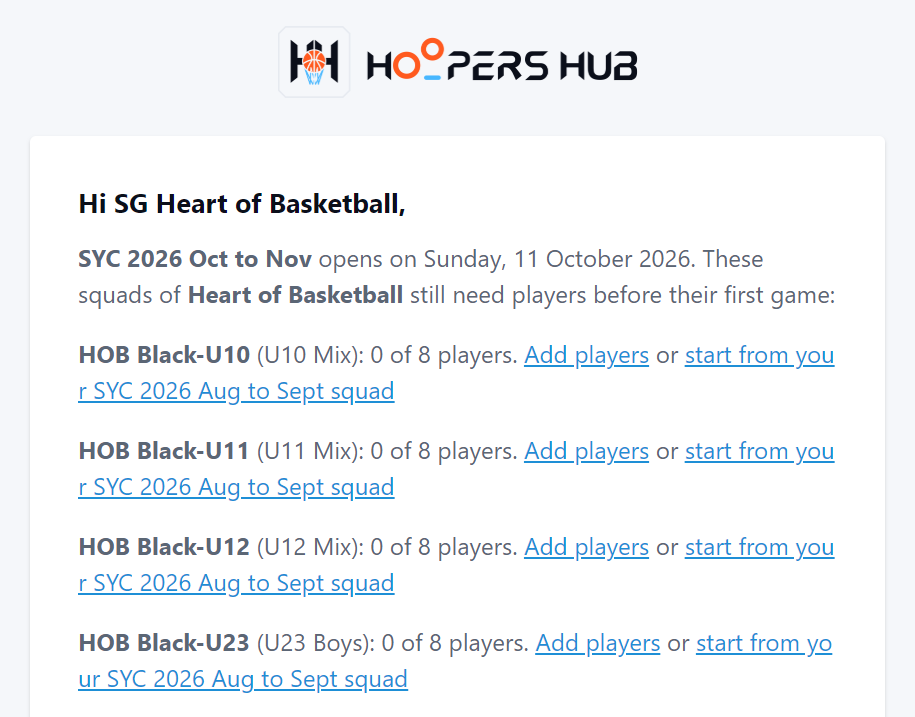
| The reminder email | From your league, with a subject such as "SYC 2026 Oct to Nov opens 11 Oct: 15 squads need players" | start from your … squad on the squad's line |
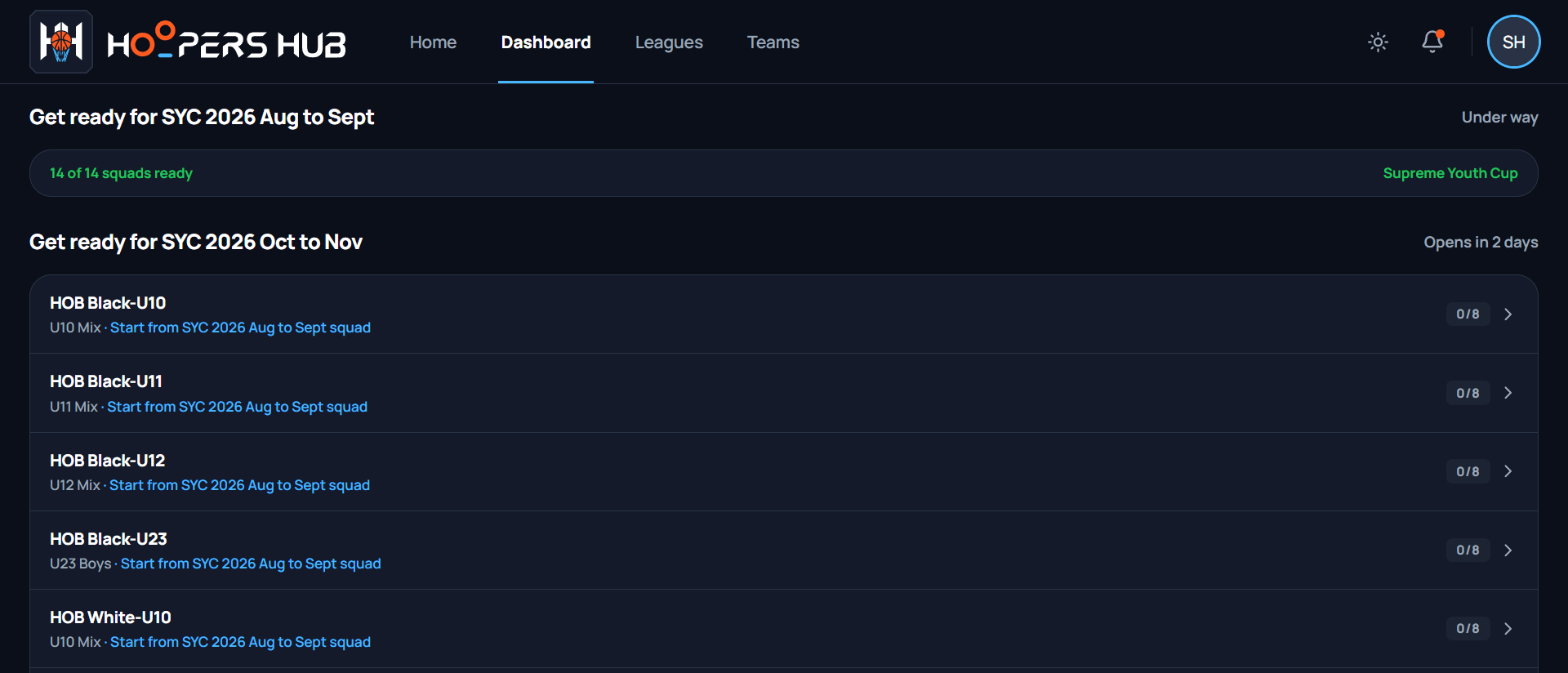
| Your dashboard | The Get ready for block, under your stats, while you are in the Team Manager role | The squad's row, which reads Start from … squad |
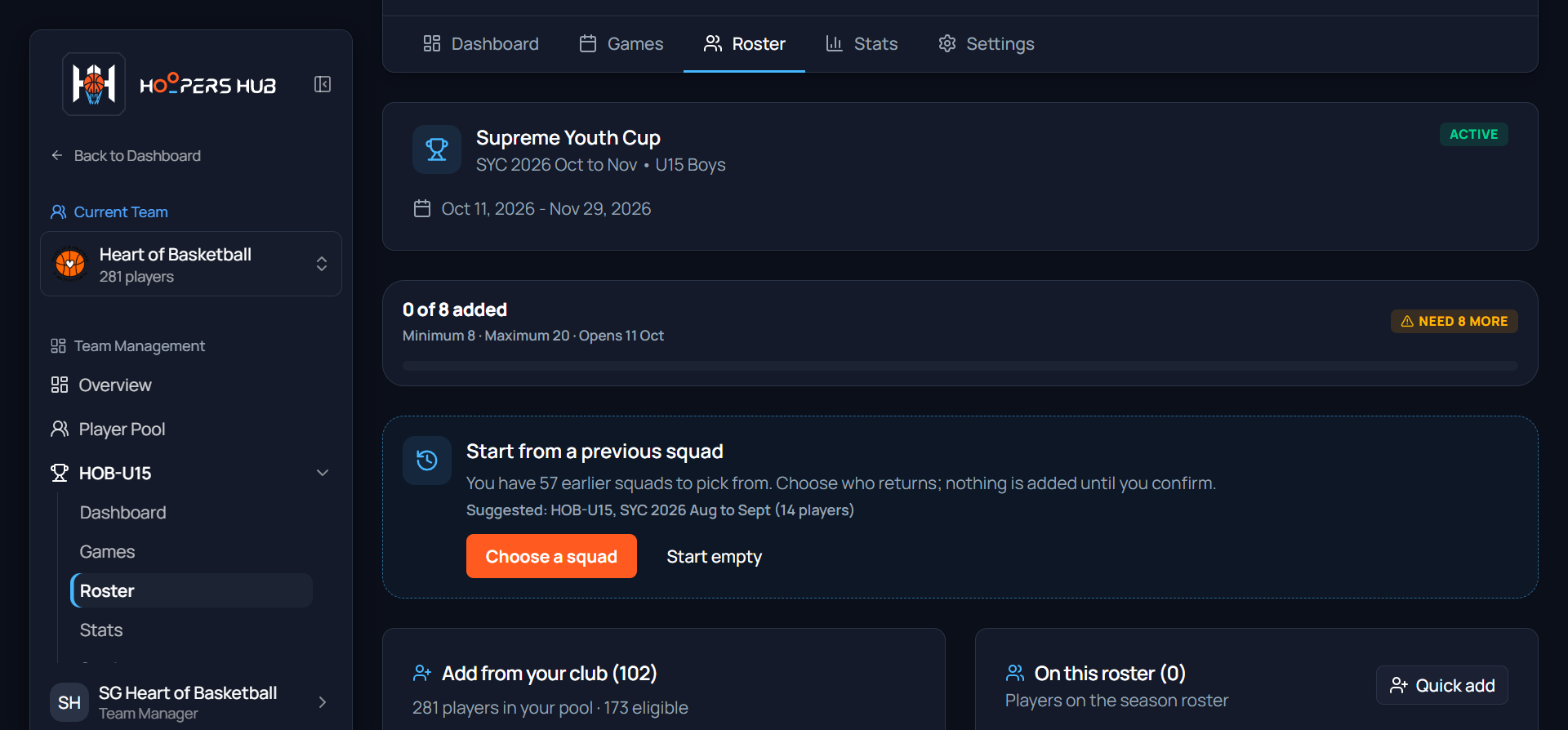
| The squad's Roster page | Your team › Competitions › View Competition › Roster | Choose a squad |
images/ns-01-reminder-email.png
One line per squad, each with Add players and a link to start from last season's squad.
Your league sends the email when it chooses to, so do not wait for it. The dashboard shows the same squads all the time, from the day they are entered.
images/ns-02-dashboard-get-ready.png
One row per squad: name, division, the shortcut, and its count against the minimum.
You are probably in another role: switch to Team Manager. If you are already a team manager, your squads may not be entered yet. Contact your league manager.
2. Open the previous-squad wizard
How the wizard opens depends on how you got here. Either way, nothing is added until the very last button.
-
From the email or the dashboard, it opens by itself
The squad's Roster page loads with the wizard already open on Pick players, and last season's squad already chosen. Go straight to tick who is coming back. If you want a different squad to start from, press Back.
If the link asks you to sign in first, sign in and you are taken back to the same page.
-
From the Roster page, press Choose a squad
An empty roster shows a card above the two panels, Start from a previous squad, with how many earlier squads you have and the one it suggests.
 Screenshot: The offer on an empty Roster page
images/ns-03-roster-offer.pngThe count strip, then the Start from a previous squad card with Choose a squad.The offer sits between the count strip and the two panels. Start empty hides it until you reload the page.
Add even one player by hand and the card goes, along with the shortcut on your dashboard. If that has already happened, see when the offer is not there.
3. Bring the players across
Four steps, or five if the old squad has a player the scorer's table added without a name. You can close the wizard at any point and nothing changes.
-
Pick a squad
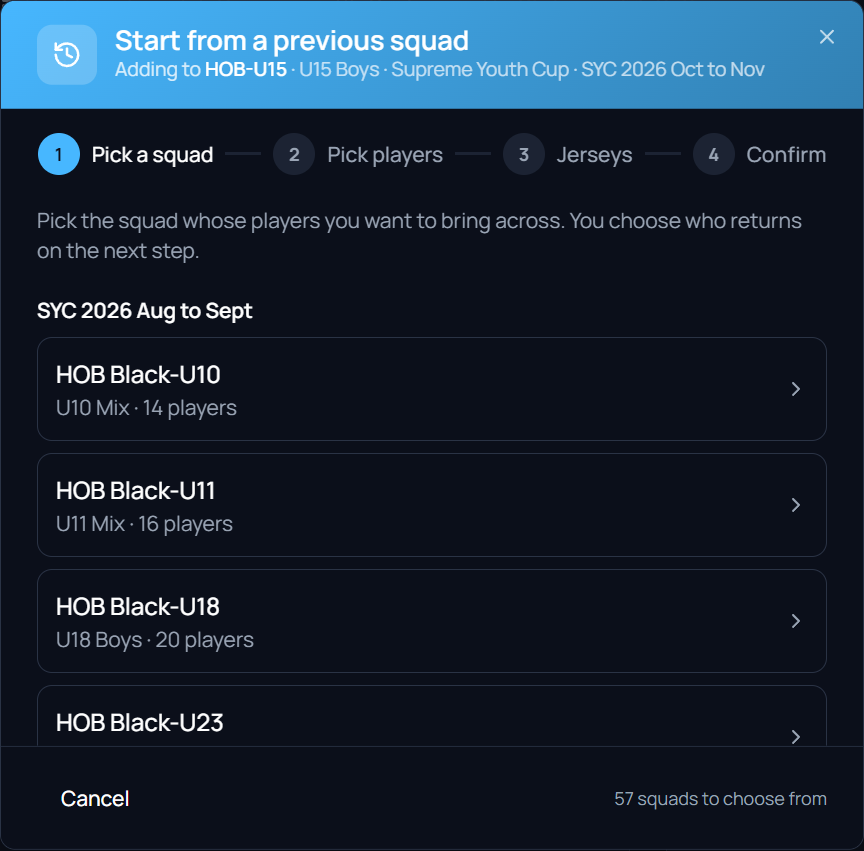
Every squad your club has fielded before is listed, newest season first, with its division and how many players it had. The one that matches this squad is marked Suggested, but you can pick any of them, in any league.
 Screenshot: Pick a squad
images/ns-04-pick-a-squad.pngEarlier squads grouped by season, each with its division and player count.The header always says where the players are going: Adding to HOB-U15, its division, league and season. -
Tick who is coming back
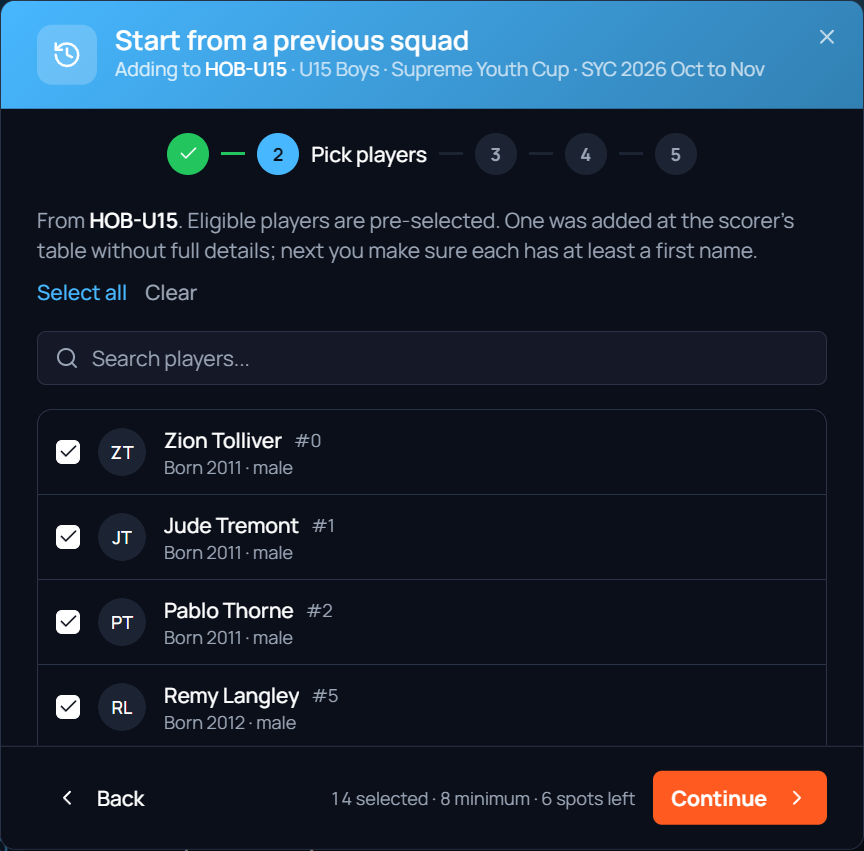
Everyone who can play in the new division is ticked already. Untick anyone who has left. Select all and Clear let you work from either end, and the search box finds a name in a big squad. The footer counts your selection against the minimum and the spots left.
 Screenshot: Pick players
images/ns-05-pick-players.pngThe ticked list, and the footer counting the selection against the minimum.Names and numbers come from the old squad. The footer is the number to watch: 14 selected · 8 minimum · 6 spots left. A player who cannot come across is greyed out with the reason underneath, never hidden. The usual reasons:
- Age or gender. They fall outside the new division. When that looks wrong, the date of birth usually is: see who can edit a player.
- Already placed on another squad. They are on another of your rosters in the same division and season. One player can only be on one roster per division.
- Already on this roster. Nothing to do.
-
Name any scorer's-table players (only if asked)
A player added at the scorer's table during a game may have only a jersey number, and shows as Unnamed player #53 with a Needs first name tag. If you leave one ticked, a Details step appears. Each needs at least a first name. Last name, gender and date of birth are optional, but add all three together or none; the parent can fill in the rest later from your claim link. If the details match a child already at your club, you are asked whether it is the same child. Untick a player here to leave them out.
-
Check the jersey numbers
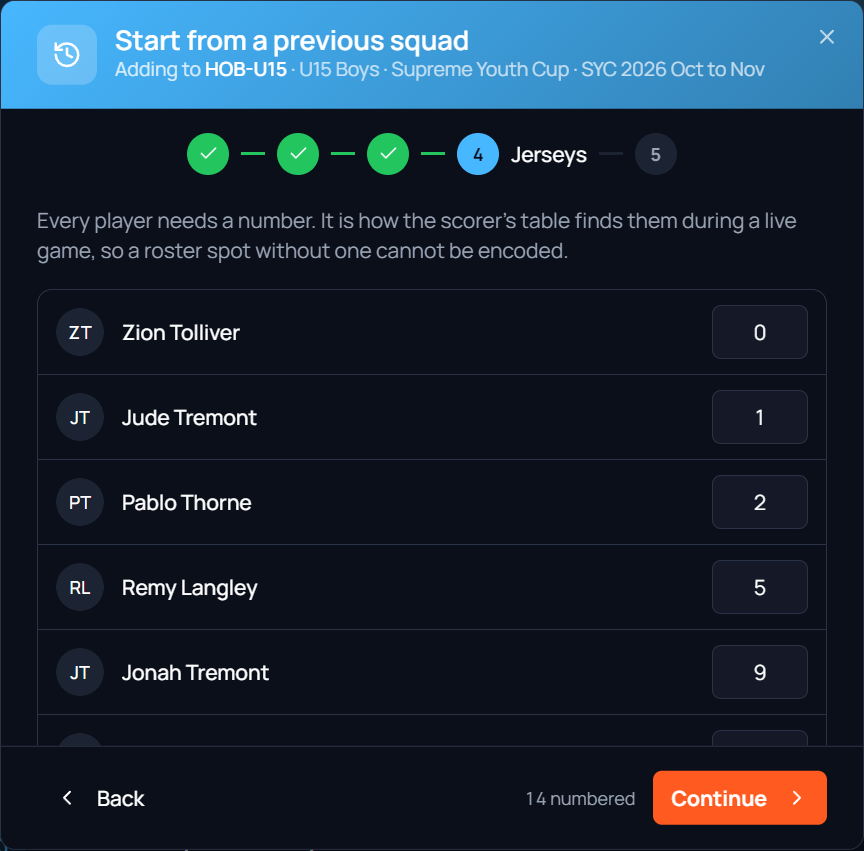
Numbers carry over from the old squad. A number that clashes with someone already on this roster comes through blank, and two players on the same number are flagged; the footer counts what is still to sort. Every player needs one, because it is how the scorer's table finds them during a game.
 Screenshot: Jerseys
images/ns-06-jerseys.pngOne number box per player, filled in from the old squad.When every box is filled and no two players share a number, the footer reads 14 numbered and you can continue. -
Confirm
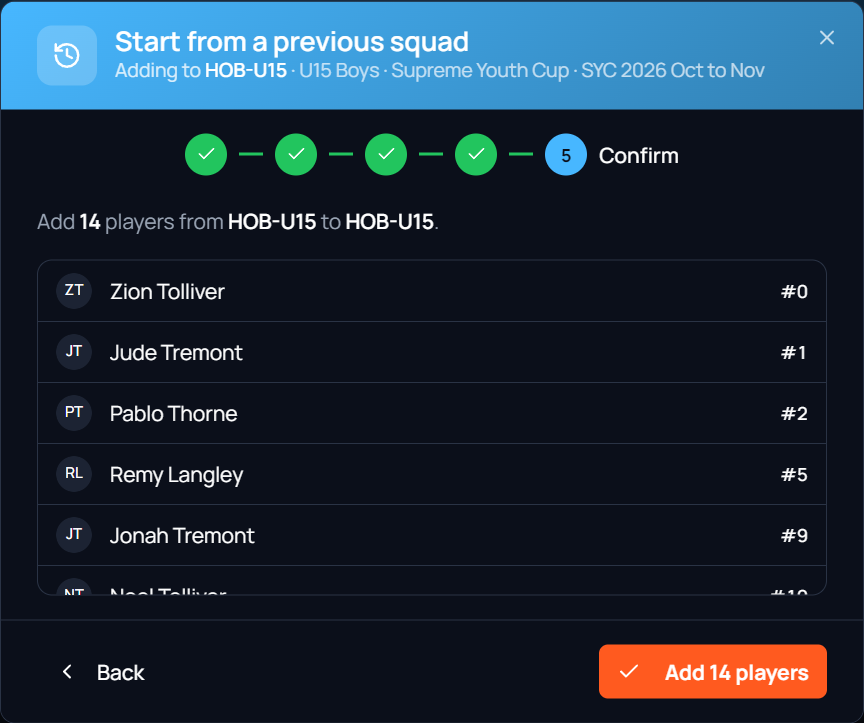
The last step lists who is going across, with their numbers. Press Add 14 players (the count is yours). You then see who was added, and anyone who was not, with the reason, such as the roster filling up. Press Done.
 Screenshot: Confirm
images/ns-07-confirm.pngThe final list and the Add 14 players button.This is the only button in the wizard that changes your roster.
4. Finish the squad
The count strip at the top of the Roster page tells you when you are done.
-
Check the count strip
It reads 0 of 8 added and Need 8 more until the squad reaches its minimum, then Ready. The minimum and maximum come from your league and can differ by division. The squad's row on your dashboard changes to Ready at the same time.
-
Add anyone new
A returning player who was not in the old squad is still in your club pool: find them in Add from your club (build the competition roster). For a player new to the club, send your claim link so the parent enters the details, or use Quick add on the day.
-
Repeat for each squad
The wizard fills one squad at a time. Go back to your dashboard or the email for the next one. When all your squads read Ready, the last job before each game is to confirm the lineup.
When the offer is not there
The shortcut is only offered when it can help. If you cannot find it, one of these is why.
| What you see | Why | What to do |
|---|---|---|
| The roster already has a player or two, and no card | The card is for an empty roster only | Use the start from your … squad link in the reminder email, which still works on a part-filled roster. Or add the returning players from Add from your club: everyone from last season is already in your pool. |
| The roster is empty, but the card has gone | You pressed Start empty | Reload the page and the card comes back. |
| No card, and the dashboard row says Add players | Your club has no earlier squad with players in it, usually in its first season | Add players from your club, or send your claim link. |
| An orange banner across the roster | The roster is locked | Press Request Unlock and your league manager is notified. See the lock reasons. |
| You can see the roster but not change it | Your role on the team cannot edit rosters | Owners, managers and coaches can. Ask the team owner to change your access. |
Common questions
Does anything carry over automatically?
No. Every squad starts the season empty, and nothing is copied until you press the last button in the wizard. That is on purpose: you know who is coming back, and the system does not.
Does it take anyone off last season's squad?
No. The old squad's roster, its games and its stats are untouched. The wizard only adds players to the new squad.
Can I start from a squad in a different league or age group?
Yes. Every earlier squad your club has fielded is listed, whatever the league, grouped by season. Anyone who cannot play in the new division is greyed out with the reason, so you cannot add an ineligible player by mistake.
My players come from two old squads. Can I run it twice?
The wizard brings players from one squad at a time. Run it for the squad most of them came from, then add the rest from Add from your club. They are all in your club pool already.
Will their jersey numbers stay the same?
Yes, unless the number clashes with someone already on the new roster or with another player you are bringing across. Those come through blank, or flagged, for you to choose.
I did not get a reminder email
The league sends it by hand, when it chooses, to your team's managers. You never need it: the Get ready for block on your dashboard lists the same squads, all the time.
A squad on my dashboard says Ready but the season has not started
Ready means the roster has reached the division's minimum. You can still add players up to the maximum, and change the roster until the league locks it.