

Team manager
Download player certificates
When a season ends, every player on your squad can have a certificate of achievement with their name, your team and the place your squad finished. Download the whole squad as one PDF from the competition dashboard, or one player's certificate at a time.
When certificates appear
Nothing needs switching on by you. A competition shows the Certificates card once both of these are true:
The season has ended
While games are still being played the card stays hidden, because the final placings are not known yet.
The league has a certificate for it
Your league manager sets up a certificate design for the season. Seasons without one never show the card.
A parent who has linked their child to their account sees a Download certificate button on their own Teams page, so you do not have to send certificates to every family. Download your child's certificate is the guide to share with them.
1. Open the competition
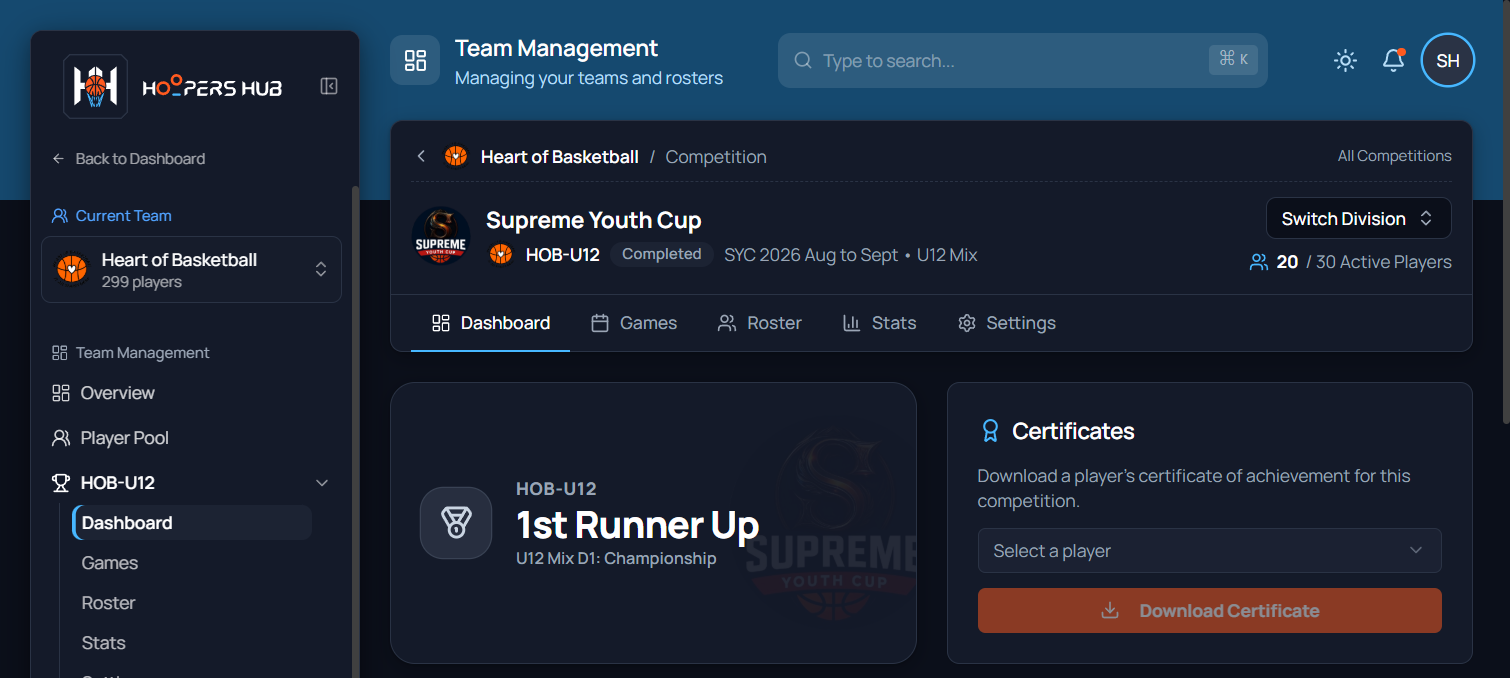
Go to the squad's competition and stay on the Dashboard tab: Your team › Competitions › View Competition. The squad also has its own entry in the sidebar, under your team, with Dashboard as its first item.
images/ce-01-certificates-card.png
The squad's placing, with the Certificates card beside it.
If you manage several squads, each one has its own competition and its own card. Use Switch Division in the competition header, or the sidebar, to move between them.
2. Download the whole squad in one PDF
One PDF, with a certificate on each page for every player who has a full name, A to Z. This is the quick way at season end, and it prints as a stack of certificates in one go.
-
Press Download all certificates
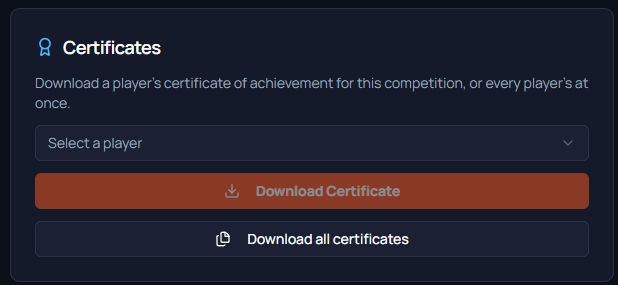
On the Certificates card, press Download all certificates, the button under Download Certificate. A dialog opens and checks the roster first; it reads Checking who has a full name on the roster… for a moment.
 Screenshot: The Certificates card
images/ce-09-download-all-button.pngDownload all certificates under Download Certificate.The card as it is now. Download all certificates needs no player chosen; Download Certificate stays grey until one is. -
Check who is in, and who is skipped
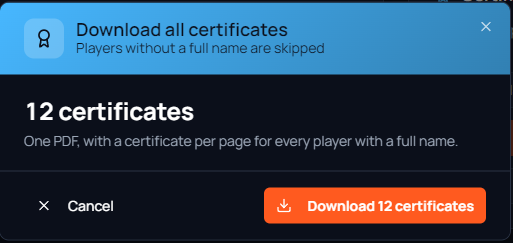
The dialog says how many certificates the PDF will hold. If any player has no full name yet, a notice says how many will be skipped and lists them by jersey number, so you can decide whether to download now or name them first. Add names in the dialog opens the roster showing only those players, as in step 4.
 Screenshot: The Download all certificates dialog
images/ce-10-download-all-dialog.pngThe count and Download 12 certificates.The dialog before anything downloads. Everyone on this squad has a full name, so nobody is skipped. When some players lack one, a notice listing them by jersey number appears between the count and the buttons. -
Press Download, then wait for the PDF
The button names the count, for example Download 12 certificates. It reads Preparing PDF… while the file is made, which takes a few seconds for a full squad, and the dialog stays open until it is done. The PDF is named after the season and the squad, for example
SYC-2026-Aug-Sep-Certificate-HOB-U12.pdf, and a message confirms Downloaded 12 certificates.
Print the PDF and the whole stack comes out, one certificate per sheet. The file is made fresh each time you ask for it, so after you name a skipped player you can download the squad again and they are in it, or download just that player from step 3.
3. Download one player's certificate
For one family at a time, or a player you have just named, download a single certificate from the same card.
-
Choose the player
Open Select a player. Each player is listed with their jersey number, in alphabetical order. Players who still need a name are at the bottom, marked (needs a full name): see step 4 for those.
-
Press Download Certificate
The button reads Preparing PDF… for a moment, then the certificate downloads as a PDF named after the season and the player, for example
SYC-2026-Aug-Sep-Certificate-Alex-Tan.pdf.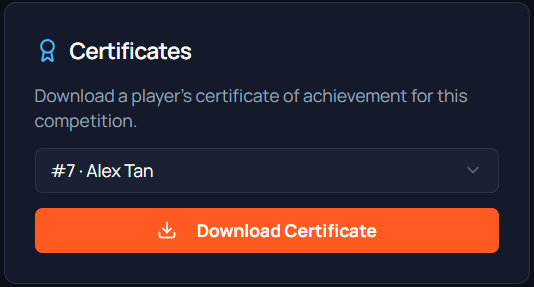 Screenshot: A player chosen
images/ce-02-player-picked.pngA player picked, and Download Certificate ready.A player chosen. The certificate is made at the moment you press the button, from the roster as it is now. -
Repeat for the next player, or take the whole squad
Pick the next name in the same box and press the button again. Each certificate is its own PDF, which makes it easy to send to one family. If you click through many players very quickly you may be asked to wait a moment. For everyone in one file, use step 2 instead.
4. Name the players who need it
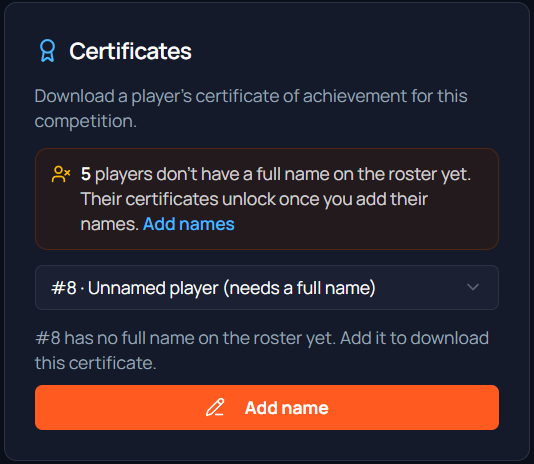
A certificate needs the player's full name. Players who were added at the scorer's table by jersey number, or with a first name only, cannot have one until you add the rest. The card tells you how many there are, and so does the Download all certificates dialog.
images/ce-03-needs-a-name.png
The count of unnamed players, and Add name in place of the download.
-
Open the player
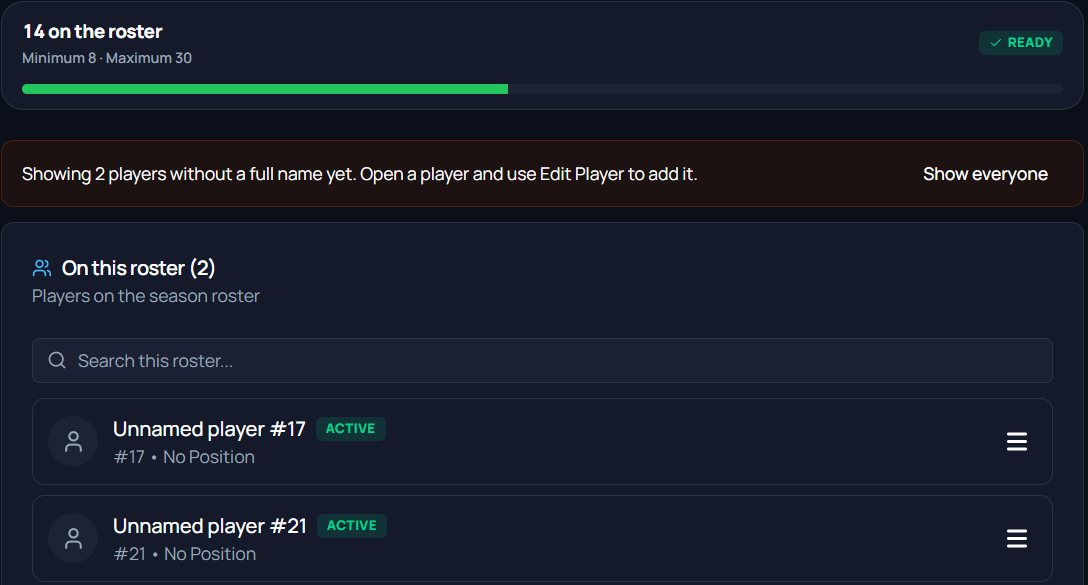
With one player chosen, press Add name. It opens that player's page. To work through all of them, press Add names in the notice, or in the Download all certificates dialog, instead: the squad's roster opens showing only the players without a full name. Open each one from the menu at the end of its row with View Player.
 Screenshot: The roster, filtered to players without a full name
images/ce-04-roster-without-names.pngOnly the players who still need a name, with Show everyone to go back.Where Add names lands. Show everyone brings back the whole roster. -
Press Edit Player and fill in the name
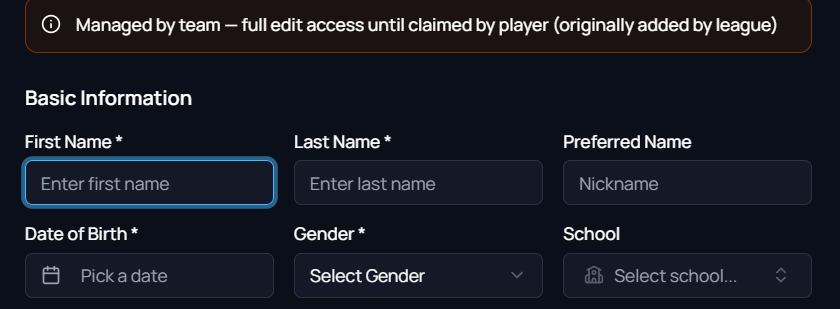
On the player's page press Edit Player (Edit on a phone). Type the first and last name.
 Screenshot: The Edit Player form
images/ce-05-edit-player-name.pngEmpty name boxes, plus Date of Birth and Gender.The name boxes start empty for a player added by jersey number. Date of birth and gender are required to save. Have the date of birth and gender readyThe form will not save without them, and a player added at the scorer's table usually has neither. Ask the family, or check your own records, before you start.
-
Save, then go back to the dashboard
Save the form. Back on the competition dashboard the player now appears with their name, Download Certificate works for them, and the next Download all certificates includes them. You can do this after the season has ended: the roster is closed for adding or removing players, but names can still be corrected.
When a parent has claimed the child's profile, the name belongs to them and your copy of the page is read-only. The card says so instead of offering Add name. Ask the parent to add the full name from their family portal; the certificate unlocks for both of you once they save it.
What the certificate says
Every certificate carries three things from HoopersHub: the player's name, the team and division, and the place the squad finished. The rest is the league's own design.

images/ce-08-certificate.jpg
Name, team and division, then the placing.
| Line | Where it comes from |
|---|---|
| The player's name | The roster, as it is when you download. Fix a spelling on the player's page and download again. |
| Team and division | Your club and the division, for example HEART OF BASKETBALL • U12 MIX. If your club has two squads in one division, the squad is added, for example (BLACK). |
| The placing | Your squad's finish in its playoff level, from the league's results: D1 CHAMPION, D1 RUNNER UP, D2 CHAMPION, D2 RUNNER UP, D3 CHAMPION and so on. Third and fourth in a level read 2ND RUNNER UP and 3RD RUNNER UP. A squad that did not finish in the top four of a level reads PARTICIPANT. |
Wording can differ by league. The World Youth Championship certificate, for example,
prints the placing on its own, such as CHAMPION or
1ST RUNNER UP.
When a download is refused
If a certificate cannot be made, a message appears at the bottom of the screen saying why; the Download all certificates dialog says it in the dialog instead. These are the ones you may see.
| What you see | What it means | What to do |
|---|---|---|
| This squad's playoff result has not been recorded yet | A game that decides your squad's placing has no result yet | Ask your league manager to record it. Certificates unlock as soon as they do |
| This player doesn't have a full name on the roster yet | The player was added by jersey number, or with a first name only | Add the full name, then download again |
| This player's name looks like a data-entry stub | The name is only initials, such as "A A" | Correct the name on the player's page |
| N players will be skipped | Not a refusal: the whole-squad PDF downloads without the players who have no full name yet | Download now and add their names later, or name them first so one PDF has everyone |
| No player on this roster has a full name yet | Download all found nobody it could print | Add the names, then try again |
| No Certificates card at all, or the dialog says certificates are not available | The season is still running, the league has no certificate for it, or the squad withdrew | Wait for the season to end, or ask your league manager |
Common questions
Can I download the whole squad in one go?
Yes. Download all certificates on the Certificates card makes one PDF with a certificate on each page for every player with a full name, A to Z. Players still without a full name are skipped, and the dialog lists them before you download. The steps are in step 2.
Who is in the whole-squad PDF?
Every player on the squad's final roster who has a full name, including anyone marked injured or suspended. Players you removed from the roster are not in it, and neither are players without a full name until you add it.
I added names after downloading the squad. Do I download everything again?
Either works. Download that player on their own from step 3, or press Download all certificates again: the PDF is made fresh each time, so the new one includes everyone named so far.
A name is spelled wrong on a certificate I already sent
Correct it on the player's page and download again. Certificates are made at the moment you download, so the new one carries the fix. If the family has claimed the profile, they correct it themselves.
The placing looks wrong
The placing comes from the playoff results the league recorded. If a result is wrong, ask your league manager to correct it, then download again.
Can I still add names after the season has finished?
Yes. A finished season stops players being added to or removed from the roster, but names, jersey numbers and positions can still be corrected.
Do parents need me to rename their child first?
Yes. A player without a full name has no certificate for anyone, so the parent's button does not appear either until the name is added. What the parent sees is in when the button is not there.