

Scorers and officials
Live stats: scoring a game
Everything the person at the scorer's table needs, in the order a game happens. Read the first half before your first game; the second half is what to reach for when something goes wrong mid-game.
Losing connection does not lose your game. Every tap is saved on the device first and sent up afterwards, so you can keep scoring straight through a dead wifi patch. Do not close the tab, do not refresh, and do not switch devices to "fix" it. If the connection drops explains what each banner means.
The scorer's table playbook covers the habits that keep a correctly-operated encoder from producing a wrong game: setting up and signing in, telling the two teams apart, checking the rosters, adding a player without duplicating one, and the ninety-second check before you leave the table.
Before tipoff
Three things, and all of them are easier to sort out ten minutes early than at the first whistle. The setup sequence in the playbook covers all of it in order, including the team identification that catches a swapped game.
The right account
Leagues usually issue one login per court, named for it. Sign in as that account, not your personal one, so the game is not locked to somebody who went home.
A landscape screen
A tablet or laptop. The encoder refuses to run in portrait and shows Rotate Your Device until you turn it.
Then open the game itself: Manage › Season › Games, find the fixture, and press Live Stats.
The offline safety net needs to store events on the device, and a private window will not let it. If you are in one, the encoder tells you so: Offline protection unavailable in this browser. Move to a normal window before the game starts.
The screen, explained
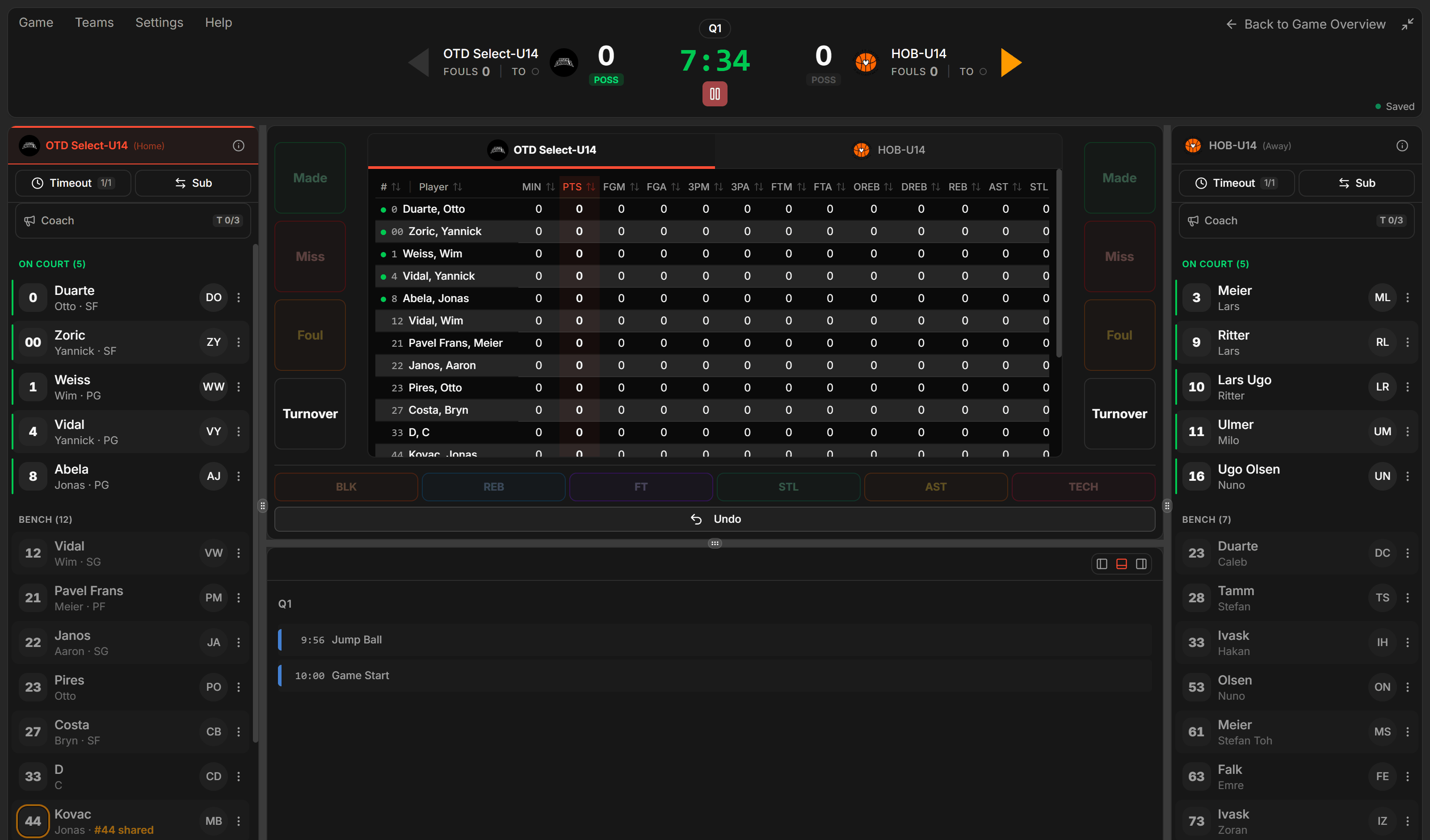
Three columns and a header. Once you can name the parts, everything else in this guide is an instruction about one of them.
| Part | What it is |
|---|---|
| The header | Score, clock, period, the possession arrow, and the buttons for Pre-Game, ending a period and ending the game. |
| Left and right panels | One team each: who is on court, who is on the bench, their fouls, and the team's TIMEOUT button. |
| The middle | The action buttons. This is where almost every tap happens. |
| The play-by-play | Everything recorded so far, newest first. It can sit below the actions or down either side. |
images/ls-01-encoder-layout.png
Header, both team panels, the middle and the feed.
Swap Sides in Encoding Settings puts the teams the way round you are actually looking at them, which prevents more mistakes than any other single thing. The same dialog sets Jersey Colors if both teams turned up in similar strips.
1. Check both rosters
The most common cause of a messy game is a player who is not on the list. Fix that before the first whistle, not during play.
-
Open Pre-Game
Pre-Game in the header opens both squads side by side, with jersey numbers.
-
Add anyone missing
Add Players searches the team's pool first, which is what you want: it attaches the real player rather than making a new one. If they genuinely are not there, you can enter a name and jersey number, and Add name and details takes the extras.
-
Or let the coach do it
Coach QR Code puts a code on your screen for the coach to scan on their own phone. They fill in their squad, and you watch it change from Waiting for coach to Coach connected and then Roster finalized. Up to three codes per team, and you can revoke one to issue another.
-
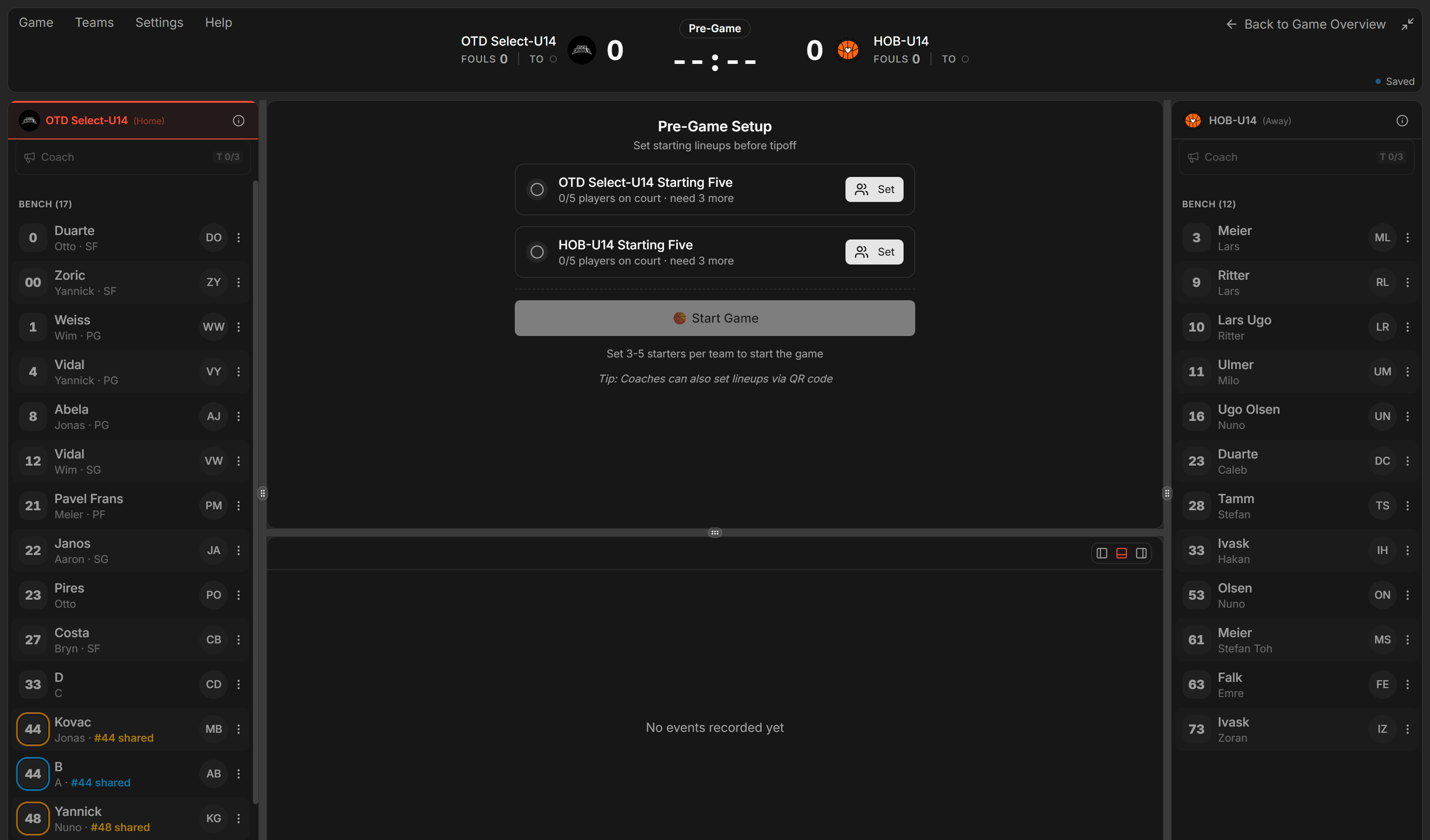
Set the starting lineup
Starting Five for a normal game, or Starting Three in 3x3. Everyone else drops to the bench, and Start Game stays unavailable until both teams have enough starters.
images/ls-02-pregame.png
Both benches, the two Starting Five cards, and Start Game.
The number is how you will find a player at speed during play. Two players wearing the same number is allowed, because it does happen, and the encoder marks the pair so you can tell them apart. What does not work is nobody having a number at all.
2. Start the game and the jump
Between the rosters being right and the first basket there is one short step, and it is the one new scorers are not expecting.
-
Press Start Game
It stays unavailable until both teams have enough starters, so if it looks dead the lineups are the reason. The clock appears and the game moves to the first period.
-
Say who won the jump
A strip appears across the middle asking who won the jump, with both teams as buttons. Tap the team that got the tip. Nothing else can be recorded until you do, which is deliberate: possession has to start somewhere.
 Screenshot: the jump ball
images/ls-03-tipoff.pngBoth teams as buttons. Tap whoever won the tip.Both teams, side by side. Tap the one that won the tip. -
Start the clock
Space, or the control in the header. From here the game is yours to record.
It does two jobs at once. The team you pick gets the ball now, and the other team gets the possession arrow. From then on every new period starts with the ball going to whichever team the arrow points at, and the arrow flips. So one tap at the jump quietly decides who starts the second period, and the third, without you touching it again.
Fix it now rather than later. Undo the jump ball in the play-by-play and record it again: it is one entry at the very top of the feed. Left alone, every period after this one starts with the wrong team in possession.
3. Score the game
The loop is always the same: pick the player, then say what they did. Everything else is the encoder asking follow-up questions.
-
Tap the player
In their team's panel. They stay selected until you pick somebody else or press Esc.
-
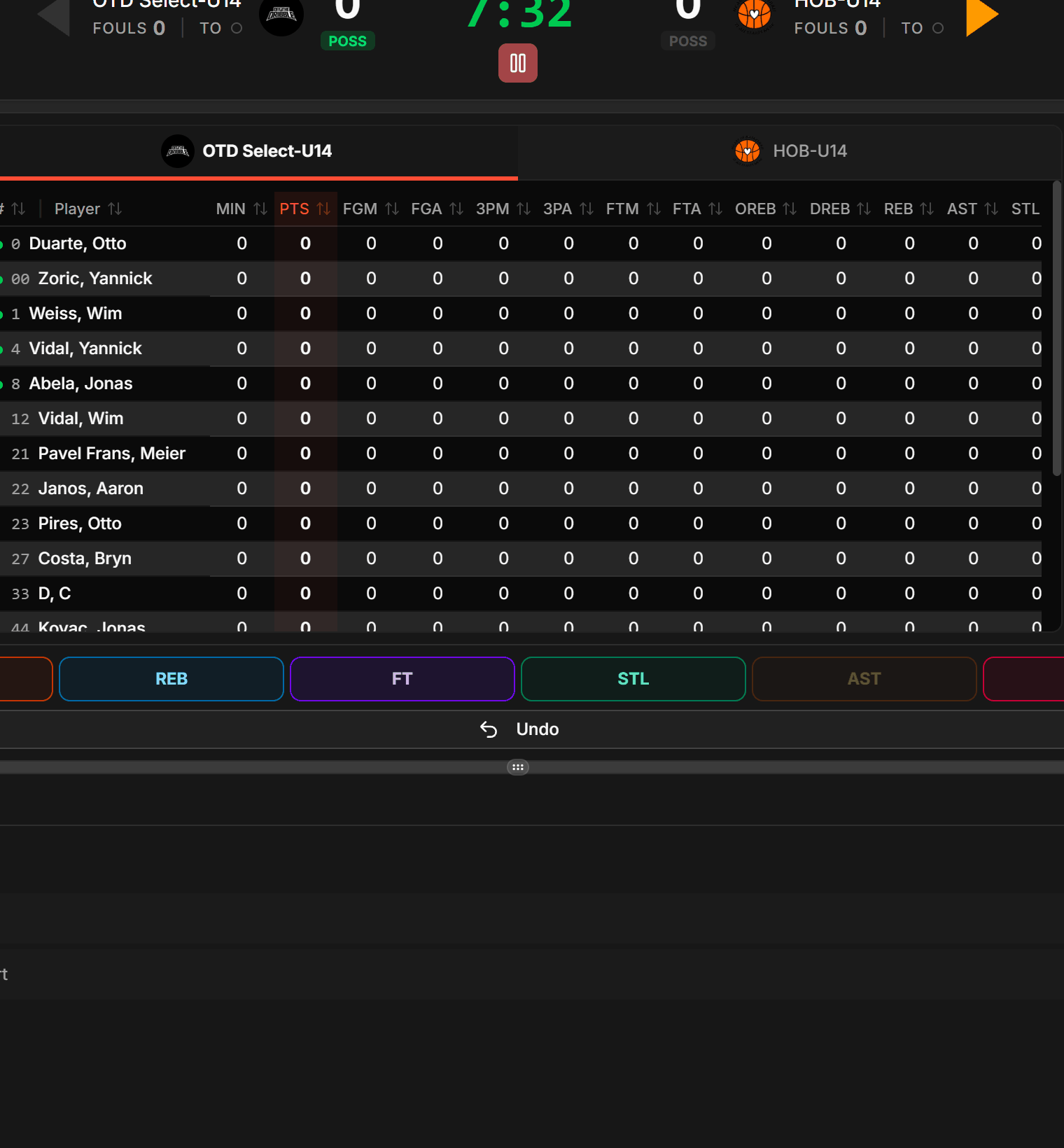
Tap Made or Miss
The two big columns in the middle. On a keyboard, 2 and 3 record a made shot from inside or outside the arc, and Shift with them records a miss.
-
Answer whatever it asks next
On the full setting the encoder then asks where the shot came from on the court, what kind of shot it was, and who assisted a made basket, or who got the rebound or block after a miss. Each is one tap, and Esc skips any question you do not know the answer to.
 Screenshot: the action buttons
images/ls-04-action-panel.pngMade, Miss, Foul and Turnover, with the rest of the stat sheet underneath.The buttons stay dim until a player is selected. The row underneath is the rest of the stat sheet.
Watch the loop
The rhythm is easier to see than to read. This is two possessions at the speed you would actually work at, with no sound, repeating:

images/ls-05-scoring-loop.gif
Tap a player, then Made, then the assister. Then tap another player and record a rebound, then an assist.
Notice that nothing is typed and nothing is confirmed twice. If you find yourself hunting for a button, it is almost always because no player is selected: the actions stay dim until one is.
The rest of the stat sheet
Under the two columns sit BLK, STL, AST and TECH, plus buttons for a rebound (OREB or DREB), a Free Throw, a Turnover and a Foul. Turnovers and fouls open a short list so the type is recorded properly rather than as a generic one.
There are two settings, chosen by the league, not by you. On the full one you get the court tap, shot types and the chained questions above. On the simplified one you get points only: no court tap, no shot type, no automatic assist, and assists are added with the AST button when you need them. If your screen has fewer steps than this guide describes, that is why, and it is not broken.
Undo Event removes the last thing recorded, and Ctrl + Z does the same. For something further back, find it in the play-by-play and correct it there. Do not try to cancel it out by recording the opposite.
4. Clock, periods and fouls
| Thing | How it works |
|---|---|
| The clock | Start and stop it in the header, or with the Space bar, which is what you will actually use. |
| Ending a period | It ends on its own at 0:00. To close one early, use End Q in the header menu. |
| Overtime | If the score is level after the final period you are offered Go to Overtime. |
| Team fouls | Counted per period and shown in each team panel, so you can see the bonus coming. |
| Possession arrow | In the middle of the header. Tap it to flip it. |
| Timeouts | TIMEOUT in that team's panel. |
Recording a foul
Foul, or P, asks for the type: personal, shooting, offensive, technical, unsportsmanlike or disqualifying. Pick it and the encoder works out the rest, including how many free throws follow and whether it was an And-1. If you do not know who was fouled, Skip — Unknown keeps the game moving.
5. Substitutions and foul-outs
A substitution is a pairing: somebody comes off, somebody goes on.
Open Substitutions, tap an on-court player to queue them, then tap the bench player replacing them. Repeat for as many as are changing, and confirm once.
When a player fouls out they are marked Disqualified and the encoder will not let you continue until they are substituted. It is not stuck: it is waiting for the substitution the officials are about to make. A disqualified player cannot come back on.
The encoder assumes you missed a substitution and offers to record it, rather than refusing. That is usually exactly what happened, so read the prompt rather than dismissing it.
6. End the game
The encoder offers to finish when the game looks over: the clock has expired in the final period, or a target score has been reached in formats that use one. You can also end it yourself from the header.
-
Confirm the ending
The dialog says why it thinks the game is over. Keep Encoding if it is wrong, for example because there is a correction still to make.
-
Check the score before you confirm
This is the last easy moment to fix a mistake. Compare against the official scoresheet on the table.
-
Pick Player of the Game
The dialog opens straight after the game ends. If you would rather not decide, it can be left and set later from the game.
-
Wait for the confirmation
Game completed! Stats synced. means the result is up. If you are still seeing a syncing banner, stay on the page until it clears.
If the connection drops
This is the section to read now, so you recognise it later. Every tap is written to the device before it is sent anywhere, so a drop costs you nothing as long as you stay put.
Do not refresh, do not close the tab, and do not move to another device. Those are the only ways to actually lose anything. The events are on this device until the encoder says otherwise.
| What you see | What it means | What to do |
|---|---|---|
| Nothing at all | Everything is saved and confirmed. | Carry on. |
| Syncing, N remaining | A backlog is being sent up. Normal after a drop. | Keep scoring. It clears itself. |
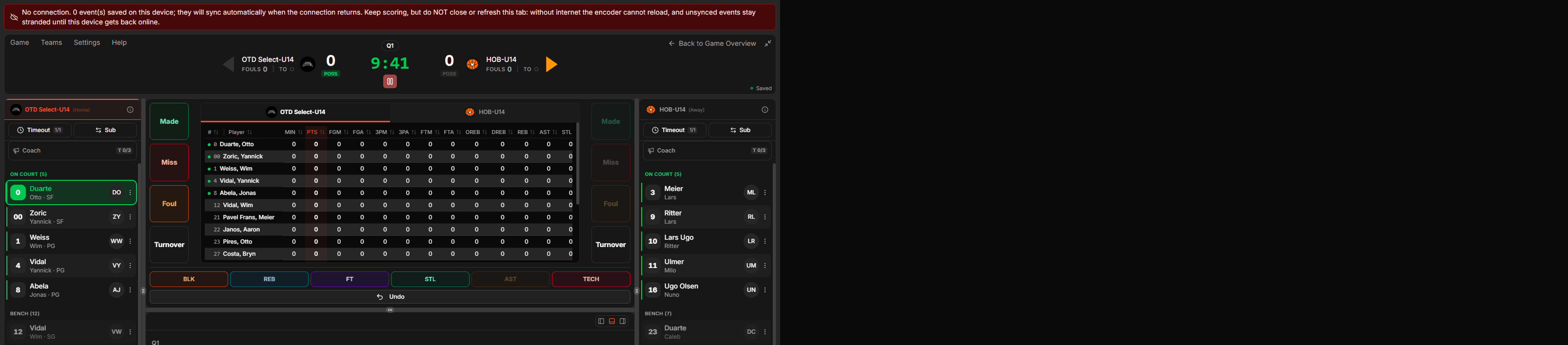
| No connection. N events saved on this device | The wifi is gone. Nothing is lost. | Keep scoring. |
| Reconnecting your session | Your login is being refreshed. | Keep scoring. |
| Session expired. Log in again | You have been signed out and events are waiting. | Log in with the link it gives you, in a new tab, then press I logged in, resume. |
| Sync stopped on … | One event was rejected and the rest are queued behind it. | Retry first. Only Discard that one event if it will not go, and tell your league what it was. |
| Another encoder took over | Somebody else opened the game on another account. | Stop. See If someone else has the game. |
images/ls-06-offline-banner.png
The strip above the scoreboard when the connection is gone.
If someone else has the game
Only one account can score a game at a time. This is deliberate: two people encoding the same game would produce two different results.
| What you see | What it means |
|---|---|
| A full screen saying the game is being encoded | Another account has it. You cannot score until they release it or hand it over. |
| A warning that another device is using this account | Same account, two devices. Not blocked, but only one of you should be tapping. |
| A warning about a second tab | You have the game open twice in this browser. Close one. |
If you genuinely need to take over, Request takeover asks the other device. They get a Handover request to accept. If nobody answers, the takeover goes through on the next check.
Anything still queued on the old device needs to reach the server. Wait until its banner is clear before closing it, or those events sync late and land behind the new encoder's.
Keyboard shortcuts
On a laptop these are far quicker than tapping, and they are worth learning in the order below. Select the player first; the key records against them.
| Key | Does |
|---|---|
| 2 / 3 | Made shot, inside or outside the arc |
| Shift + 2 / 3 | Missed shot |
| F / Shift + F | Free throw made / missed |
| R / Shift + R | Defensive / offensive rebound |
| S | Steal |
| B | Block |
| T | Turnover, then pick the type |
| P | Personal foul, then pick the type |
| Space | Start or stop the clock |
| Tab | Switch between home and away |
| Ctrl + Z | Undo the last event |
| Esc | Skip a prompt, or deselect the player |
2 and 3 always mean inside and outside the arc. What those are worth comes from the competition, so in 3x3 they score 1 and 2. The legend in the menu always shows the values for the game you are in.
Common questions
The screen says to rotate my device
The encoder needs landscape. If you are already sideways and still see it, your screen is too short: use a tablet or a laptop rather than a phone.
A player is on court but not in the list
Add them from Pre-Game, searching the team pool first so you attach the real player rather than creating a duplicate. You can do this mid-game; it does not disturb what is already recorded.
Two players have the same number
That is allowed, because it happens. The encoder marks the pair so they never look like the same row. Check the name before you tap.
I recorded something against the wrong player
Undo it if it was the last thing, with Undo Event or Ctrl + Z. Otherwise find it in the play-by-play and correct it there. Never record an opposite event to cancel one out: the totals come out right and everything else comes out wrong.
The encoder will not let me continue
Almost always a player who has fouled out and not been substituted. Look for Disqualified in the team panels and make the substitution.
My wifi died. Have I lost the game?
No. Everything is saved on the device as you go. Keep scoring and keep the tab open, and it uploads when the connection returns. If the connection drops covers each message.
The battery is about to go
Get it on power before you do anything else. If you cannot, and events are still waiting to sync, find a connection first so the queue empties, then move devices.
I ended the game too early
Tell your league manager. They can reopen it. Do not start a second game to hold the rest of the play.
My screen has fewer steps than this guide shows
Your league chose the simplified setting: points only, without the court tap, shot types or chained prompts. Nothing is wrong, and you cannot change it from the table.